
Adding items
An item should be on the list within three seconds — even one-handed, in front of an open fridge. That is what the tiles are for.
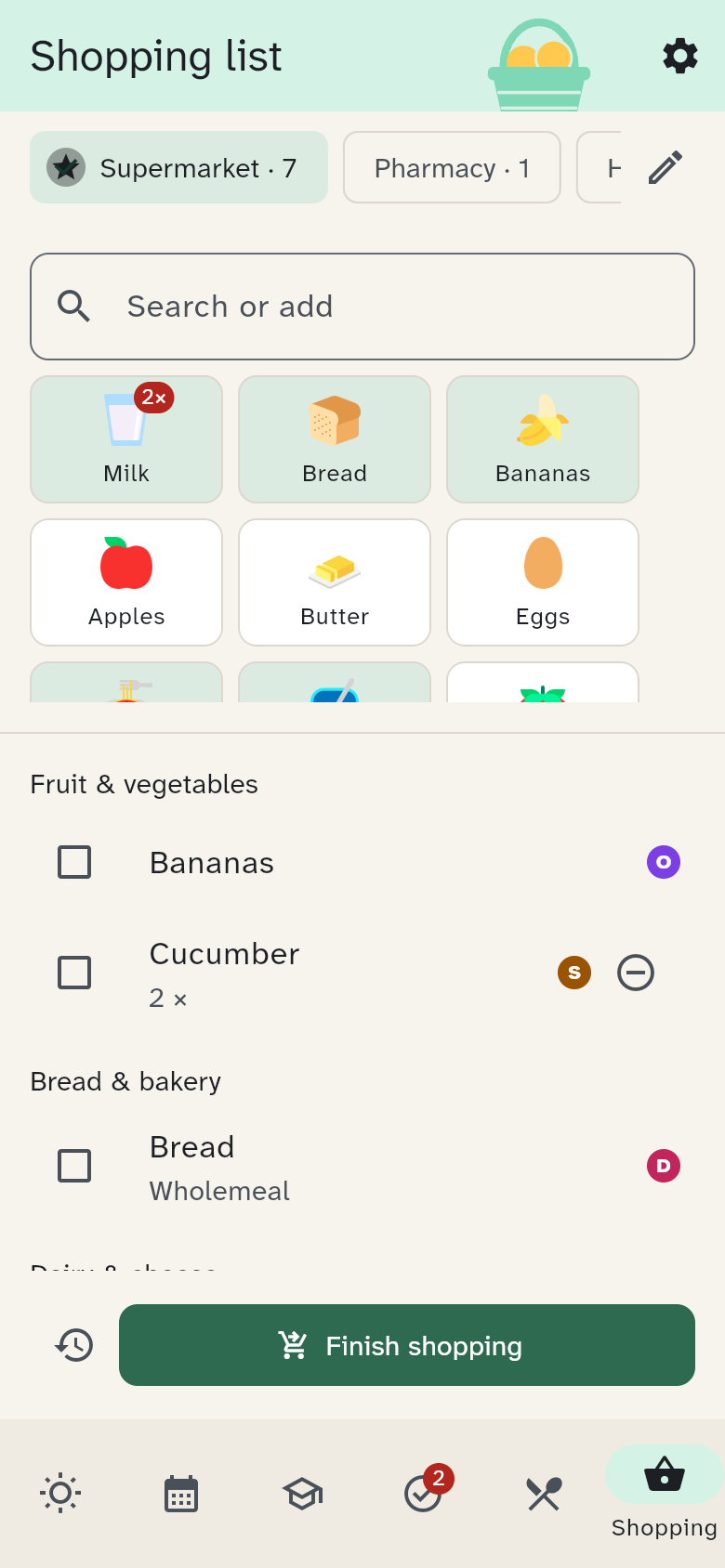
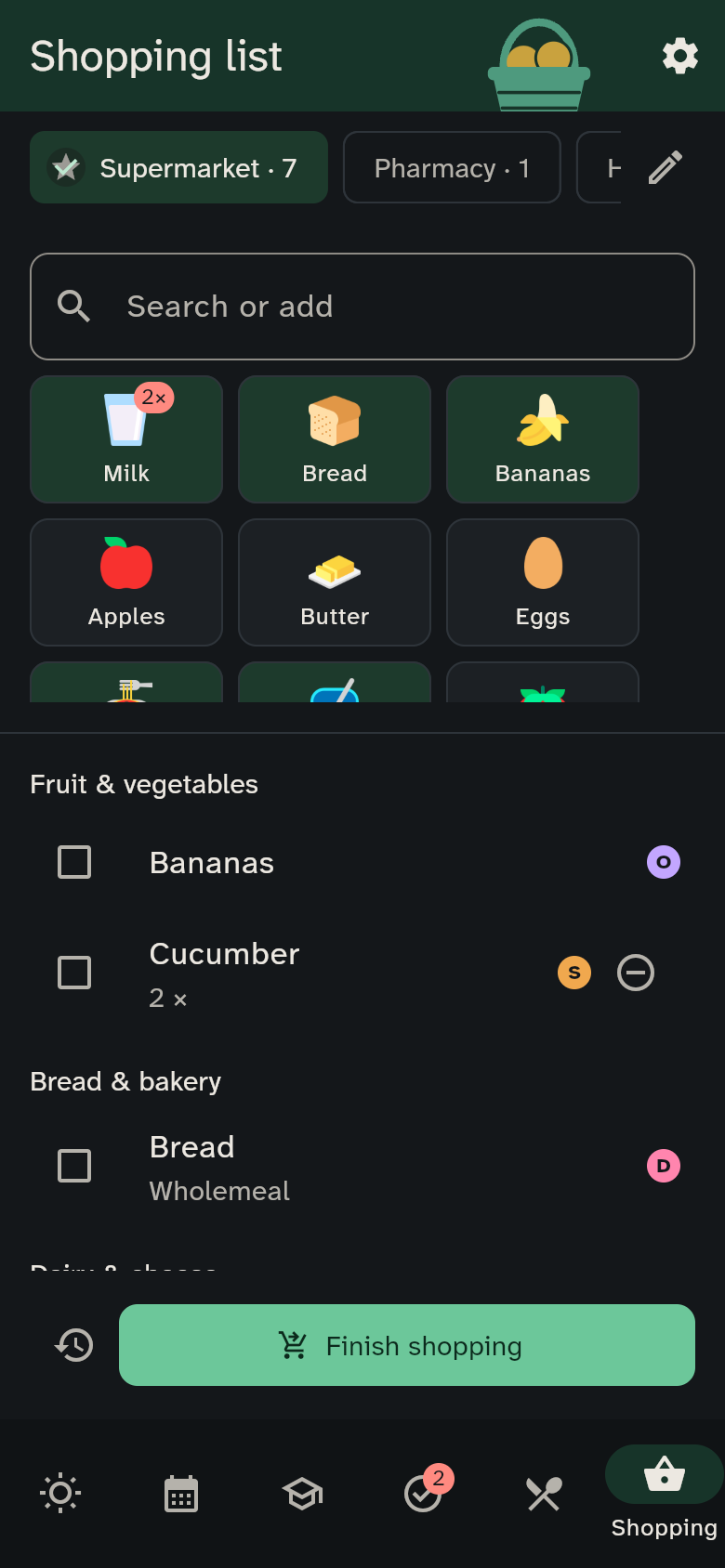
Tiles
At the top you see tiles for what you bought most recently and most often. Nobody maintains this list: it builds itself when you finish a trip.
Each tile shows a picture of the item: WuselWall recognises common items by their name, such as milk, bread or apples. An item it doesn't know shows its category's symbol.
- Tap once to put the item on the list. Its tile turns green.
- Tap again to count up: "2×", "3×" … The small − in the list takes one away.
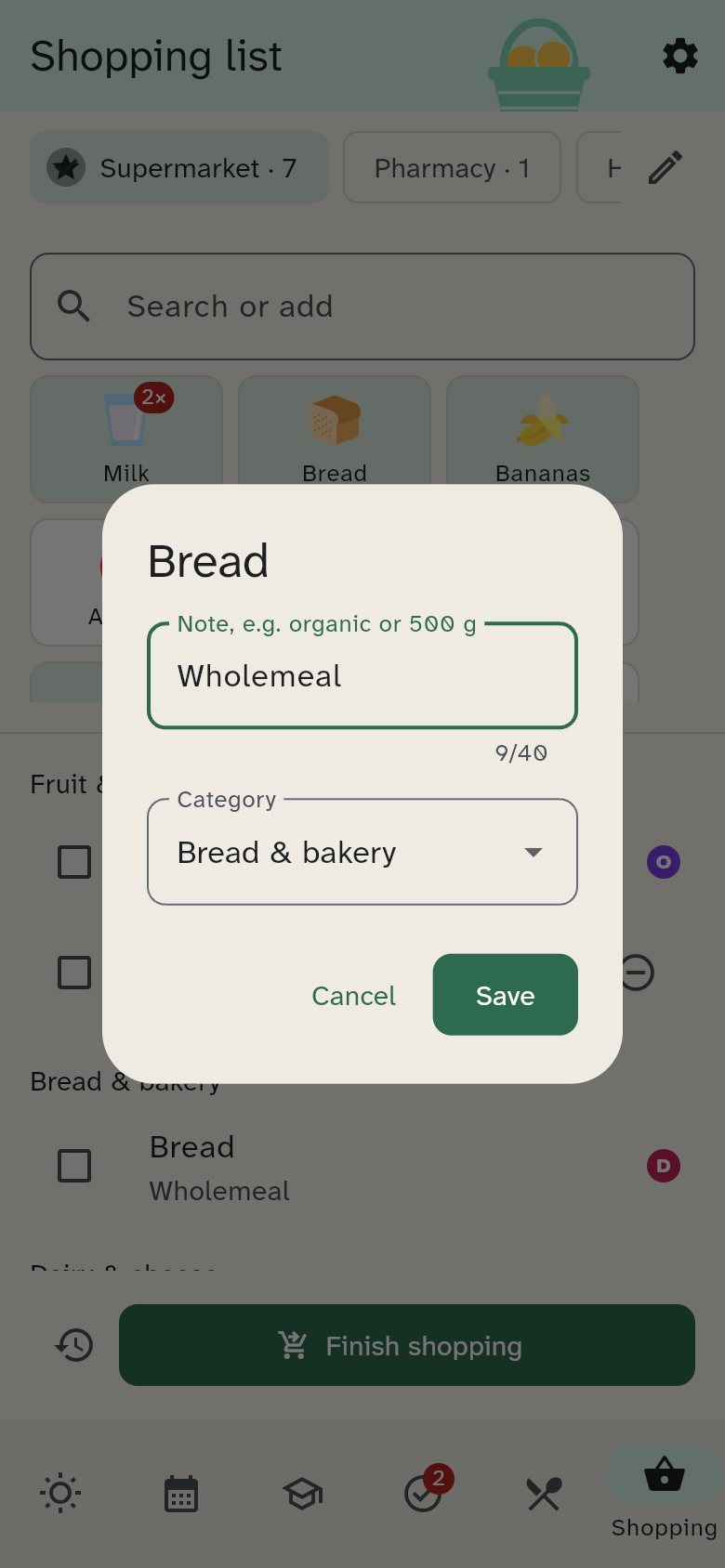
- Press and hold for a small menu: Add and edit puts the item on the list and opens its note (such as "organic", "500 g" or "tin"); Rename tile fixes a typo WuselWall remembered; Don't suggest any more removes the tile (guardians; the history keeps the item, and buying it again brings the tile back).
Search and create
Start typing and the tiles shrink to the matching ones. Case, umlauts and accents don't matter: "kaese" finds "Käse", "klopapier" finds "Toilettenpapier".
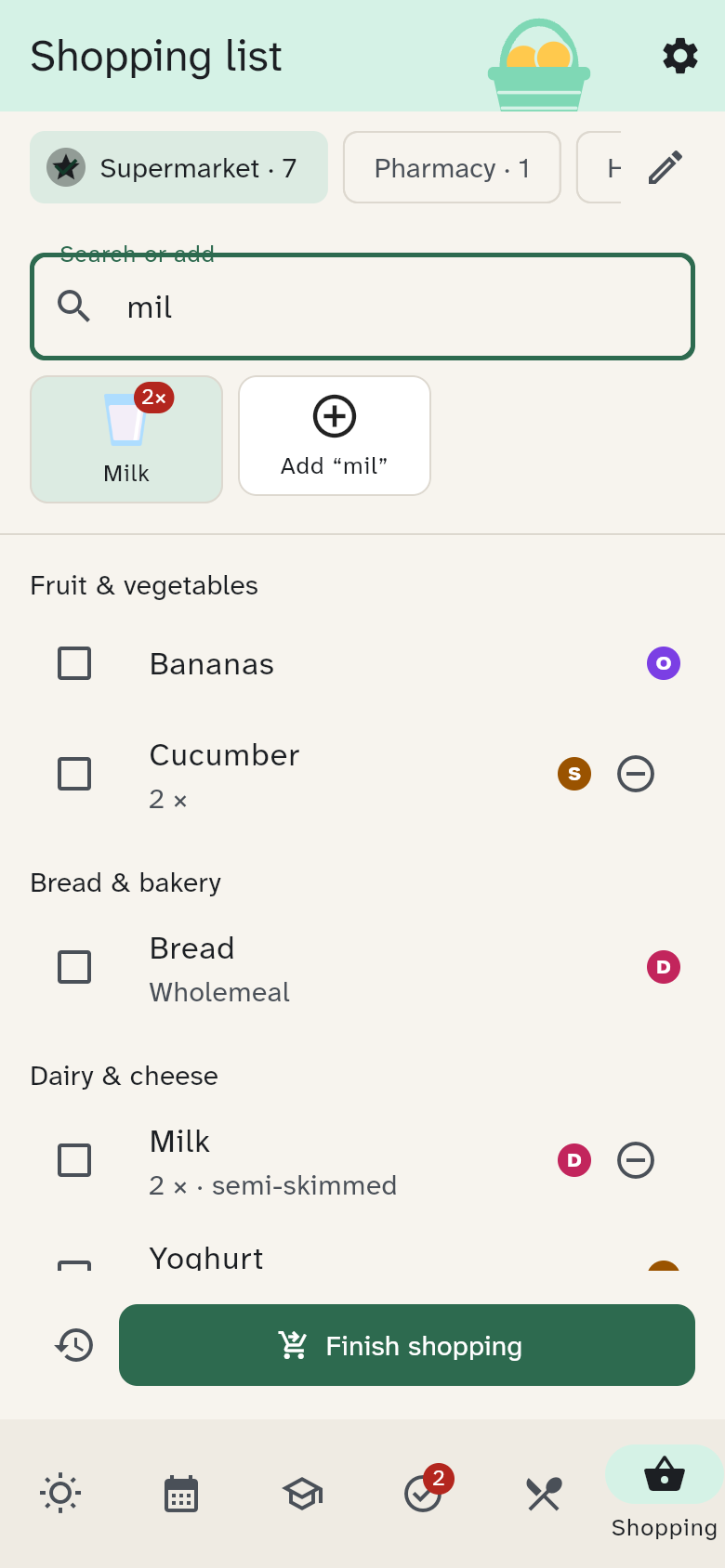
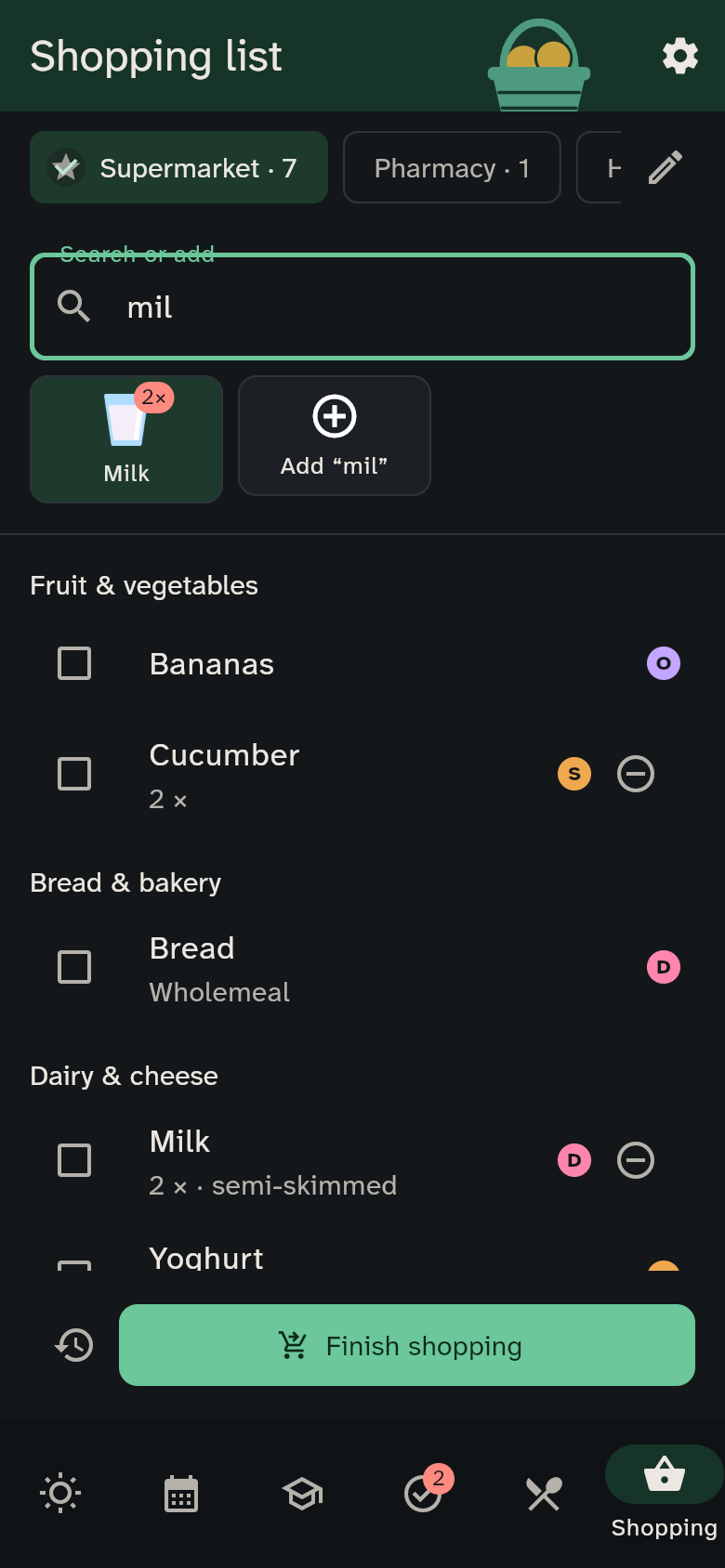
- Enter adds the first match.
- If WuselWall doesn't know the name yet, an "Add …" tile appears. The item goes on the list as free text and becomes a normal tile after your next trip.
Changing a note or category
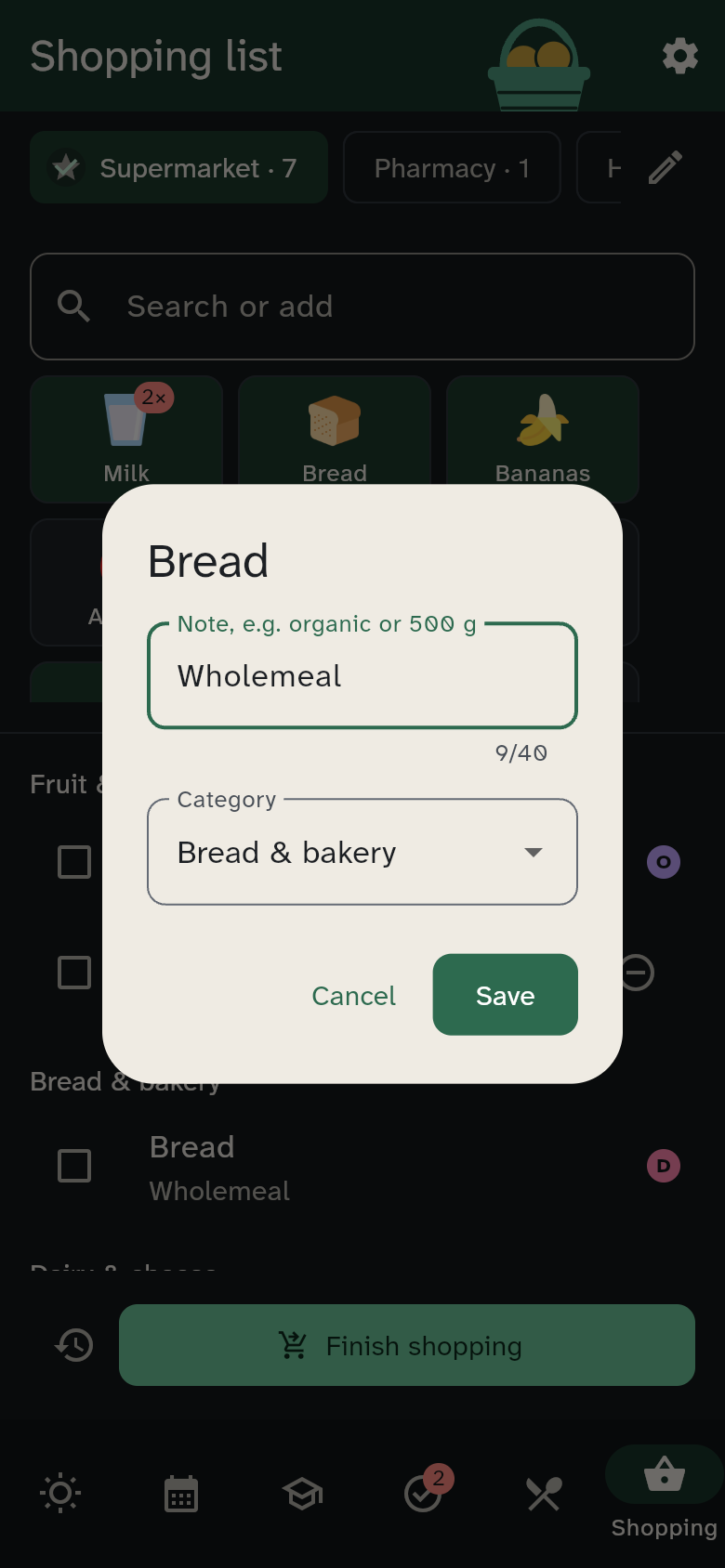
Press and hold an item in the list to add a note or change its category. WuselWall remembers the category for next time.
Who put it there?
Next to each item, a small dot in that person's colour shows who added it. "Who put the gummy bears on the list?" answers itself.