
Calendar
The calendar shows everyone's appointments and, at a glance, who is where. The adults' home screen is Today.
Views
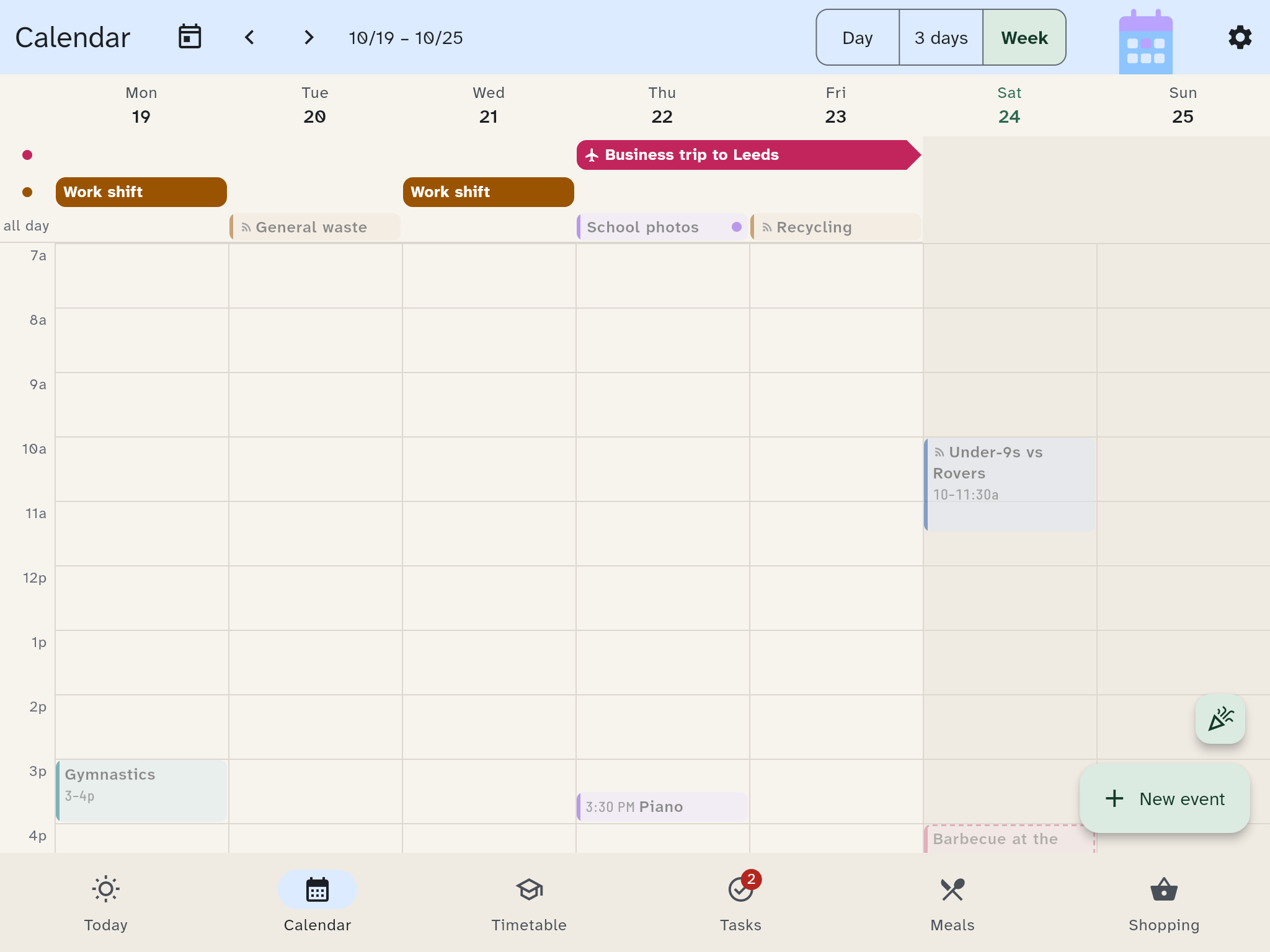
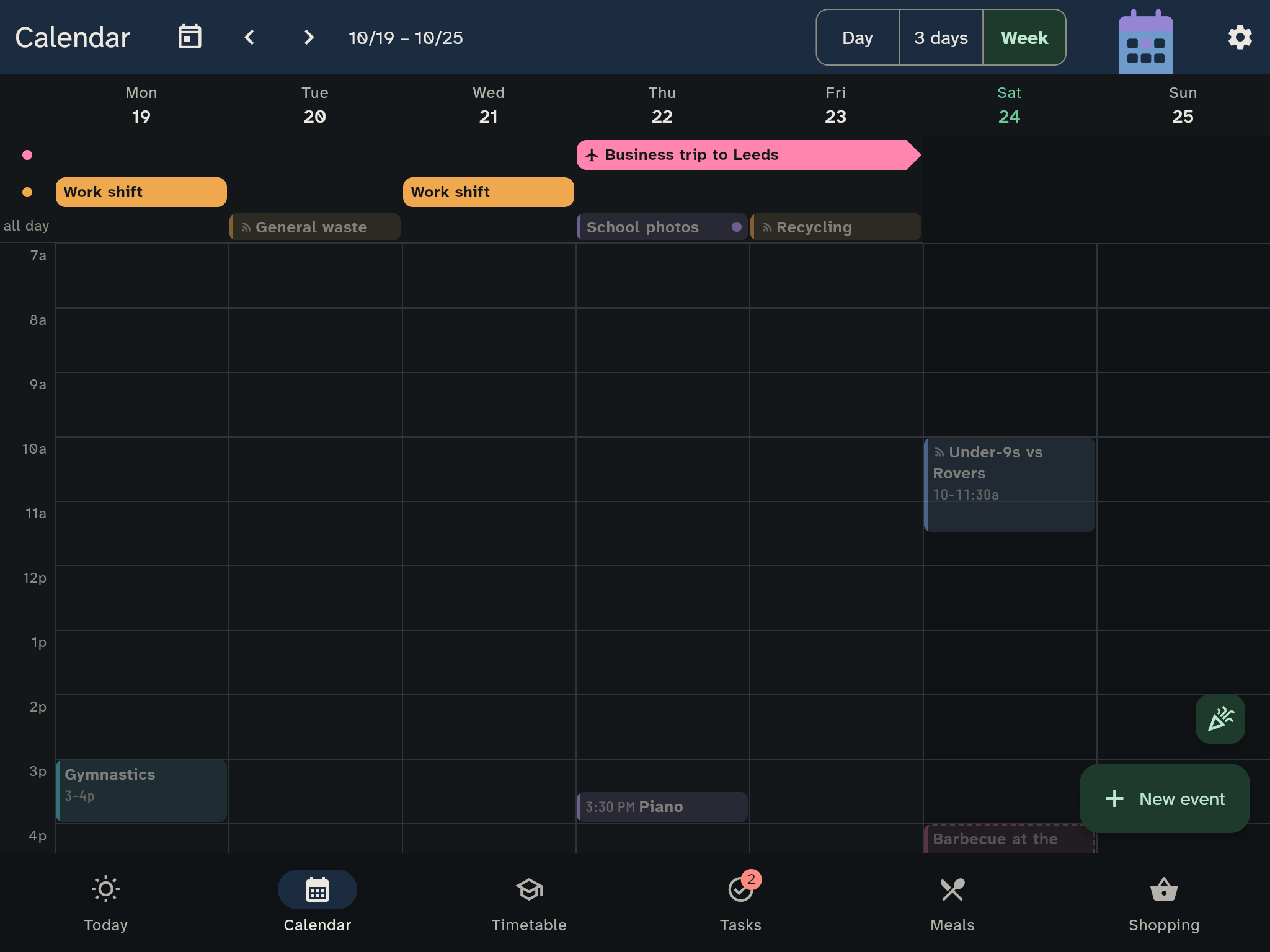
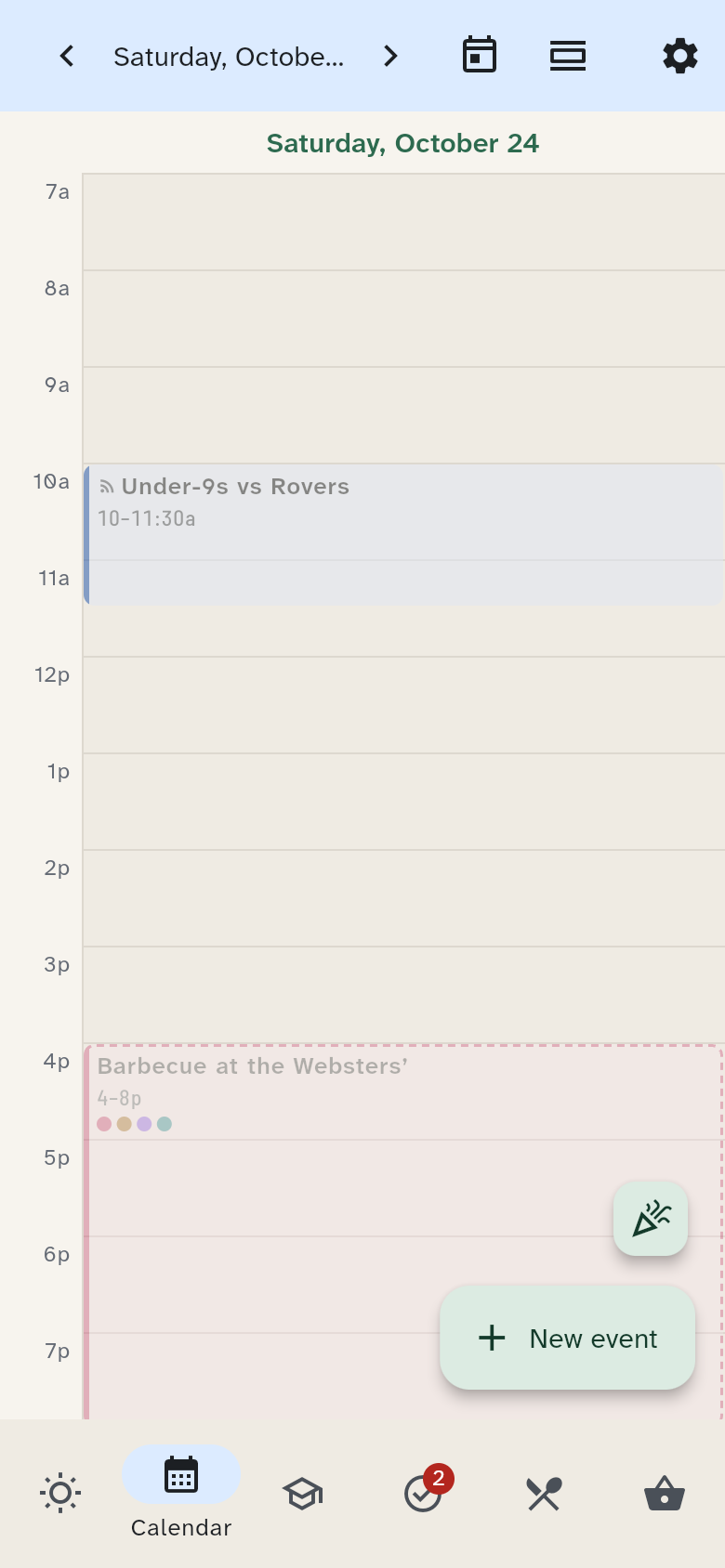
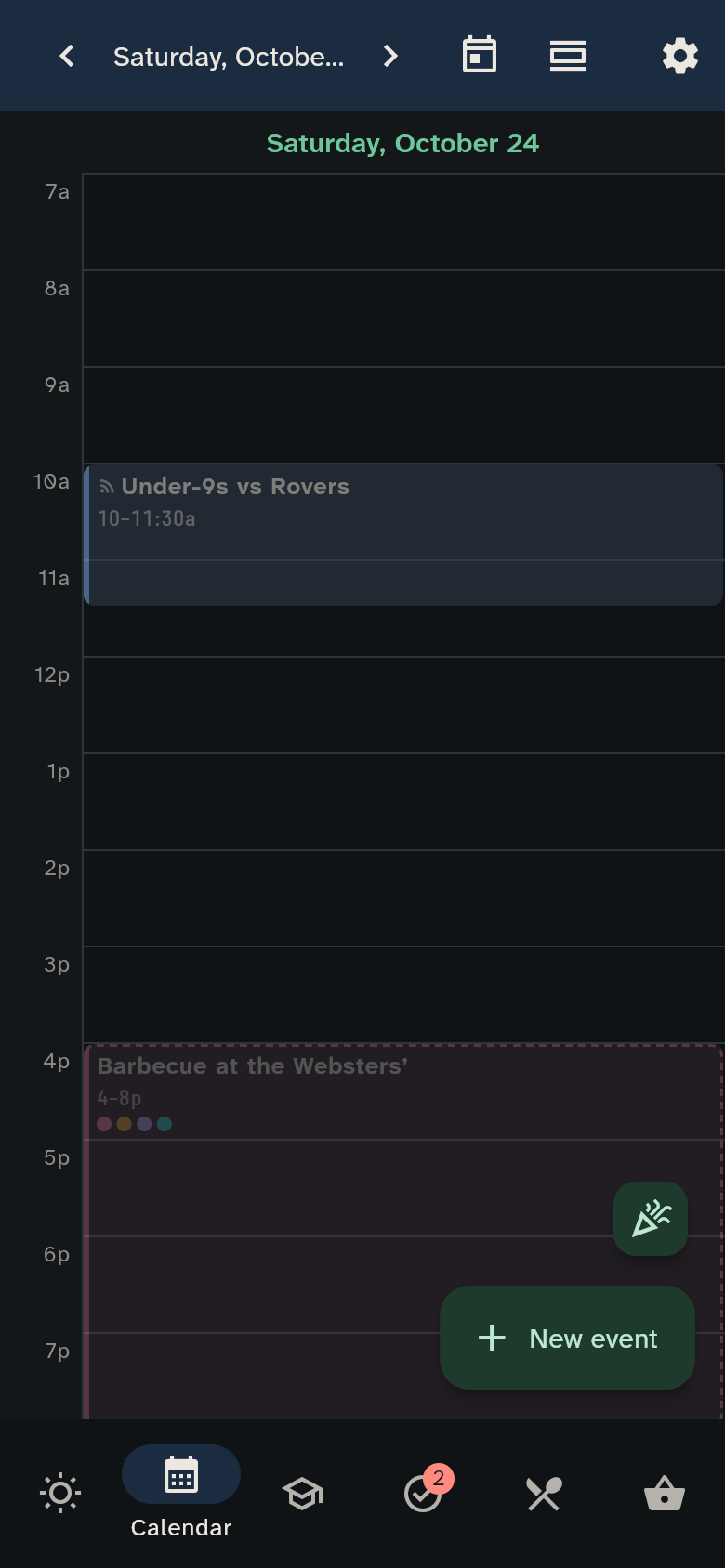
The title, date navigation, view selector and settings share one compact bar. On a phone, the calendar opens in Day so appointments are easy to read. Open Calendar view to choose Day, 3 days or Week at any time; on a wide screen it opens in Week. Your choice stays when you switch tabs or rotate the device. The calendar icon returns to Today.
At the top you choose Day, 3 days or Week. Move with Previous, Next and Today. Two rows stay visible at the top:
- Presence: one row per person. It shows who is at work, working from home, travelling, away, off or in childcare.
- All day: appointments that last the whole day.
Below them, the appointments follow by time.
Creating an appointment
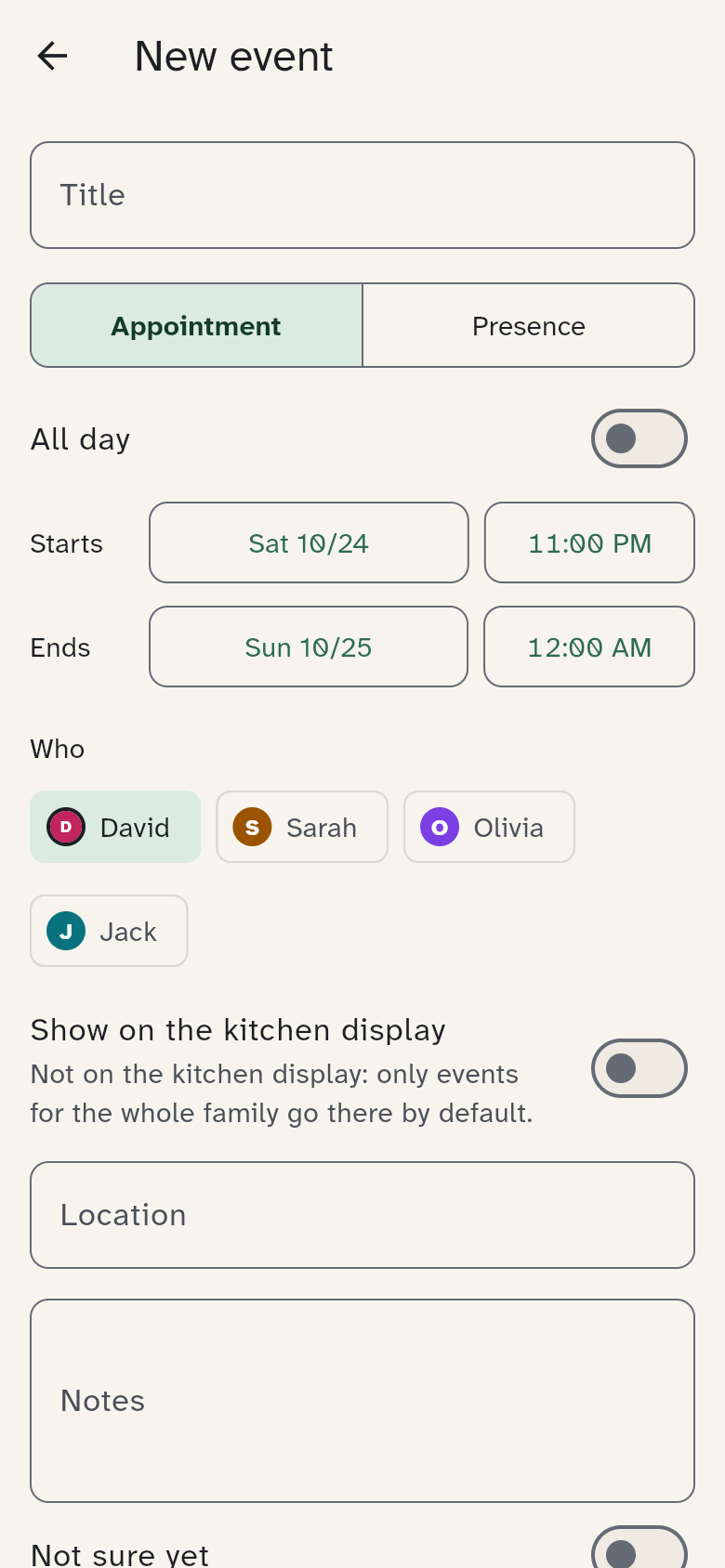
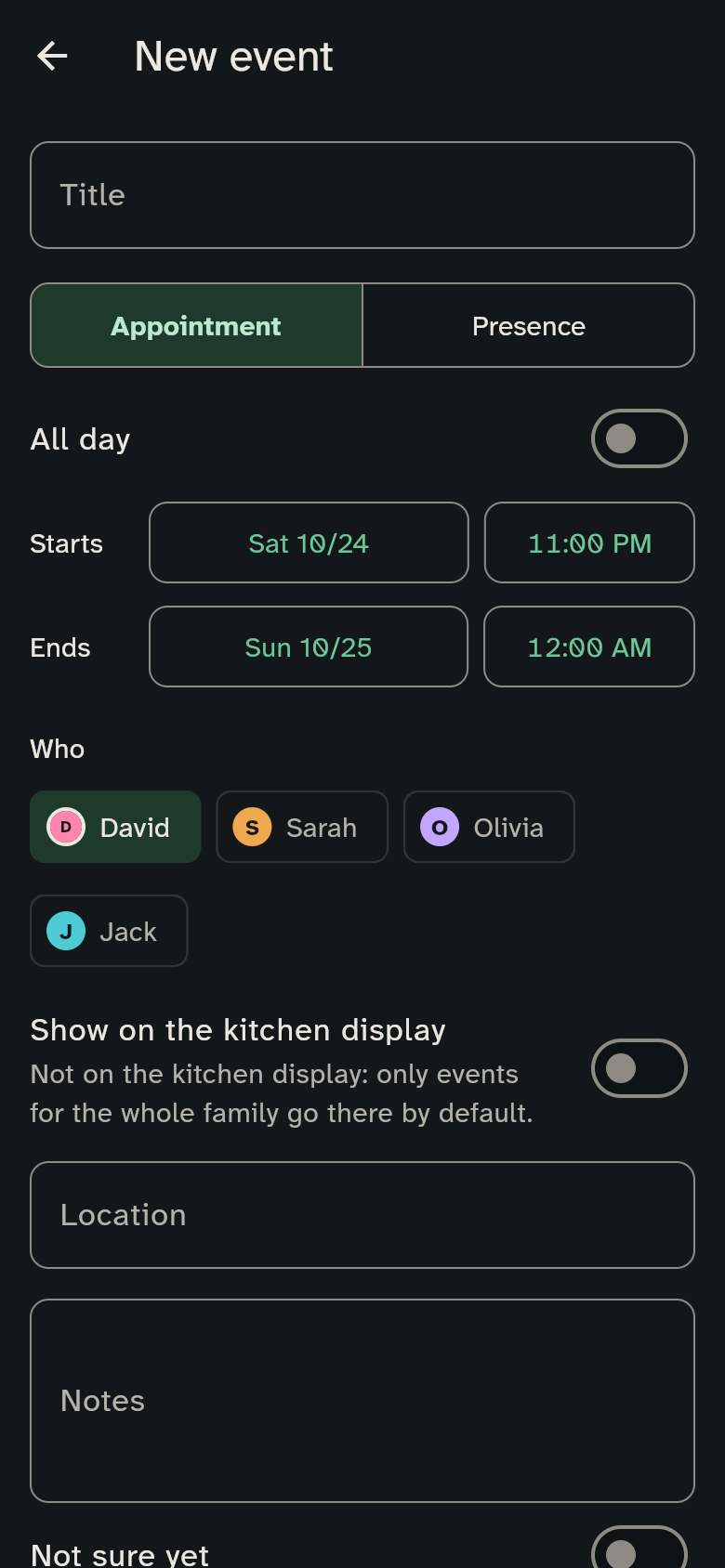
Tap New event. It starts on the day the calendar is showing (today, while today is in view), at the next full hour. You can:
- enter a Title, a Location and Notes
- choose between Appointment and Presence. Presence has six states: At work, Home office, Travelling, Away, Off and Childcare
- make it All day, or set Starts and Ends
- pick people under Who. If nobody is picked, the event is for the whole family
- switch Show on the kitchen display on or off right below. A line says whether the event will show on the kitchen display and changes as you pick people: on their own, only events for the whole family go there. What new events do by default is set under Settings → Calendar & school
- tick Not sure yet if it is still unclear whether it happens
- choose a Picture and mark the event as We are looking forward to it or Family tradition (see below)
Repeating
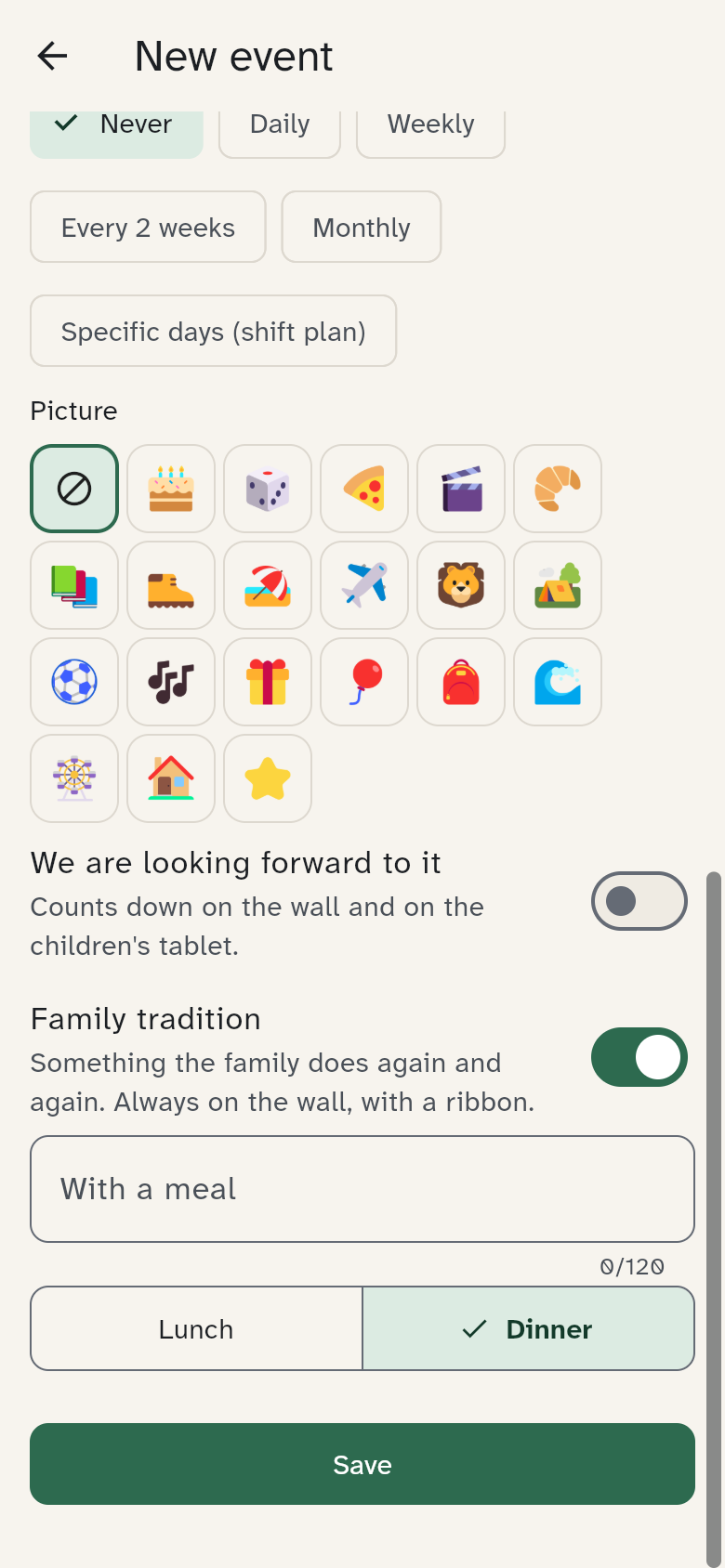
Under Repeat you choose Daily, Weekly, Every 2 weeks or Monthly. For shift plans there is Specific days (shift plan): you tap the days you work in a month grid. Repeat ends sets a date or a number of times.
When you change or delete an event that repeats, WuselWall asks: Only this event or All events in the series.
Picture, looking forward and tradition
At the bottom of the editor are three things that make the day lighter (see Rituals):
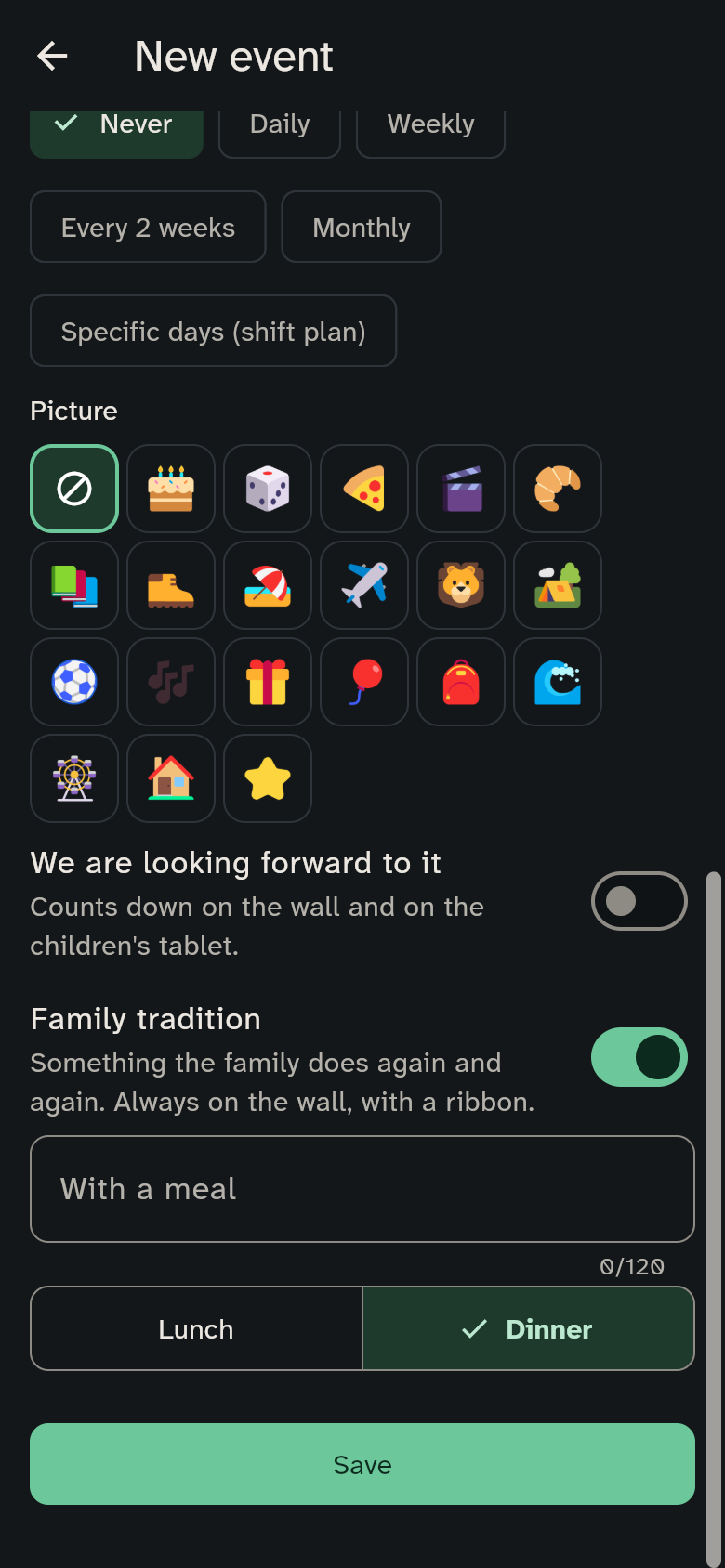
- Picture: one of 20 pictures, such as a cake, a pizza, the zoo or a tent. It is shown with the event on the wall and with its countdown. No picture is the default.
- We are looking forward to it: the event counts down on the wall and on the kids' tablet, for example "Trip to the zoo: 3 more sleeps".
- Family tradition: something the family does again and again, such as game night. A tradition is always on the wall, with a ribbon. Under With a meal you enter the meal that belongs to it and choose Lunch or Dinner.
New tradition
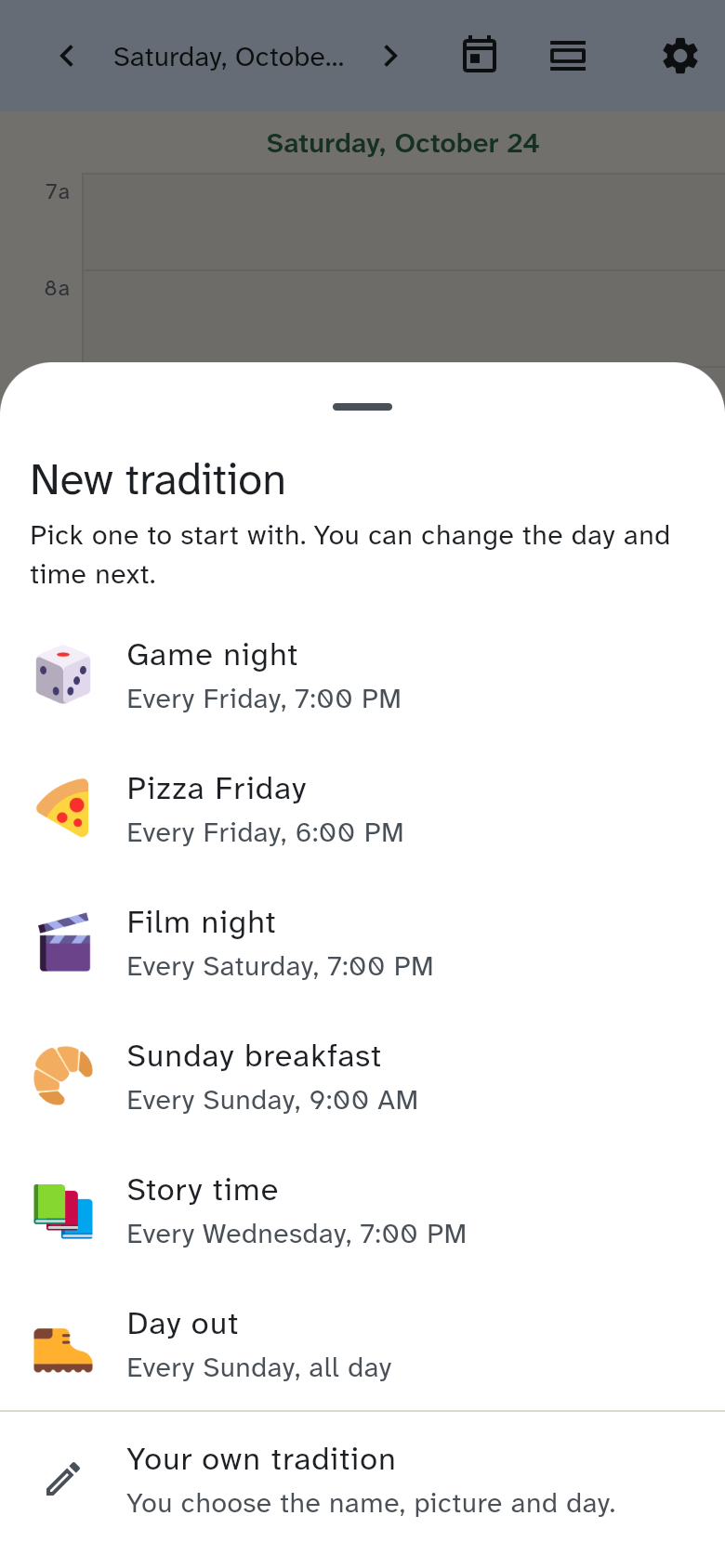
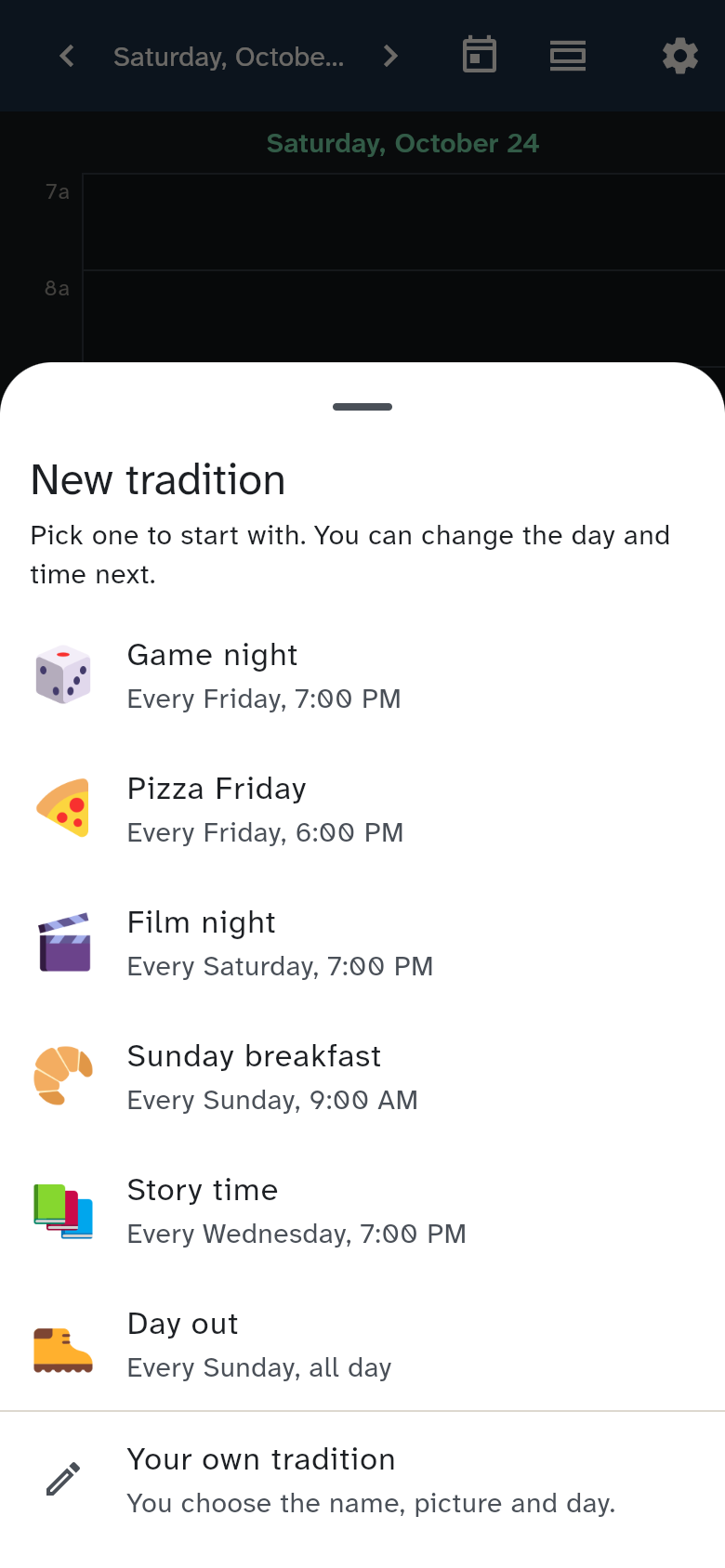
Above New event sits a small button with confetti: New tradition. It opens a choice of six starters, Game night, Pizza Friday, Film night, Sunday breakfast, Story time and Day out, and below them Your own tradition. Each starter says when it begins, such as "Every Friday, 6:00 PM".
Then the usual editor opens, already filled in: the name, the picture, Weekly on the right day, the whole family under Who and Family tradition switched on. Pizza Friday brings With a meal "Pizza" for dinner. Adjust the day, the time and the people, then tap Save. With Your own tradition you enter the name and picture yourself. More under Family traditions.
Meetings until …
Tap a day's heading to set Meetings until: from that time on you are not available. It shows on the kitchen wall, for example as "Meetings until 17". It shows only the time, no appointments and no details. With Apply to the whole week (Mon–Fri) it applies to every weekday of that week.
Usual week
Under Settings → Usual week you record for each day of the week where you normally are, for example in the office on Mondays and working from home on the other days. Tap a day, choose the place and tap Apply. Tuesday to Friday like Monday makes Monday count for the whole working week. A day with Nothing set stays empty on the kitchen wall, as the weekend usually does. Finally, tap Save.
If you are not in the same place all day, choose Time slots: up to three a day, for example the office from 8 to 12 and working from home from 13 to 17. Today the kitchen wall shows the slot that applies right now, on the other days the first one, with "+1" saying another follows.
If your plan repeats every two weeks, switch on Alternating weeks (A/B). WuselWall asks once whether this week is week A or week B. After that you enter a week of its own under Week A and Week B. If you switch it off, week B stays saved and is back when you switch it on again.
After that you only enter the exceptions. A normal week stays empty. On a public holiday the kitchen wall shows no usual place.
Children and appointments
You decide under Settings → Calendar & school whether children may create and change appointments. Deleting someone else's appointment stays with the guardians.
Appointments in Outlook or on an iPhone
The family calendar can be shown as a subscription in Outlook or on an iPhone, read-only. See Sharing the family calendar.
Outside calendars
Appointments from outside come into the family calendar through a subscription: a club's fixture list, the town's bin collection calendar, school events. You need only the calendar's address, usually a file ending in .ics. webcal:// addresses work too.
A guardian manages subscriptions under Settings → Advanced → Add outside calendars. Subscribe to a calendar opens the form with name, address, colour, Who? (without a choice the calendar is for the whole family) and Show on the kitchen display. The appointments appear in the calendar in the calendar's colour, with a subscription mark. They are read-only: changes come from the source.
Your server fetches each calendar about once an hour. Refresh now does it at once. If a fetch fails, the reason shows on the calendar, for example "The address cannot be reached right now."
Good to know:
- Only https:// addresses are accepted. Addresses that point to machines on your own network are refused.
- A calendar may be at most 2 MB. A fetch gives up after 15 seconds.
- Every device of your household sees only the host name of the address, for example "abfuhr.example.de". The full address is shown only to guardians, when they edit the calendar. If it contains a secret key, treat it like a password.
- In the subscription for Outlook and iPhone, outside appointments appear only when you tick Include outside calendars when creating it. See Sharing the family calendar.