
Timetable
The timetable shows each child their week: which lessons, which subjects and what is different. Adults maintain it. The kitchen wall displays it.
Setting up
The first time, tap Set up school. The first school needs only two things: the name of the school and the region. Then tap Add school.
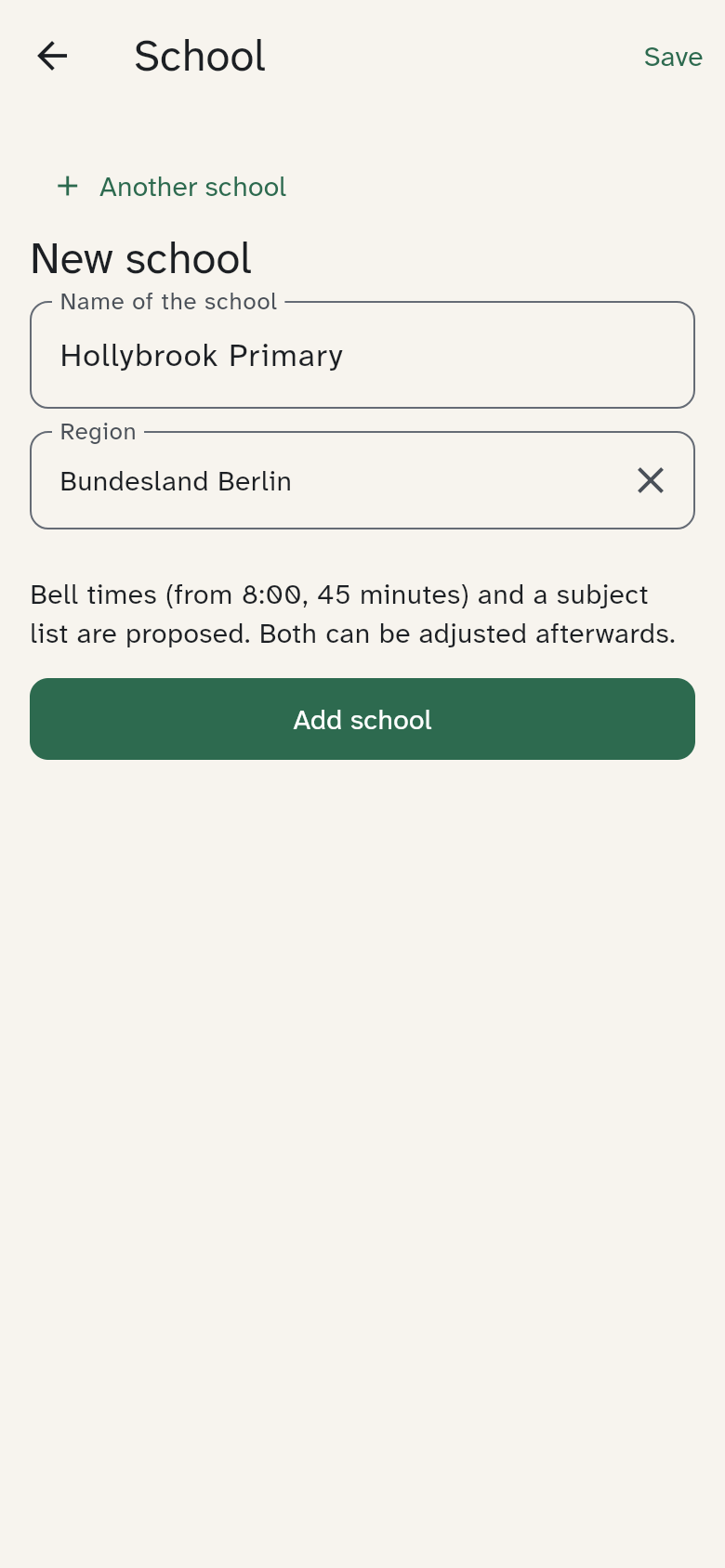
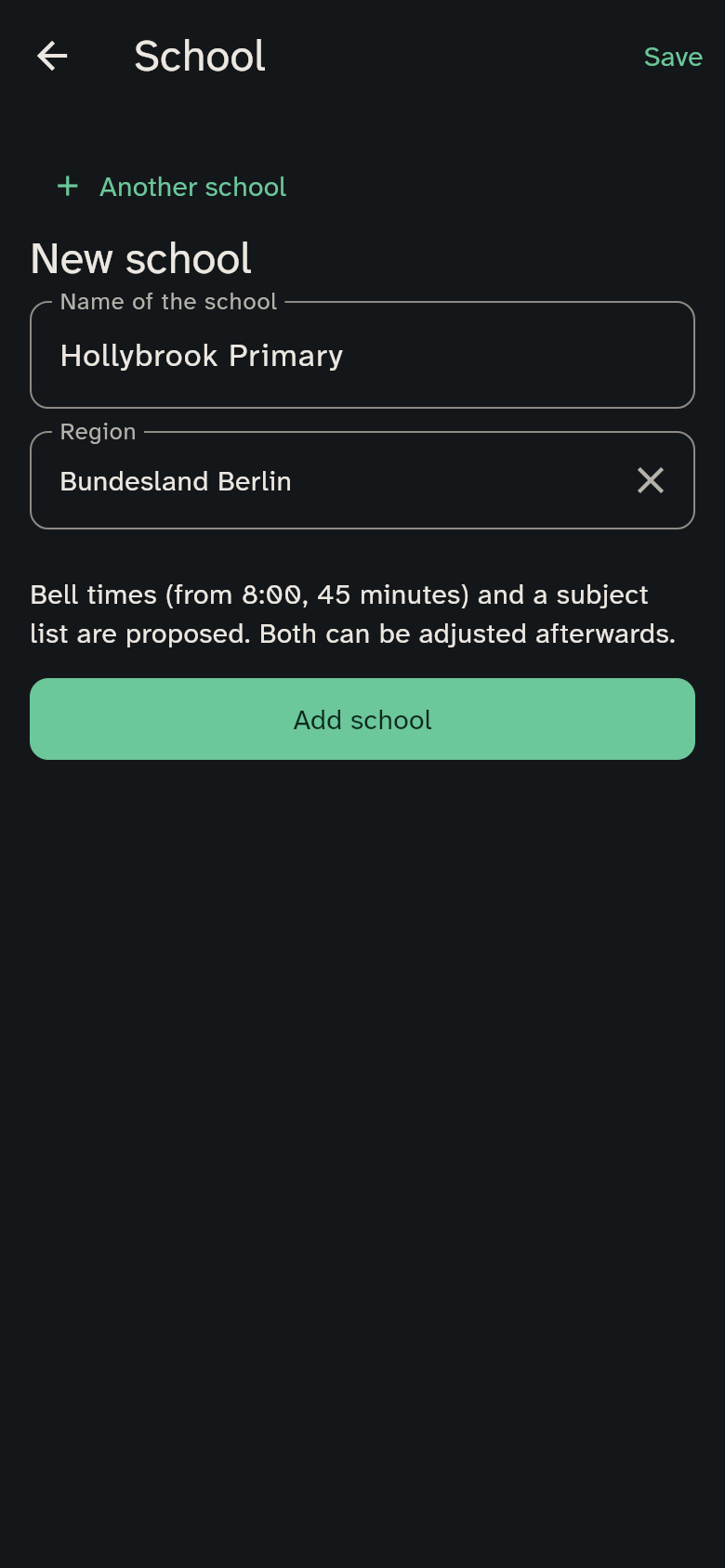
That is all it takes. Bell times and a subject list are proposed: 45-minute lessons from 8:00, a 20-minute break after the 2nd and the 4th lesson, 5 minutes otherwise. If your household has no region yet, it takes the region of the first school. Next steps then lists every child whose timetable is still missing. Tap the row to enter the timetable, or tap Read in… to take it from the sheet.
Afterwards the school page holds:
- the school with its name and region: country, then canton or state, and if you like district or municipality. The region decides the public and school holidays and the proposed subjects, see below
- the bell times: lessons and breaks with start and end (Add lesson, Add break)
- the terms, for example half-years, with From and To. If the timetable alternates between two weeks, switch on A and B weeks and enter the calendar week of an A week; every second week after it is a B week
- the subjects with a short name and a colour. For each subject you can list Things to bring, for example sports kit, and decide whether it shows on the wall
- the holidays and free days
The Save action appears at the top right only when you have unsaved changes to the school name, region or bell times. It saves all changed sections together.
Bell times run from earliest to latest, with the first lesson shown as Period 1 and breaks between lessons.
The proposed subjects
The subject list follows the school's region. It uses the names and short names that the timetables of that region print. That way, reading in a sheet recognises them.
- Germany: for example Deutsch (D), Mathematik (Ma), Sachunterricht (SU), Sport (Sp) and Schwimmen (Sw)
- Austria: the names of the 2023/24 curriculum, for example Kunst und Gestaltung (KuG) and Bewegung und Sport (BS)
- German-speaking Switzerland and Liechtenstein: the subject areas of Lehrplan 21, for example Natur, Mensch, Gesellschaft (NMG) and Textiles und Technisches Gestalten (TTG)
- Romandie (Geneva, Vaud, Neuchâtel, Jura): in French, for example Français (FRA) and Sciences de la nature (SCN)
- Ticino: in Italian, for example Italiano (ITA) and Studio d’ambiente (AMB)
In a bilingual canton, for example Fribourg or Valais, the app's language decides: in French you get the Romandie list, in Italian the Ticino list, otherwise the German-speaking Swiss list. If you choose Other country (no region), the app's language decides too: in French the list for France, in Spanish the list for Spain, otherwise the German one.
The list comes only while you have no subjects yet. After that it is yours: rename subjects, delete them or add new ones.
Public and school holidays
The region decides which public and school holidays apply to a school. You choose it in steps: first the country (Germany, Austria, Switzerland or Liechtenstein), then the canton or state, and if you like the district or municipality.
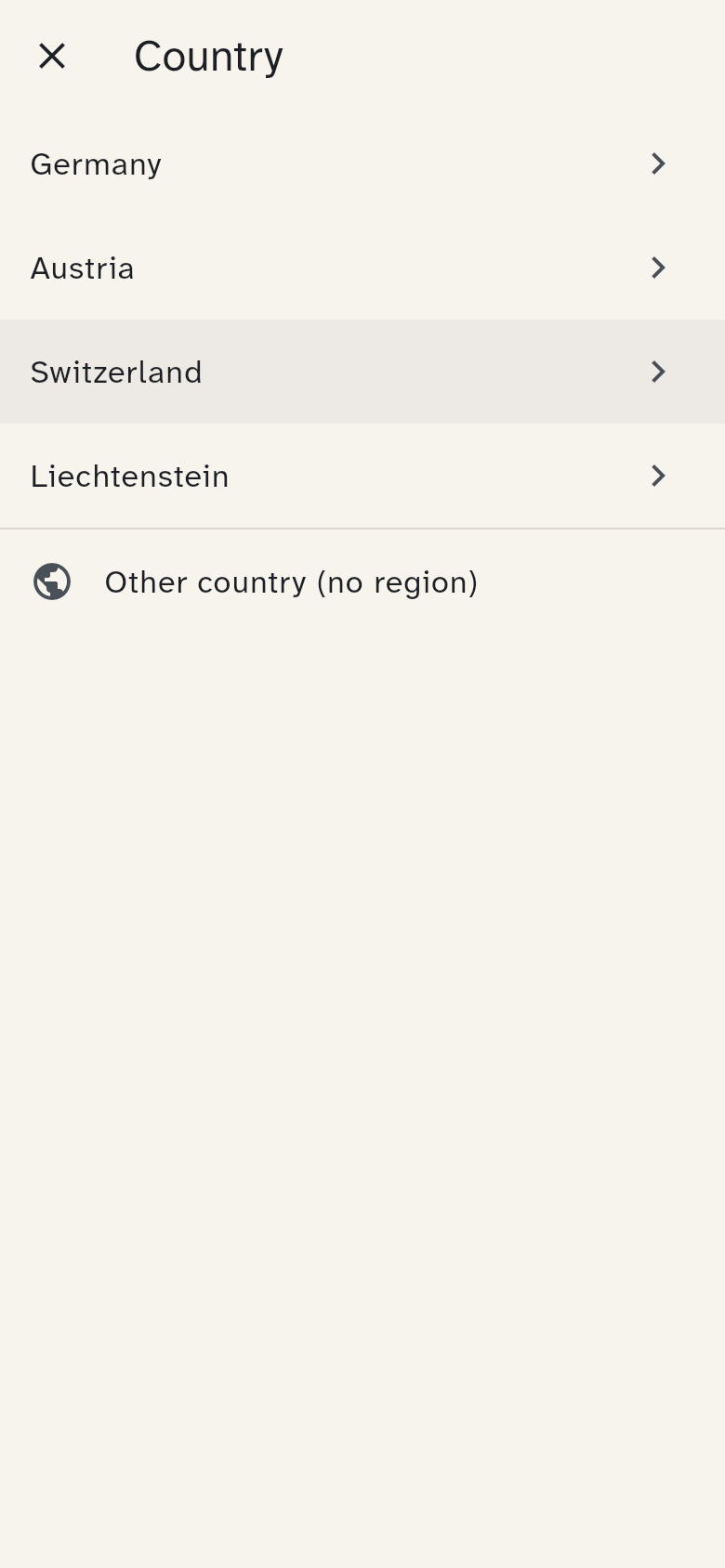
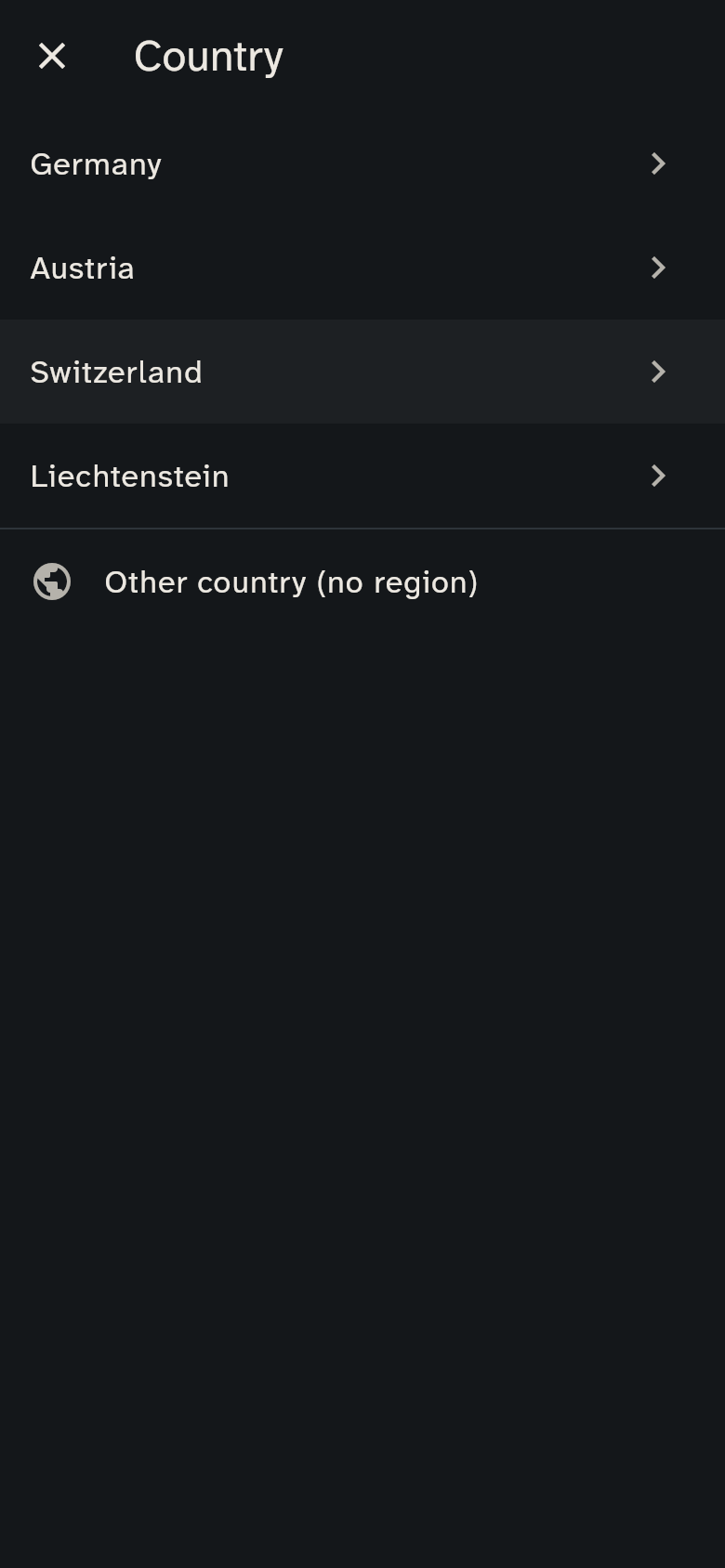
Cantons and states are listed alphabetically from Z to A in the app’s language. Swiss cantons show their abbreviation, for example Canton Aargau (AG). Search by name or abbreviation.
If you tap Continue without a region, the region stays empty. Then there are no automatic public holidays, and you enter school holidays by hand. The household's region is also set under Settings → Family.
Public holidays come automatically from the region. You do not have to import anything: on a public holiday the school day is free, the day's header in the week shows "Public holiday · …", and the warm meal counts a free day like a weekend.
School holidays you bring in with Import school holidays under Holidays and free days. The preview shows the school holidays of the next 18 months for the school's region.
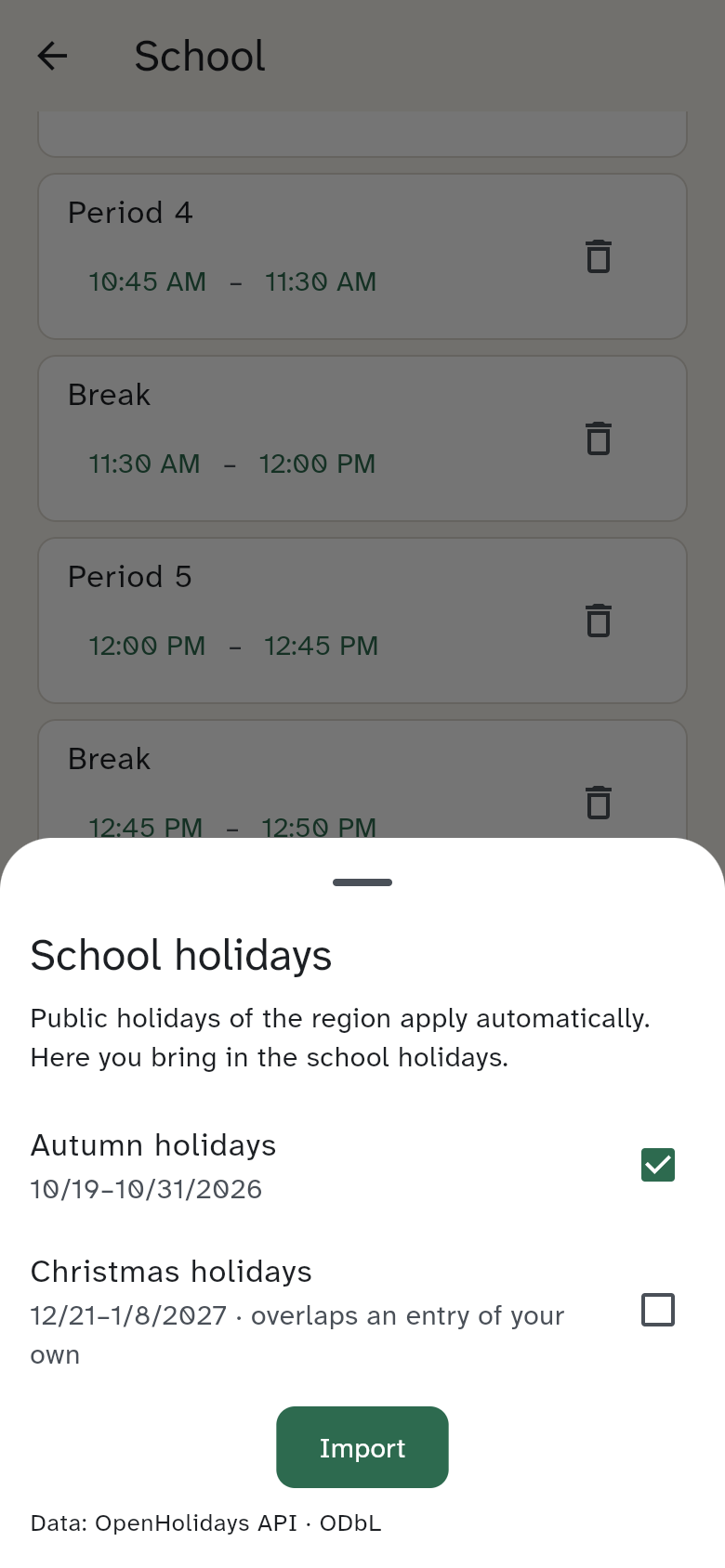
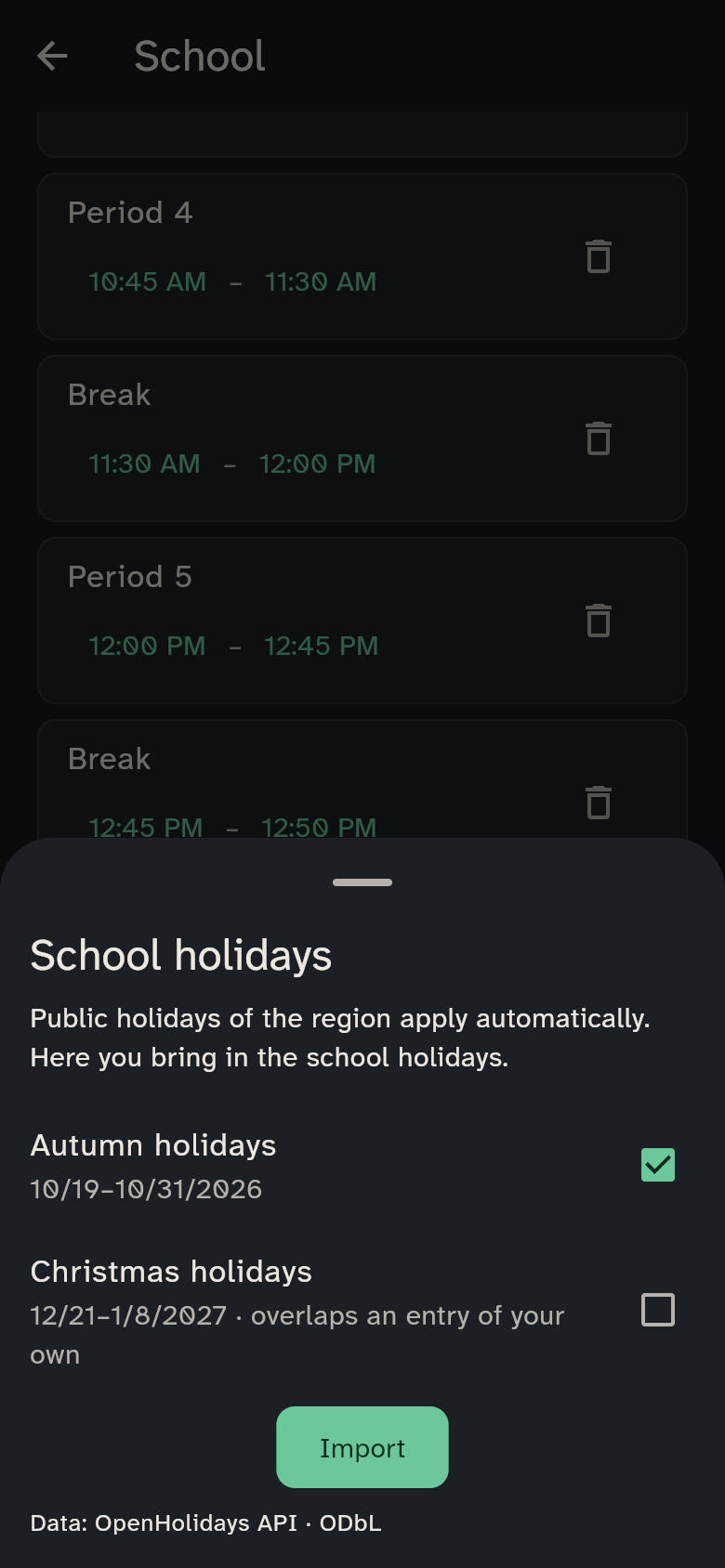
You choose what to bring in. Holidays already imported are marked, and an entry that overlaps one of your own is flagged. Afterwards the holidays are ordinary entries marked "imported": you can change, delete or add to them.
Switzerland
In Switzerland the municipality often sets the school holidays, not the canton. Check the imported dates against your municipality's school calendar and enter any differences by hand.
The data comes from OpenHolidays. Your server fetches it, not the app.
Several schools
If your children go to different schools, add each school: on the school page tap Another school. When there is more than one, choose the school you want to edit under Choose school at the top. The timetable asks which school it belongs to.
Entering a timetable
For each child, enter the timetable for a term. Tap Enter timetable. If no term covers the week shown, the app proposes the current school year, 1 August to 31 July, with its name and dates already filled in. If that fits, tap Save term and continue; if your school counts differently, change the name or the dates first. The dates must include the week shown; the dialog says so next to the date if they do not.
At the top you can see the child, school and term with its dates. Tap a cell in the grid and choose the subject. If a subject is missing, type its short code into the search and choose Add “…” as a subject: the subject exists at once and fills the cell; colour, icon and things to bring come later under Edit school. Save timetable stays visible at the bottom of the screen as you scroll through the timetable.
When no timetable exists yet, the view shows a message about the selected child and the Enter timetable button.
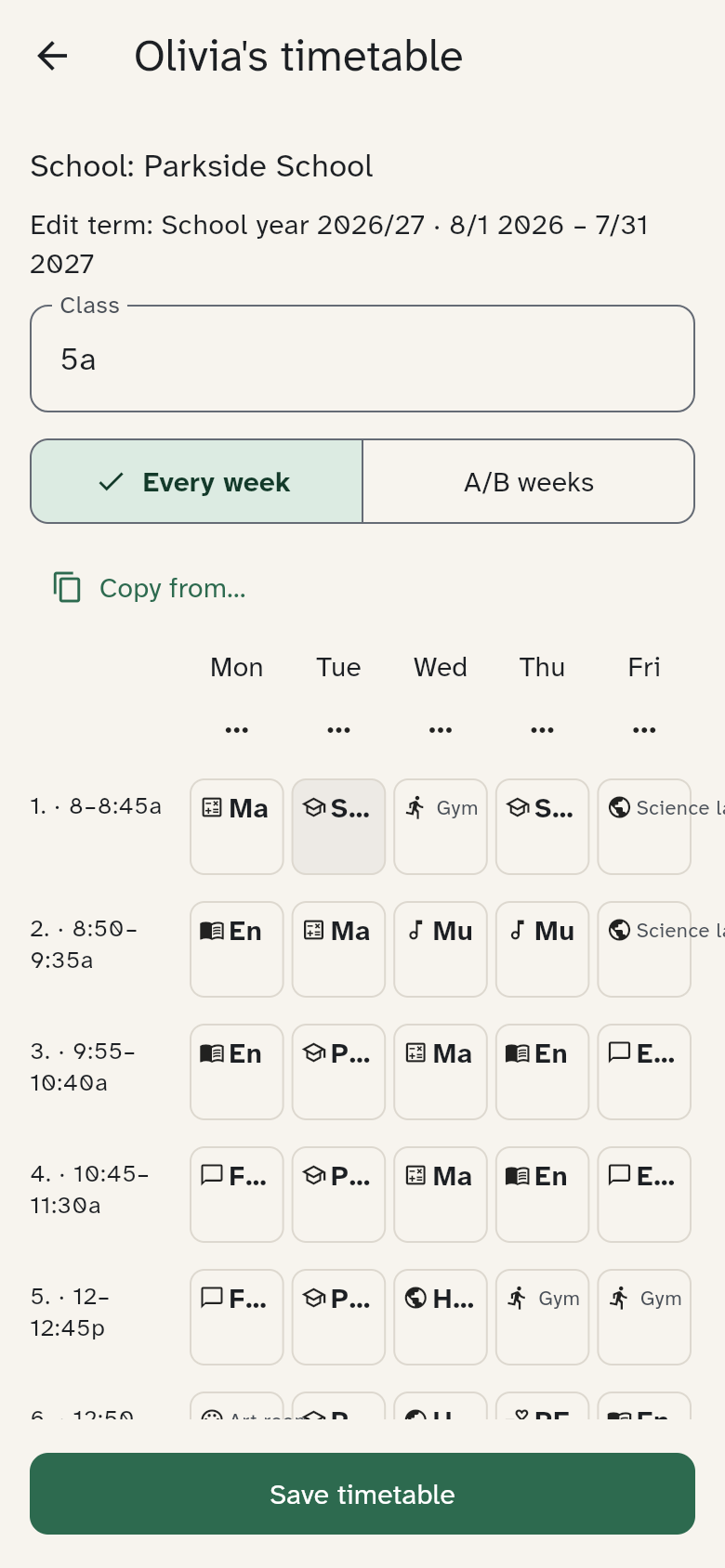
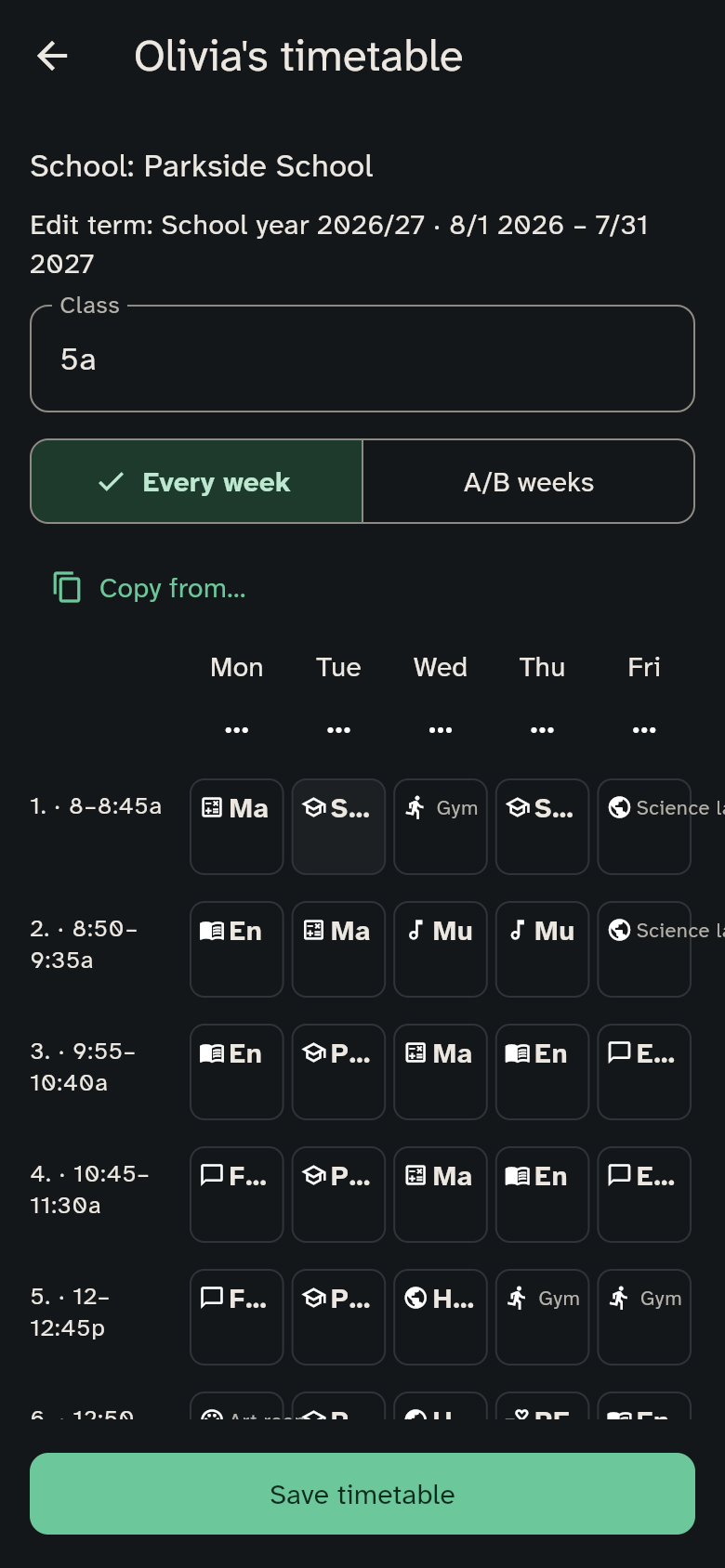
- With Week rhythm choose Every week or A/B weeks. With A/B weeks you enter the A and the B week separately.
- Under After school care add rows, for example the after-school club with its days and times.
- Copy from… takes over a timetable from a sibling or from the last term. That saves a lot of typing.
- Save with Save timetable.
Reading in a timetable
Instead of typing every lesson, you can have the sheet read in. There are two ways. All of them end on the same preview, and only Apply writes anything.
From structured text. Tap Read in… and Paste as text. Paste timetable JSON in the WuselWall format, then tap Read in to open the preview. Ordinary prose is not automatically converted into a timetable.
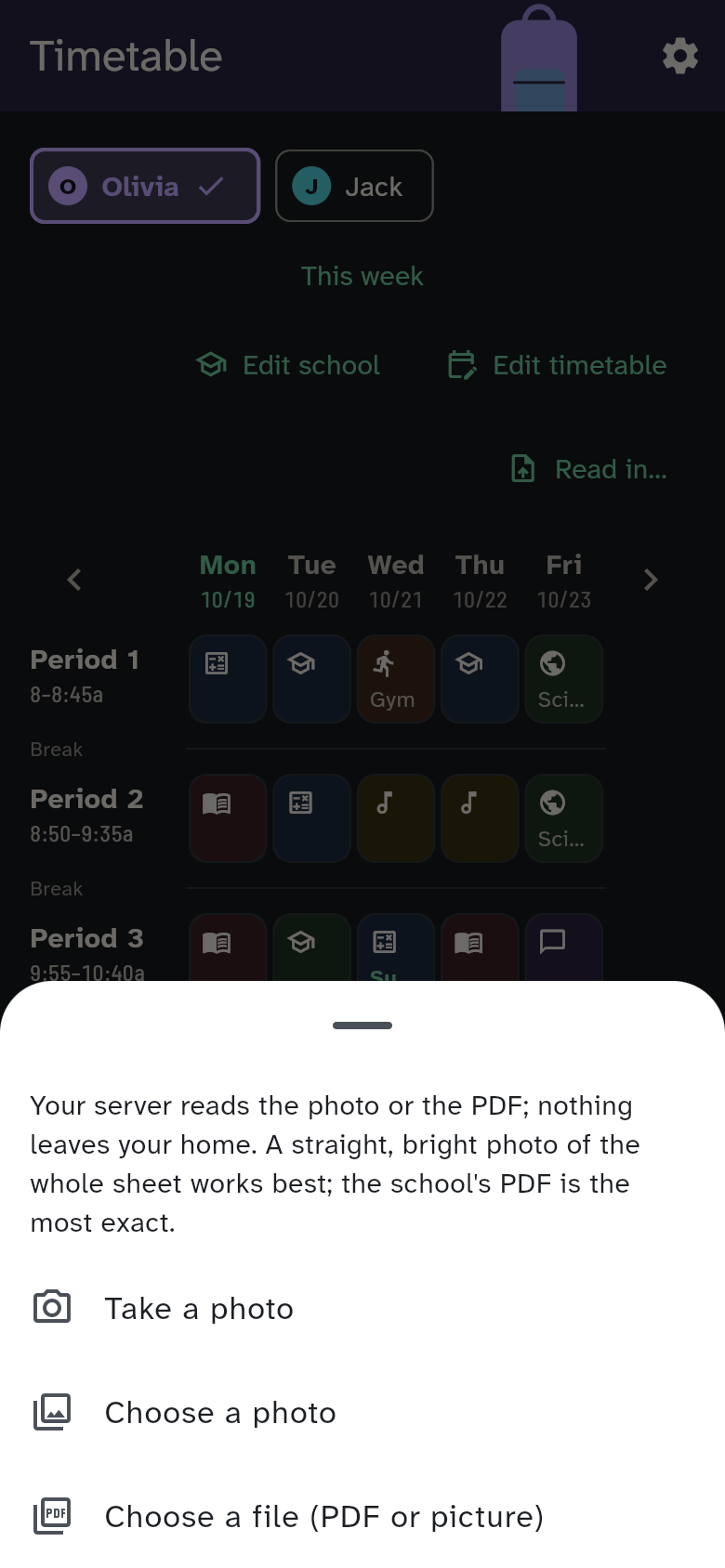
As a photo or a PDF, read by your server. If your server has text recognition set up (Extras for the server), tap Read in… and Scan a photo. Then choose Take a photo, Choose a photo or Choose a file (PDF or picture), for example for the PDF the school sent you.
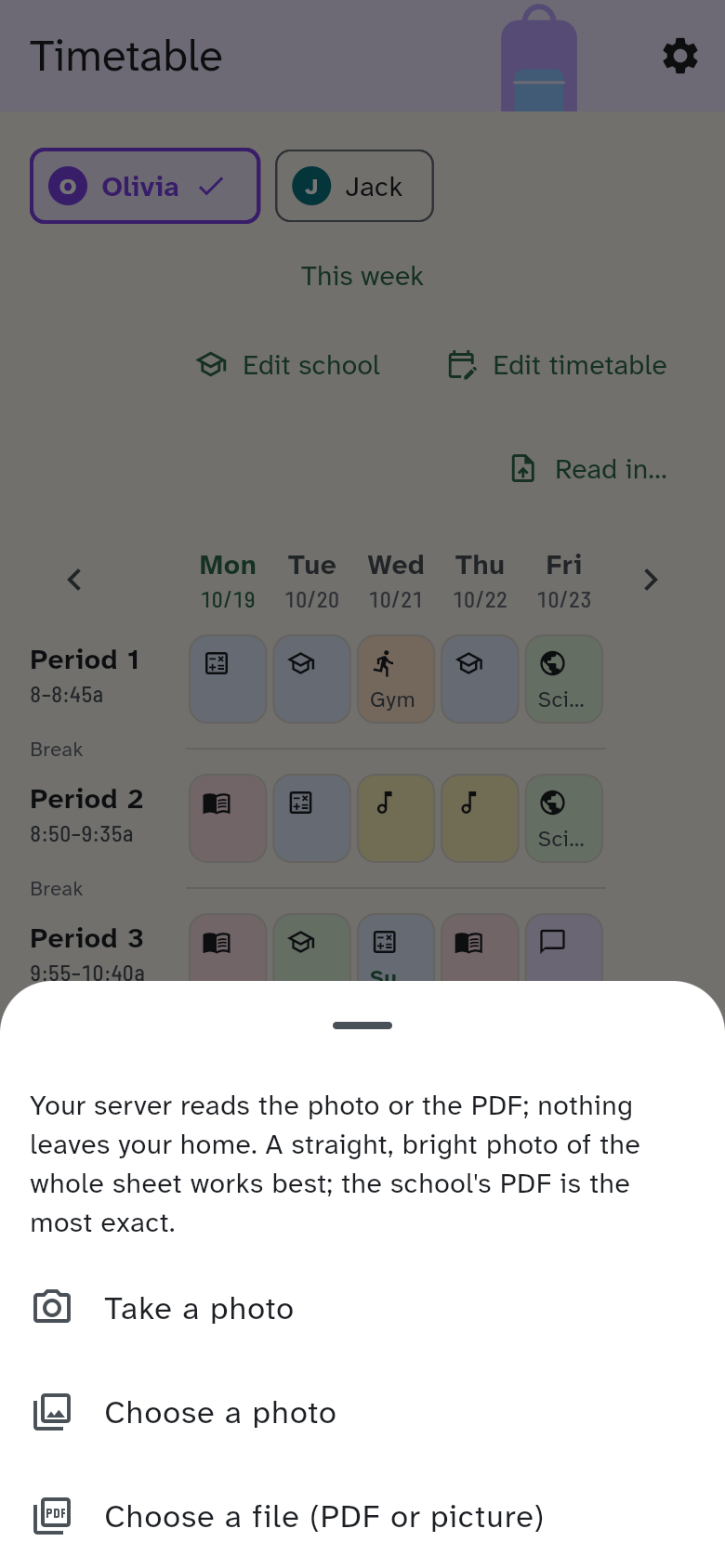
The file goes to your own server and nowhere else. The server does not keep it. It reads the sheet and shows the preview. So that it recognises your subjects, the app sends its language and the names and short names of your subjects along.
What the server reads from the sheet:
- the weekdays, the periods and their times, when they are printed at the edge
- in each cell the subject, the room and the teacher. A word that the sheet wraps onto the next line is joined again
- the legend below or beside the grid, that is short names with their full names, for example “NMG Natur, Mensch, Gesellschaft”
- A and B weeks, when a cell carries an “A” or a “B”
- rows for care with their times, as German, French and Spanish sheets print them (Hort, Mittagstisch, cantine, comedor). They become care rows, not lessons
What works best:
- The school's PDF is the most exact, because the server reads its text directly. A scanned PDF is read like a photo.
- For a photo: straight, bright and the whole sheet. A tilted photo, or one taken sideways, is straightened by the server. iPhone photos (HEIC) work too.
- The file can be at most 6 MB.
Text recognition can hardly read handwriting. From a handwritten timetable only some of the cells come through; you add the rest in the editor afterwards. If the server finds no timetable at all, the app says so. Then try a straighter, brighter photo or read the timetable in from text. If your server has no text recognition, the app says that too and points to reading in from text.
The preview
The preview shows what would be saved. Nothing has changed yet.
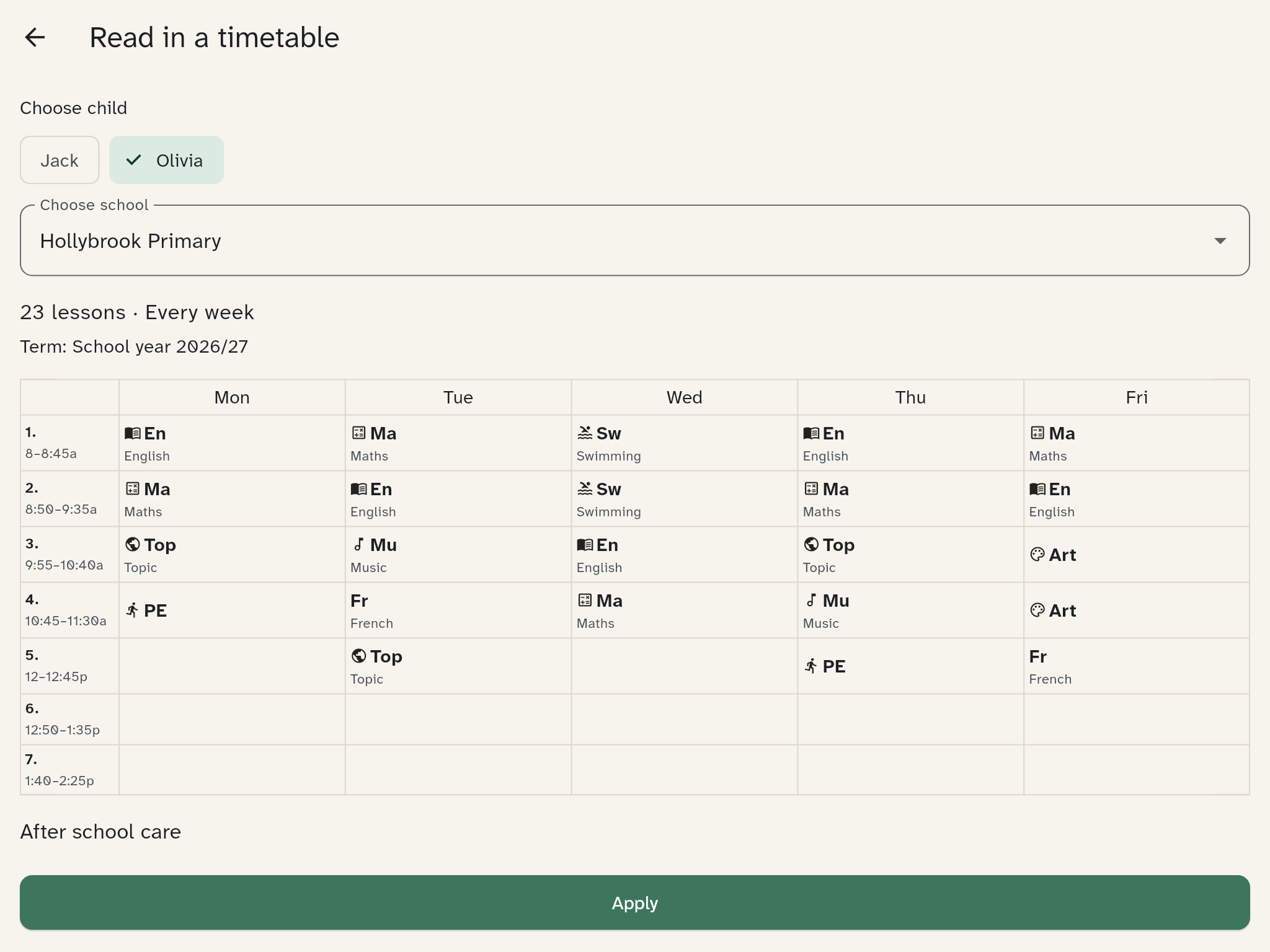
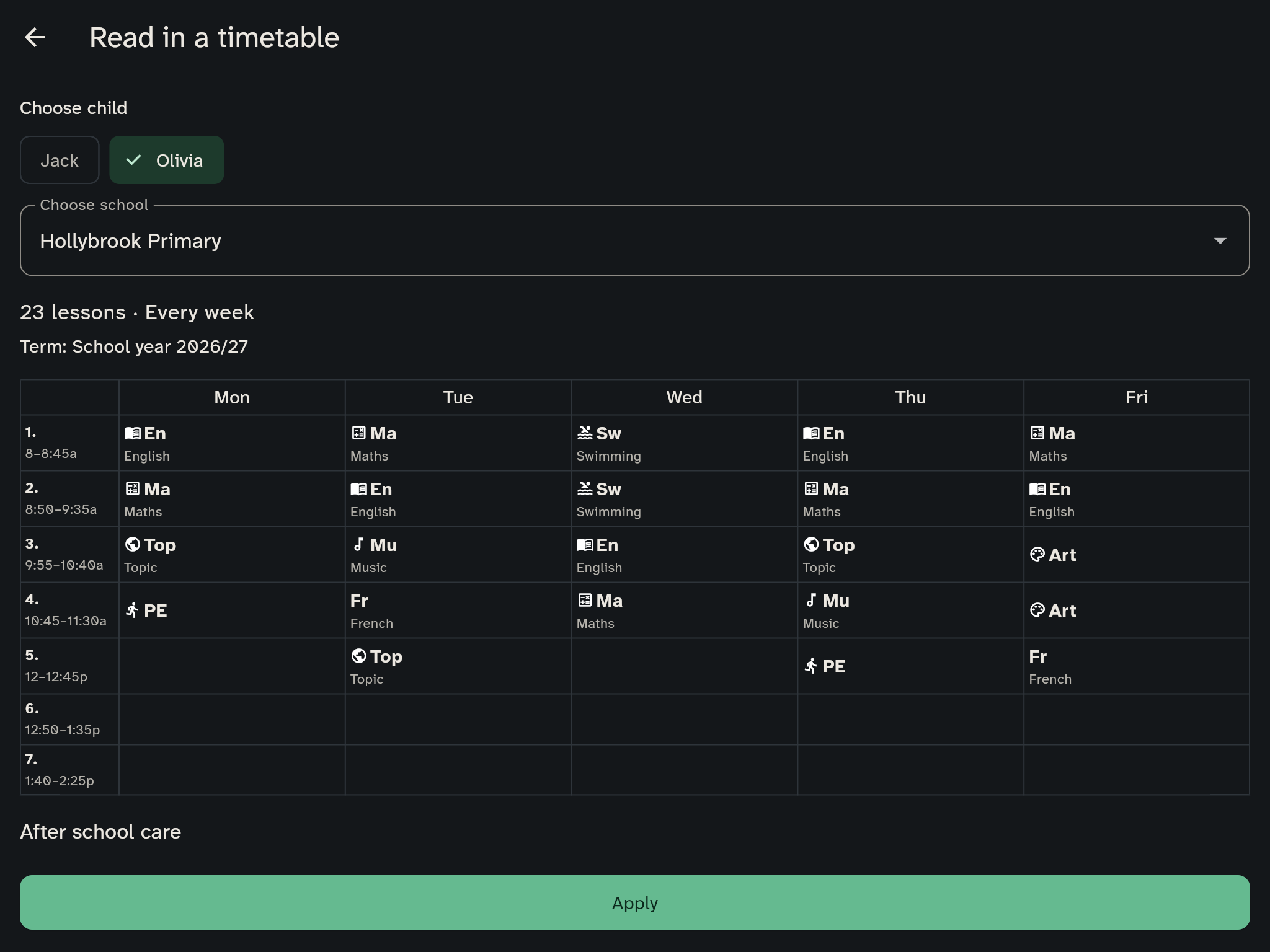
- at the top the child and, if there are several, the school. You can change both
- the number of lessons, the class, the week rhythm and the term. If the term does not exist yet, it says “(will be created)”. If the child already has a timetable in this term, it says that it will be replaced
- the grid: each period with its times, in each cell the short name and the subject's name below it. On a phone there is no room for that: press and hold a cell to see the name. A lesson only in A or B weeks carries an A or a B
- After school care, if the sheet has any
- every note: a lesson matches no bell time, the sheet has more lessons than your bell times (then lessons are added), other bell times (then yours stay) or names another school. After a scan, the preview also names the pieces of text that fit no cell. Then compare with the sheet
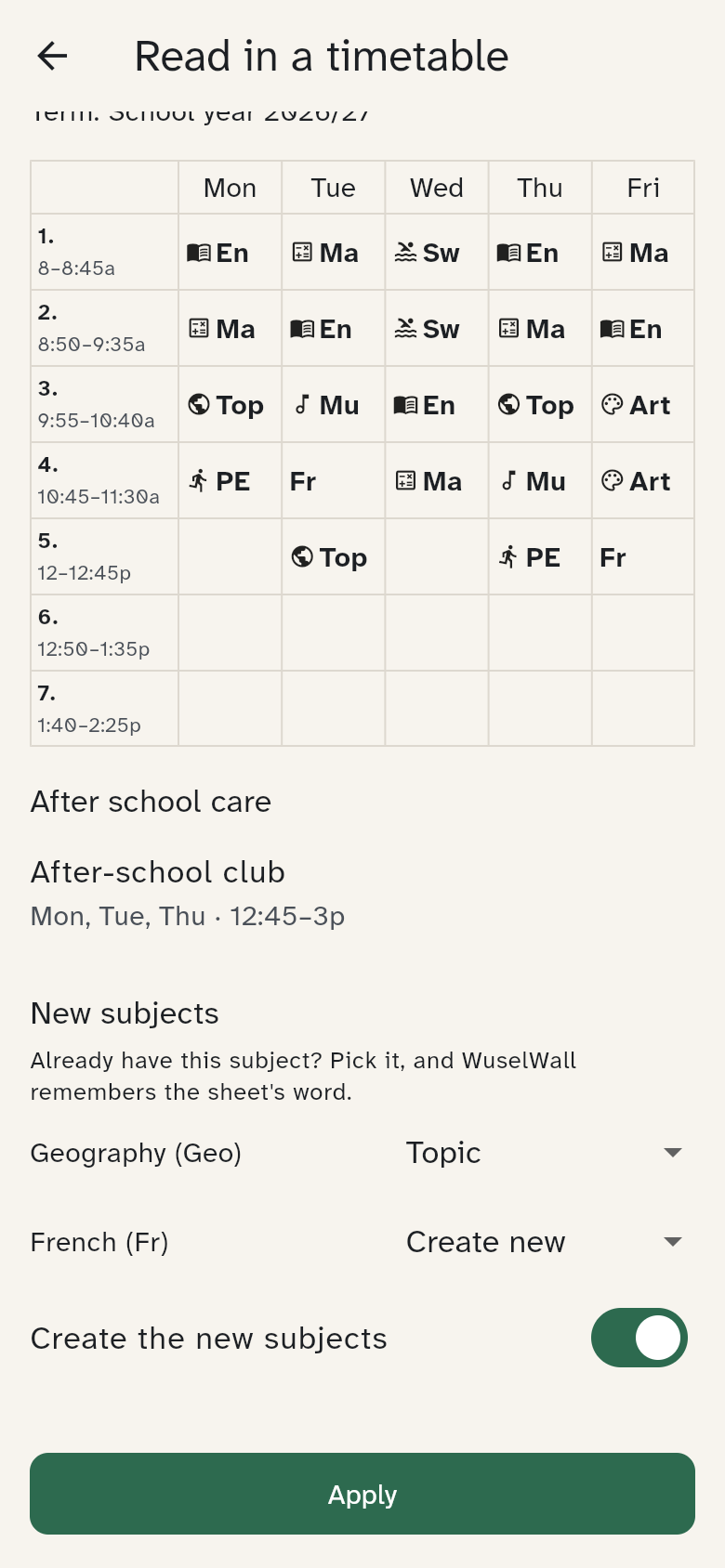
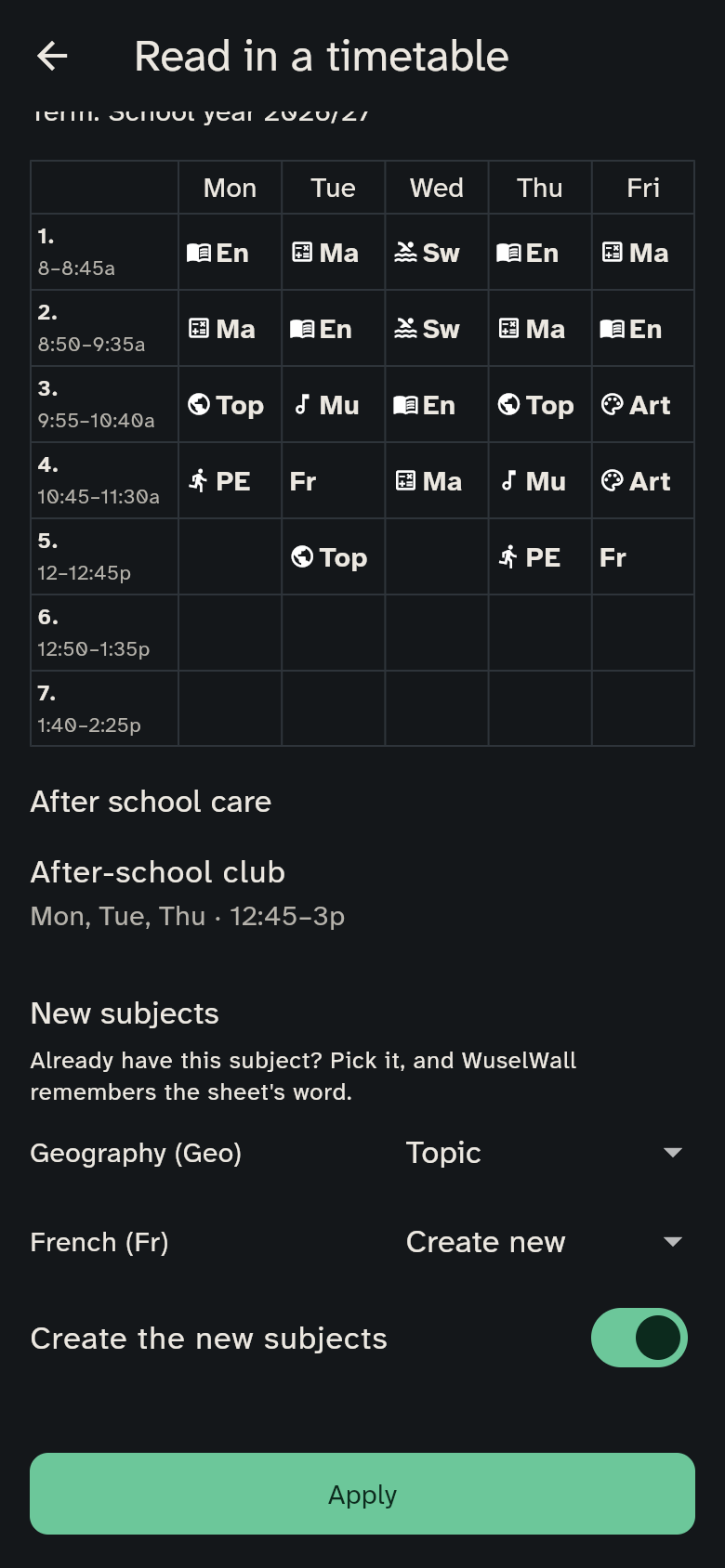
Under New subjects you see every subject on the sheet that you do not have yet. Next to it you choose:
- Create new: the subject is created with the short name and name from the sheet.
- an existing subject, if you already have it under another word, for example “Geo” for your Topic. WuselWall remembers the sheet's word for that subject and recognises it by itself the next time. If the scan finds exactly one matching subject, it is already selected.
If you switch off Create the new subjects, the lessons with new subjects are left out; the grid shows them struck through.
Apply creates the term if it is missing, extends the bell times, creates the new subjects and saves the timetable. Use the back arrow to leave the preview without saving.
Editing whole days
In the timetable editor each day has a Day actions menu:
- Clear day: removes all lessons of that day
- Copy day to…: copies that day's lessons to other days
- Swap with…: swaps two days
These steps change only the draft. Save timetable writes them. Undo takes back the last step.
The week
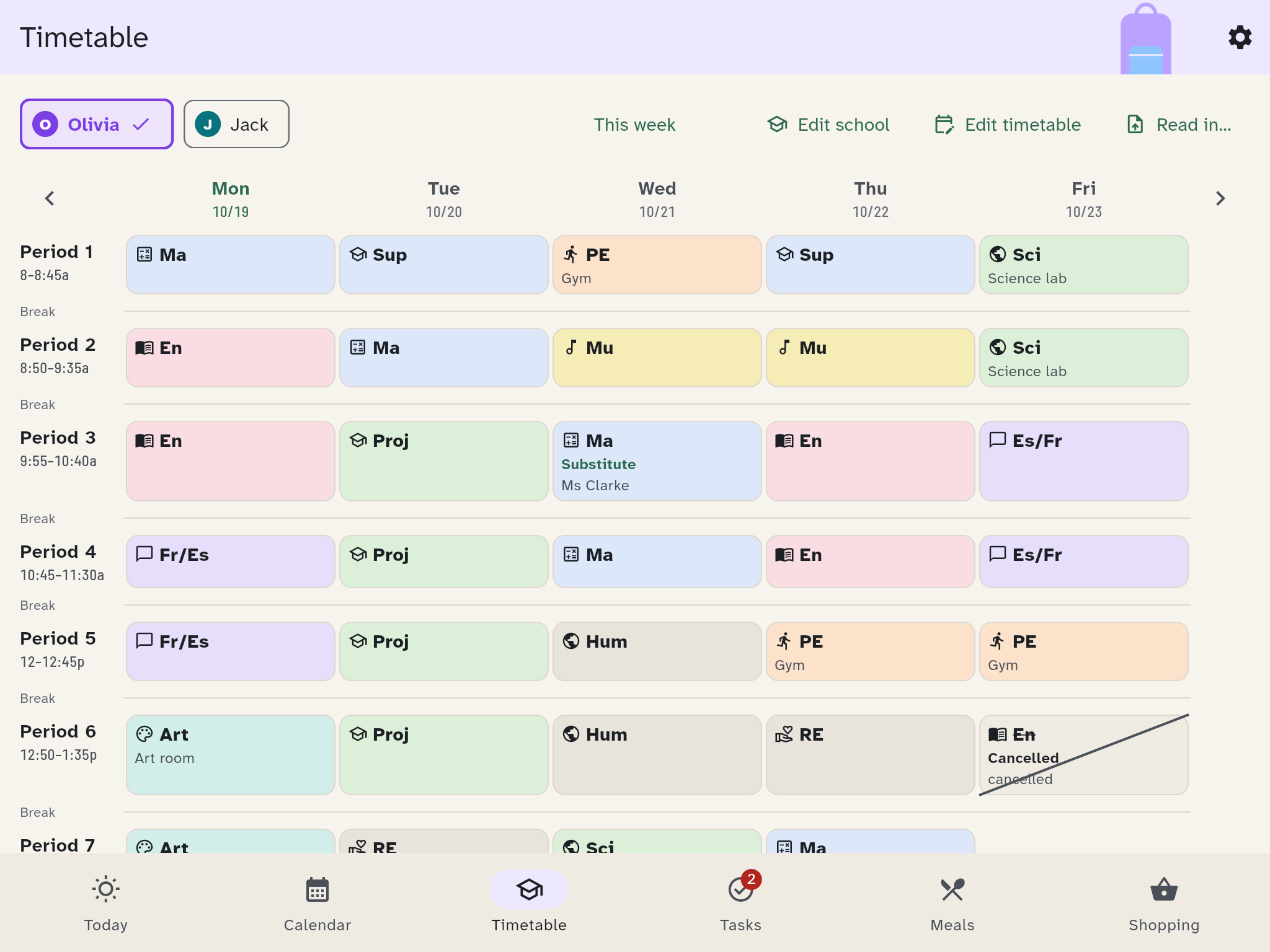
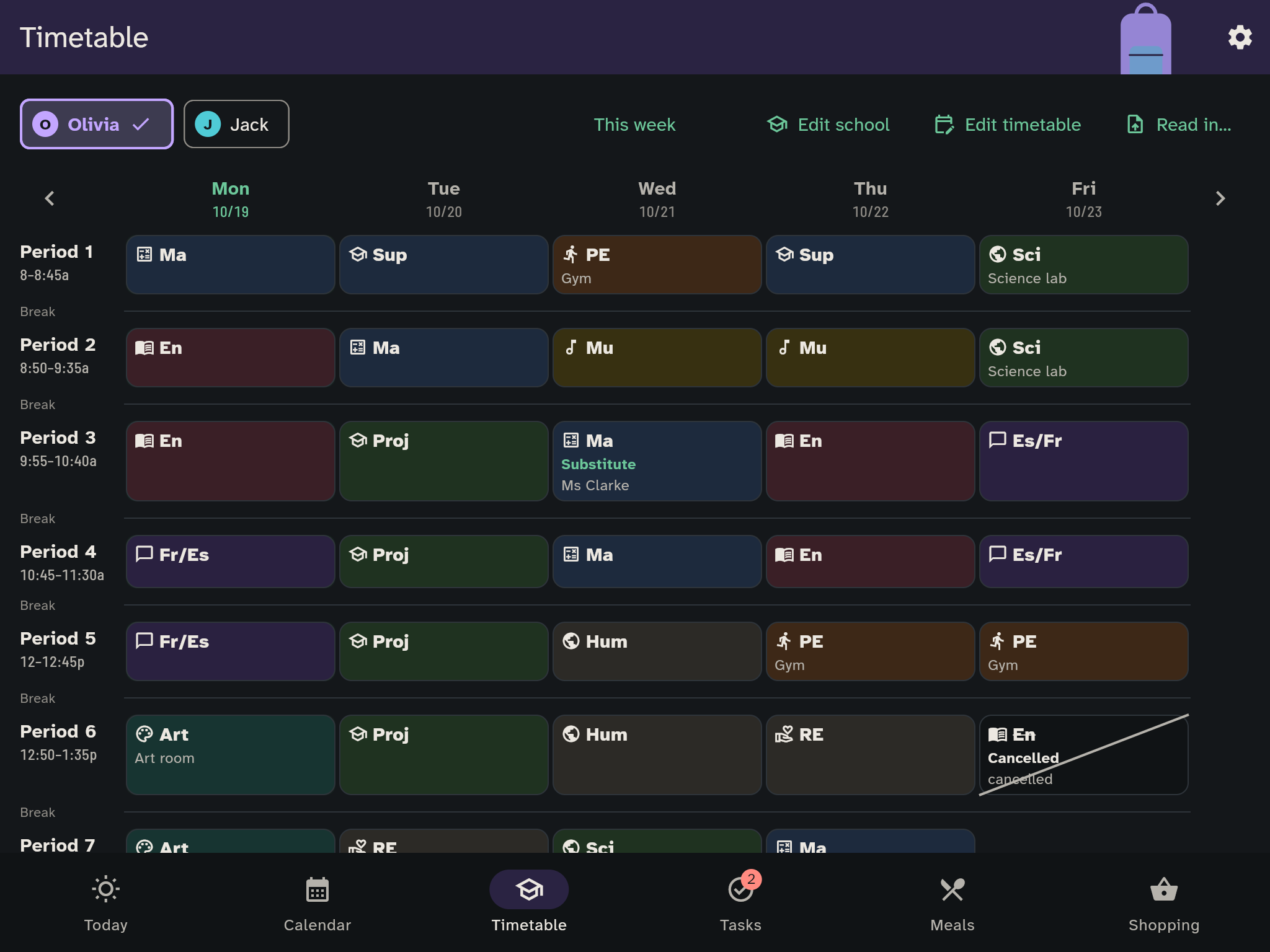
The child selector, This week, Edit school and Edit timetable share one toolbar. Child selection stays on the left, This week is centered, and the edit buttons stay on the right. On smaller screens, This week stays centered on its own line and the edit buttons appear below, aligned to the right. Edit school has a school icon; the gear at the top opens the general settings. The previous-week arrow sits beside Monday and the next-week arrow beside Friday, in the row of weekday dates. There is no separate week-number or date-range row.
Choose a child at the top to see their timetable. The selected child has a tinted background, a strong border and a checkmark beside their name.
The week view shows lesson by lesson. Move with Previous week, Next week and This week. Holidays appear as a band above the week, and public holidays in the day's header.
Tap a lesson when something changes:
- Cancelled: the lesson is struck through
- Substitute: with the teacher and a note
- Room changed: with the new room
- Reset: the lesson goes back to the plan
Pack for tomorrow
On the kitchen wall, a child's card shows Pack for tomorrow when something needs to come along, for example sports kit. The child's Today view shows the same, and your own phone gives a packing reminder the evening before. Whether these hints appear is set under Settings → Calendar & school: switched off, they disappear everywhere.
Children report changes
Only guardians maintain the timetable. You can allow a child to report a cancelled lesson, though. A guardian then confirms it. The option is under Settings → Calendar & school, as Members report timetable changes.