
Setting up a server at Supabase
WuselWall runs on Supabase. Supabase also rents out such servers ready-made, so the family server needs no machine or domain of your own. The installation workflow needs a build runner, as explained below. The project belongs to you: you hold the Supabase account, and you alone decide about the data. We have no access to it.
The data then lives with Supabase Inc., a US company. It is stored in a data centre you choose when you create the project. Choose one in Europe, such as Frankfurt or Zurich.
Not fully tested yet
WuselWall has not been fully tested on Supabase yet. If a step fails, please report it on GitHub. Your data does not belong in the report.
This workflow requires your GitHub repository to have access to a self-hosted Linux runner with the labels self-hosted, Linux and build. Forking the workflow does not grant access to the original project’s runners.
Free or Pro?
| Free | Pro (about USD 25 a month) | |
|---|---|---|
| Pausing | The project pauses after 7 days without activity. Nothing works then until you restart it in the dashboard | No pausing |
| Backups | None | Daily, kept for 7 days |
| Space | 500 MB of database, plenty for a family for a long time | More than enough |
Free is enough to try WuselWall out. For everyday use take Pro: a paused server stops the wall display, and without a backup a mistake is final. Current prices are at supabase.com/pricing.
1. Creating the project
- Create an account at Supabase and, in the dashboard, a new project, for example "WuselWall Miller family".
- As the region, choose a data centre in Europe.
- Set a strong database password and put it into the password manager.
Afterwards the project ID appears in the project's address: https://<project-id>.supabase.co, 20 letters and digits. That is all the app will need to know.
2. Putting WuselWall onto the project
A prepared workflow on GitHub does this, in your own copy of WuselWall. You install nothing.
Create a GitHub account if you don't have one.
Open github.com/wuselwall/wuselwall-app and tap Fork. That is your copy.
At Supabase, create an access token: profile picture → Account preferences → Access Tokens → Generate new token.
In your copy on GitHub: Settings → Secrets and variables → Actions → New repository secret. Create these:
Name Value SUPABASE_ACCESS_TOKENthe access token from step 3 SUPABASE_PROJECT_IDthe project ID SUPABASE_DB_PASSWORDthe database password WUSELWALL_SETUP_TOKENa phrase of your choice made of letters and digits, e.g. CakeOnSunday2026. You need it once, to found the familyOpen the Actions tab. In a copy, workflows start out switched off: tap I understand my workflows, go ahead and enable them. Then deploy-supabase → Run workflow. Under language, choose the language of the sign-in emails:
de(default),en,frores. Tick web if you want the web app (step 4), and tap Run workflow.
After a few minutes the run turns green. Its summary shows your server's address. The workflow sets up the database, configures sign-in and data access, uploads the server functions, applies the mail templates and subjects in the chosen email language and schedules the nightly jobs.
Secrets stay secret
Anyone can see your copy's logs, but not the secrets: GitHub hides them everywhere. The server keeps only a fingerprint of the phrase for founding the family.
The access token can do anything in your Supabase account. If you want to be careful, delete it at Supabase after the run and create a new one for the next update.
3. Connecting the app
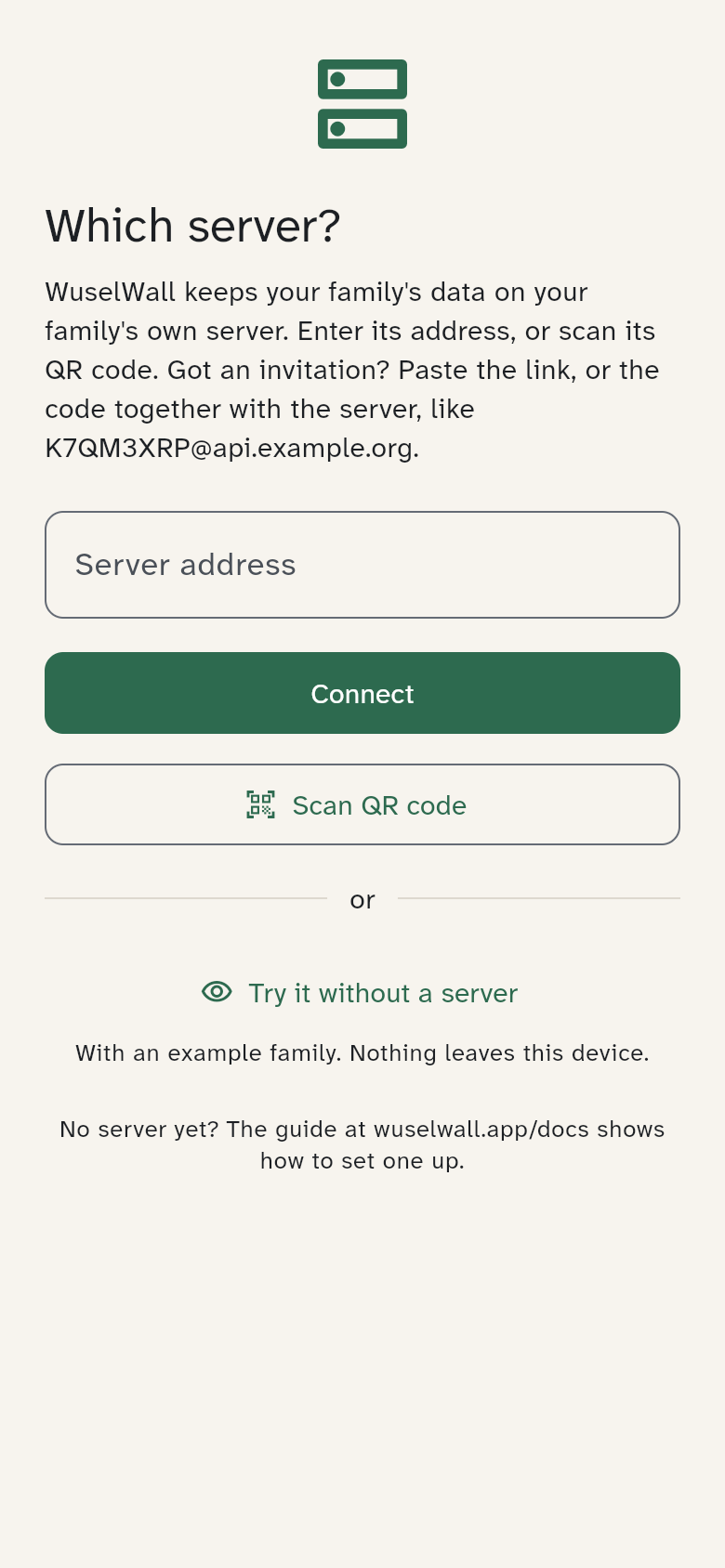
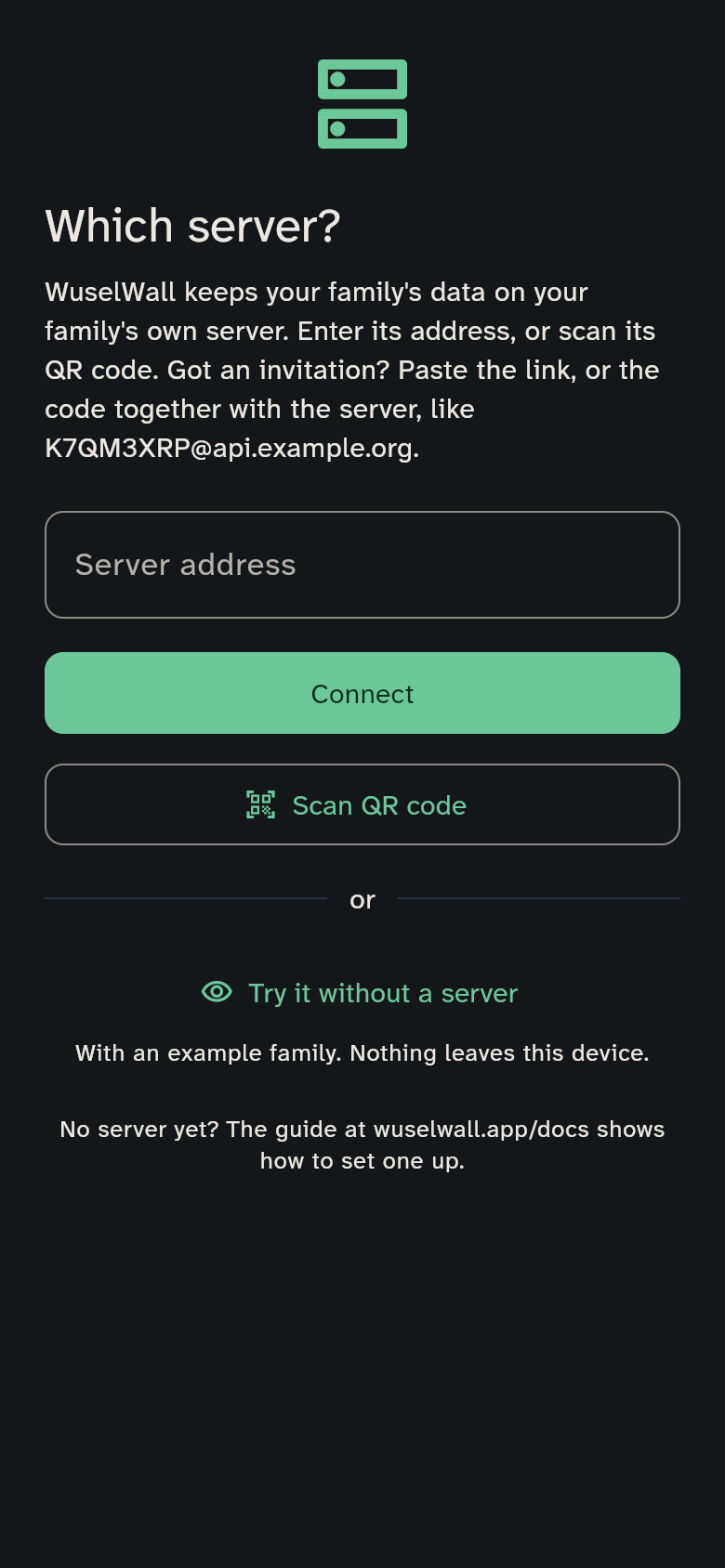
Open WuselWall. At the question Which server?, enter the project ID and tap Connect. Then Start a new family with the phrase from WUSELWALL_SETUP_TOKEN (Start a new family).
4. The web app
As long as WuselWall isn't in the stores, you use the web app. With web ticked, GitHub publishes it for you at https://<your-github-name>.github.io/wuselwall-app/. For that, set Settings → Pages → Source to GitHub Actions once in your copy. At its first start, the web app asks for the server, just like the app.
GitHub sees who opens the web app, but not your data: that goes straight from the browser to Supabase. If you'd rather avoid that, upload the web app from a server release to web space of your choice.
Updates
Bring new WuselWall versions into your copy: on GitHub, Sync fork → Update branch. Then Actions → deploy-supabase → Run workflow, as the first time. Supabase takes care of Postgres, security updates and HTTPS.
Coming from a version with sign-in through Apple or Google? Read Updating from a version with Apple and Google sign-in first.
Backups
On Pro, Supabase backs up every day and keeps the backups for 7 days. You restore one in the dashboard under Database → Backups. A copy of your own, about once a month, is described in Restoring a backup.
Prefer the command line?
With Node.js and the repository on a laptop, the same works in a terminal. The commands and settings are listed in order in .github/workflows/deploy-supabase.yml: supabase link, supabase db push, two Management API calls (Data API and Auth), supabase secrets set, supabase functions deploy and the SQL from infra/jobs/schedule.sql.