
Members and devices
This belongs to the guardians. On your phone, open the cog at the top right (Settings). When you came from another view, swipe inward from the left edge on iPhone or iPad to return; the back arrow at the top left works too.
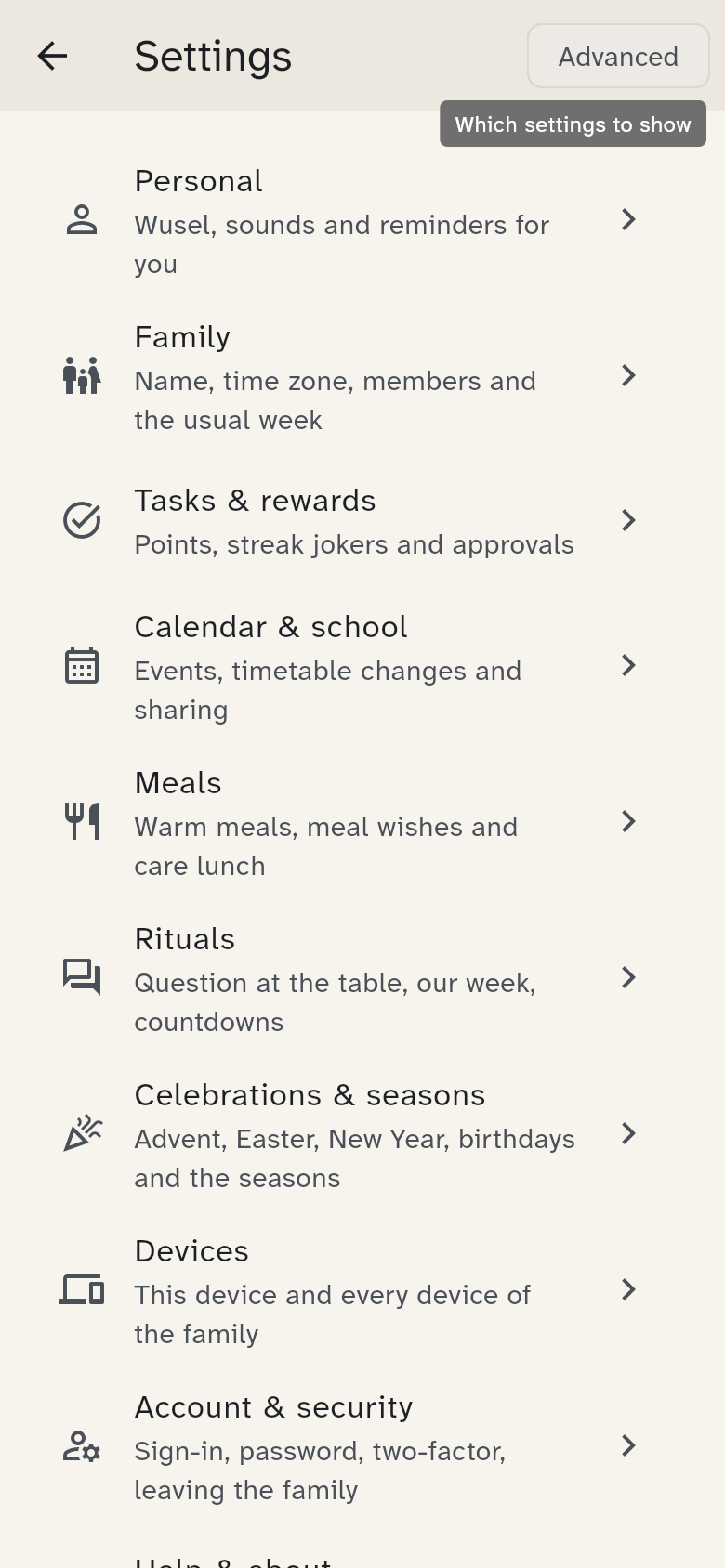
Basic or Advanced
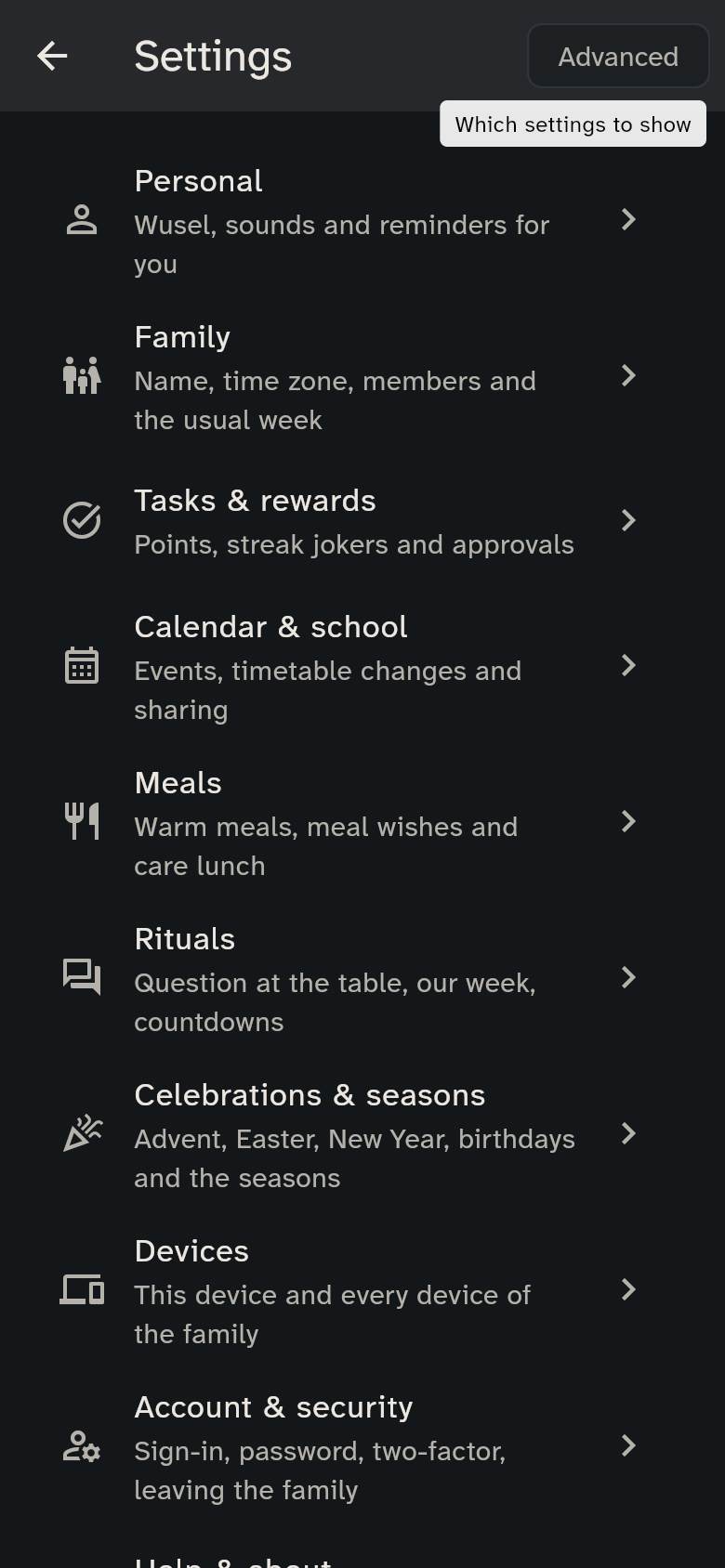
At the top of the settings you choose the view. Basic is the default and shows what matters most. The settings are sorted into groups (see All settings). Basic shows only the groups with something important in them: Personal, Family (family profile, region, members, usual week), Tasks & rewards, Calendar & school, Meals, Rituals, Devices (This device, All devices), Help & about and, on your own phone, Account & security with Delete account. Advanced also shows Celebrations & seasons, Kitchen wall, Sharing and connections (sharing the family calendar, outside calendars), the server, sign-in, security, and leaving the family.
Whatever is hidden still applies. The view only changes what you see, and WuselWall remembers it for each device. The same goes for the group pages, a person's page, the family profile and editing a shopping list: Basic shows what most families need, Advanced the rest.
Invite an adult
Invite a person who should take part in the family with their own account. Open Settings → Family → Members and tap Invite an adult:
- Enter the name and choose the role: Guardian sees everything and approves rewards. Member does tasks but does not approve rewards (for example an au pair or grandparents).
- Optionally an email address. If the person signs in with exactly this address, they find the invitation by themselves.
- Tap Create invitation.
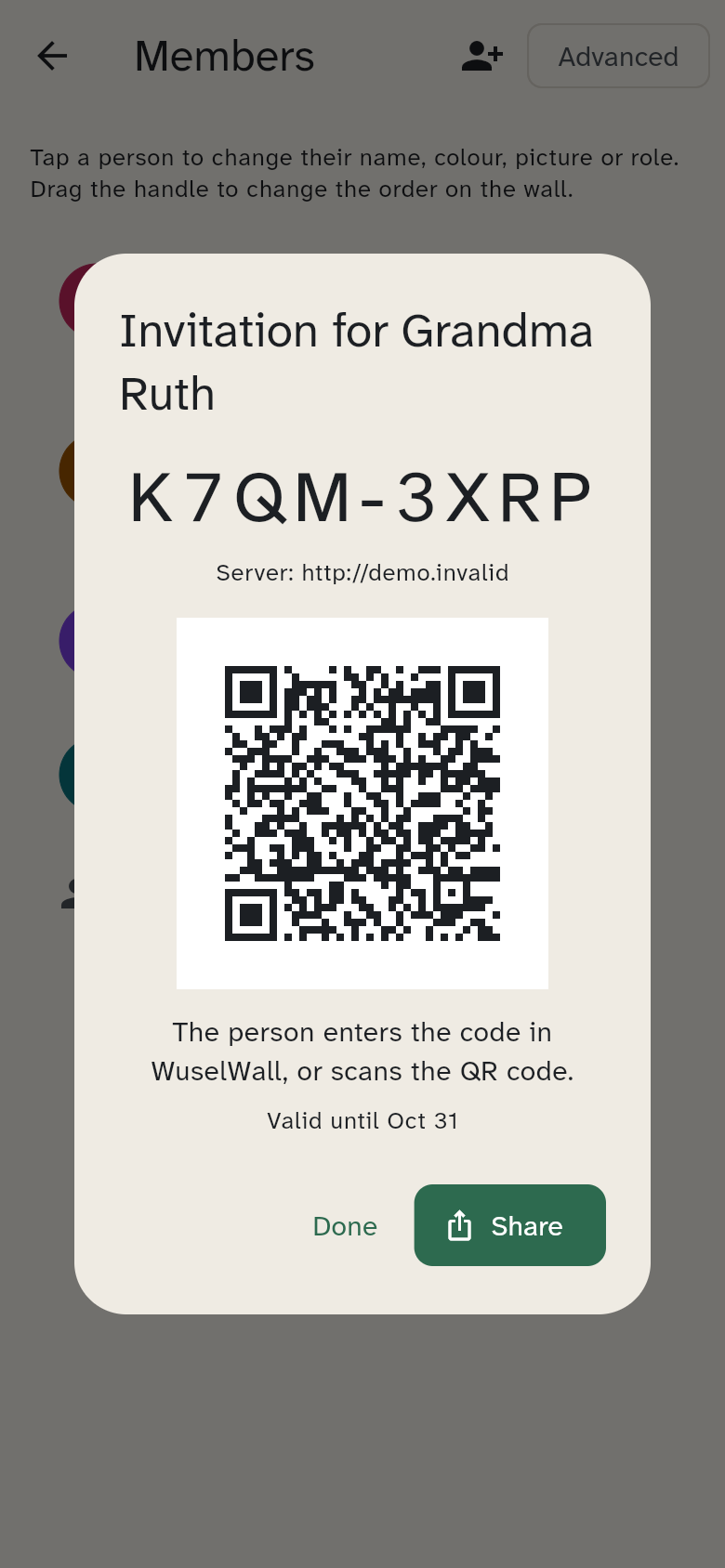
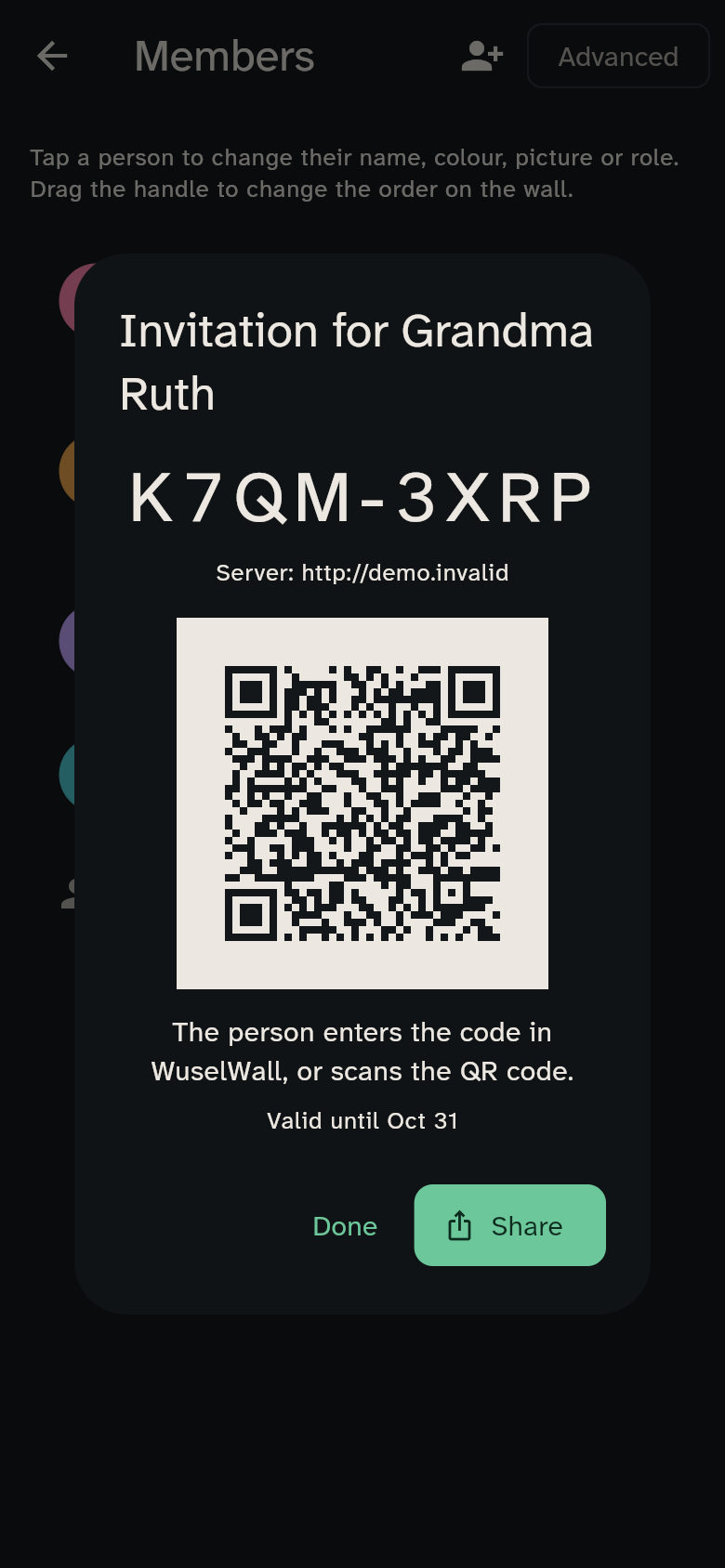
WuselWall then shows the code, your family's server, a QR code and the link. Tap Share to send them, for example in a message. The link and the QR code name the server: the person taps the link or scans the QR code, and WuselWall opens directly with the invitation, without choosing a server. Whoever only has the code enters it in WuselWall, together with the server if asked; see Signing in and connecting.
An invitation is valid for 7 days and works once. Open invitations appear directly in the invited member’s row with their expiry date: Share again sends it once more, Withdraw cancels it.
Once the person has joined, every guardian gets a notice on the Today tab ("Sarah joined"). Got it hides it, Members leads to the list. Notices disappear on their own after 14 days.
If you left out the email address, the code is all there is. The person then has to enter it in the app.
For an existing member without an account, invite them from the member list with Invite.
Invite your partner on the Getting started card first asks Who would you like to invite? when the family already has adults without an account, such as the person you added when you created the family. Pick them, and the invitation is for exactly that person, without adding them a second time. Someone else adds a new person.
No account needed
Children do not need an invitation. Add them as a member with a name, and connect their device as described under Connect a device.
Add member
With the icon at the top of the Members page you add a person by name only, for example a child or someone who is not on WuselWall. WuselWall gives the next free colour automatically.
Edit a member
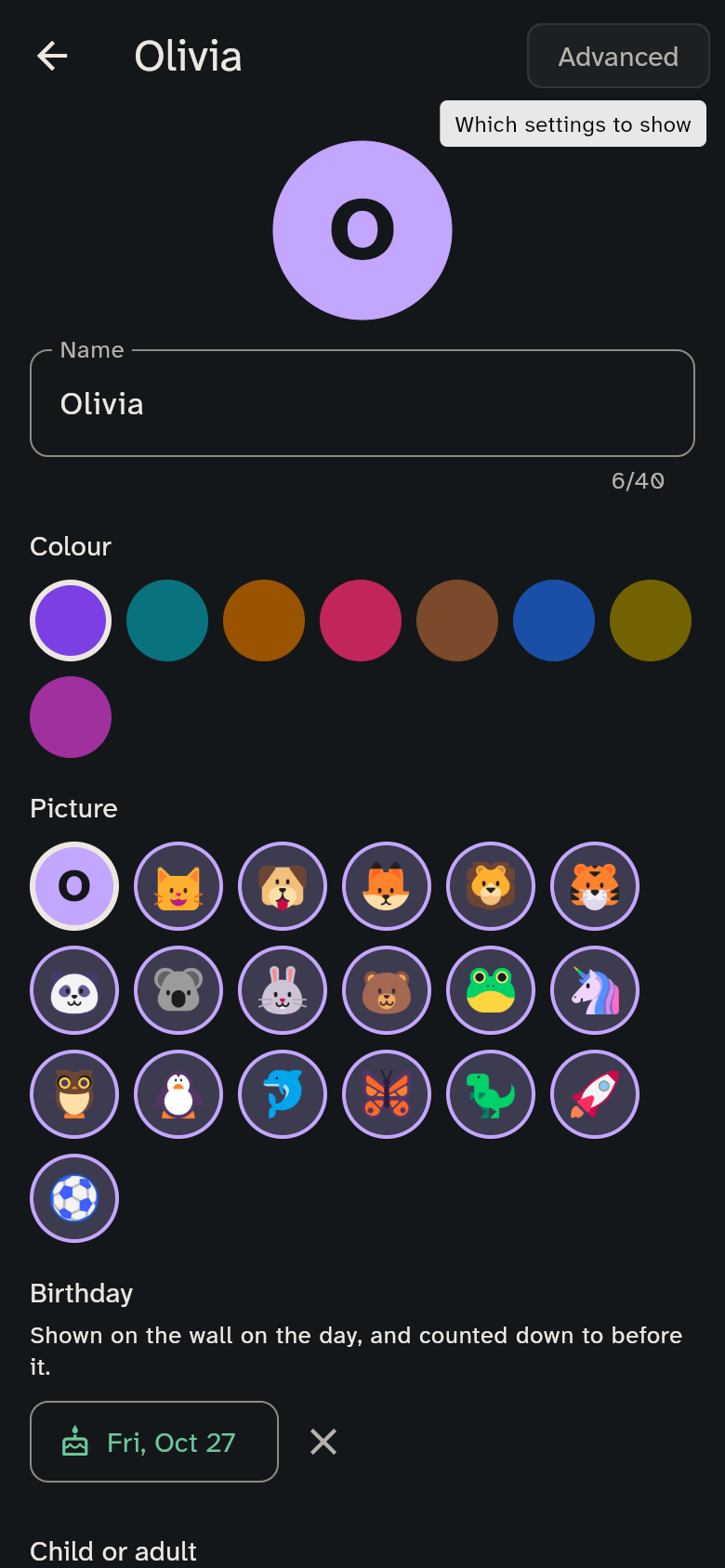
Tap a person in the list. On their page you change the name, the colour and the picture: an animal or a symbol instead of the initial, shown on the kids' tablet and in the lists. Child or adult decides whether the person gets the kids' tablet, starter chores and the timetable; guardians and people with an account are always adults. A link to the person's usual week is there too.
Under Birthday, Choose a date sets the birthday. It is shown on the wall on the day, counted down to before it, and Wusel wears the party hat (see Rituals). Remove the birthday deletes it again.
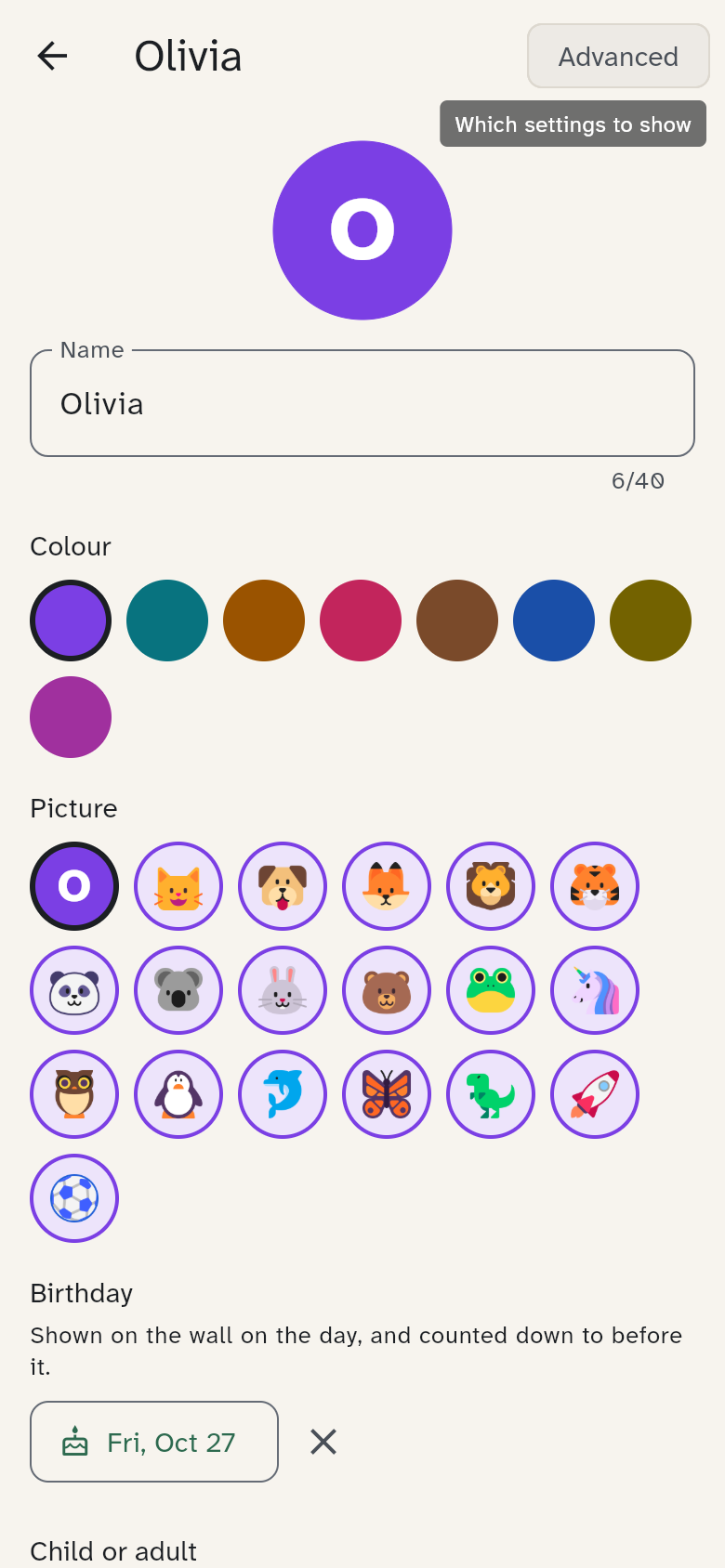
In the Advanced view the page also shows the role (guardian or member; a child cannot be a guardian, and the last guardian with an account stays one) and No longer with us: the person disappears from the wall, the avatar rows and new chores; history and points stay, the birthday is deleted, and you can bring them back here at any time. An adult with an account is not removed this way; they leave the family from their own phone (see Account and family).
Everyone can change their own name, colour, picture and birthday. Everything else is for guardians, with the PIN on shared devices.
Changing the order
The order of the members in the list is the order on the wall and in every list. Guardians drag a person by the handle on the right to another place.
Reset two-factor
If another guardian has lost their second factor, tap Reset two-factor next to their name. Then they can sign in without the second factor and set it up again (see Security).
Connect a device
To connect a kids' tablet, a shared tablet or the wall display: under Settings → Devices → All devices, tap Connect a device, scan the QR code or type in the code the new device shows, and choose the kind and a name. The whole process is shown under Signing in and connecting.
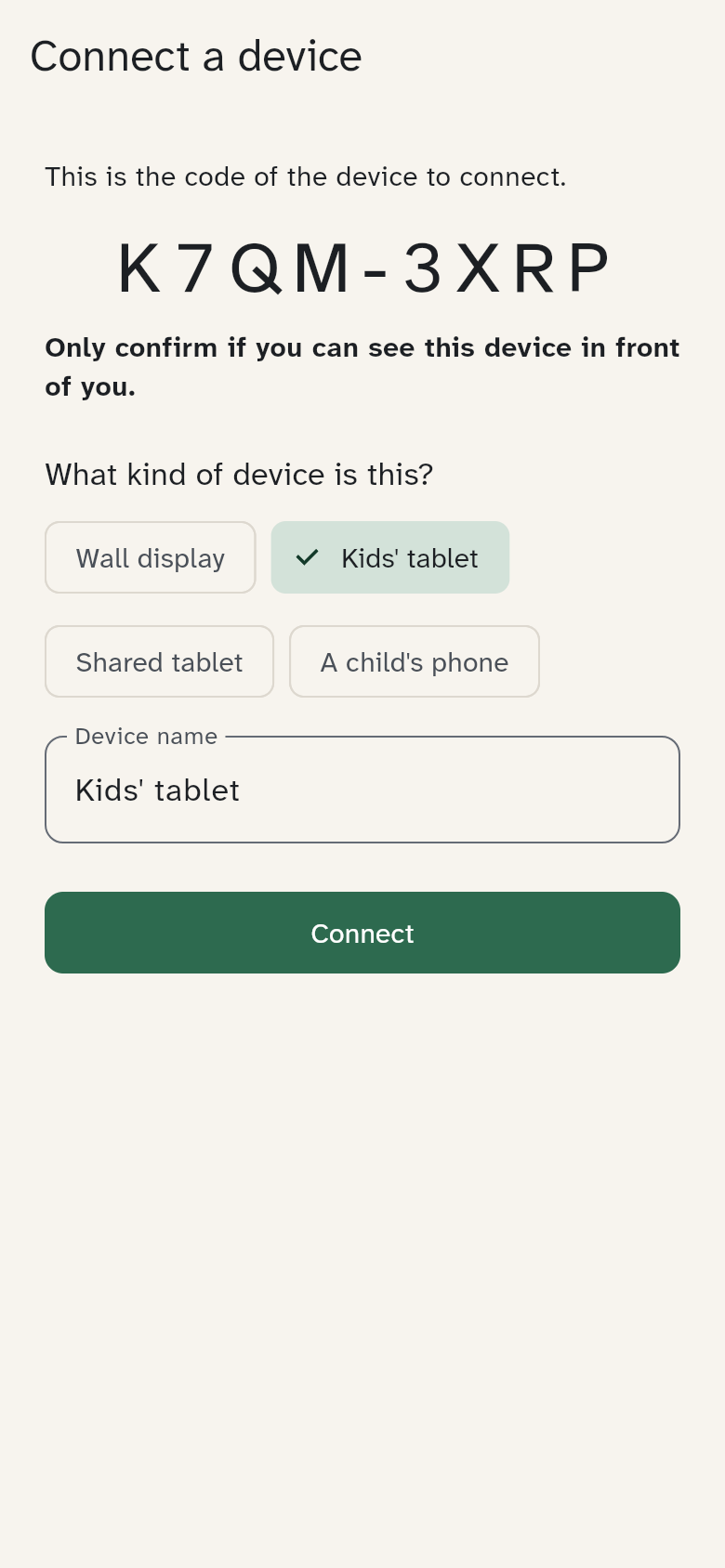
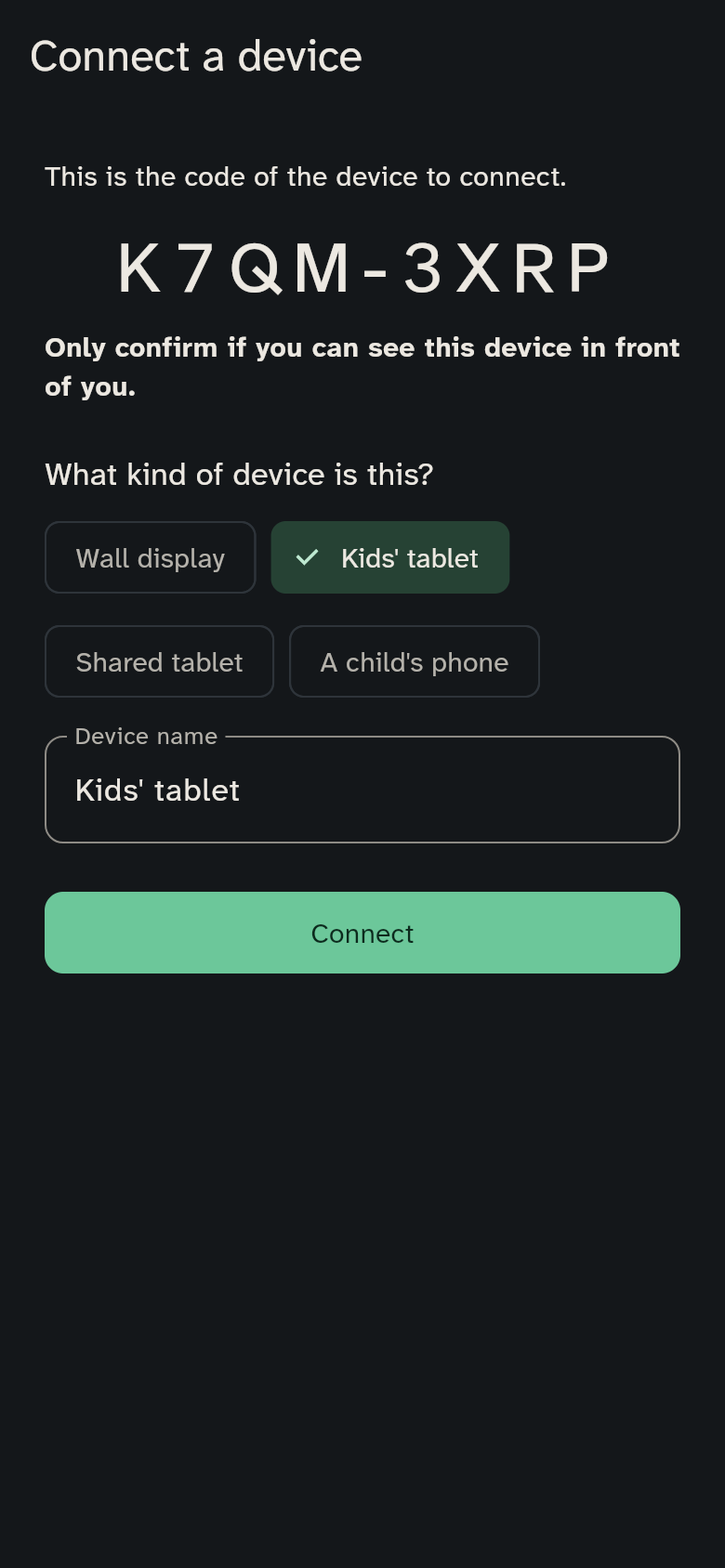
You do not need to type the code: the new device shows a QR code that you scan with your phone's camera. It also contains the server; WuselWall opens right at the confirmation. If the link belongs to a different server than the one you are signed in on, the app does not follow it by itself but tells you so.
Older devices with an older version of WuselWall still get a code from Create a code for an older device. This option goes away with the next version.
Rename a device
Tap a device in the list to give it another name, for example "Kitchen tablet" instead of "iPad". Under each device you see when it was last active ("last active 3 days ago"), so you know which device it is before blocking it. Anyone can rename their own device; other devices are renamed by guardians.
Block a device
If a phone is lost or a tablet is handed on: in the device list, tap Block. The device loses access at once, even if it is open. Blocked devices stay in the list so that you can see what happened.
When you sign in with your account on a new phone, your other phones show the notice "New sign-in: Daniel's iPhone" on the Today tab. Devices leads to the device list, where Block shuts out a device that is not yours.
On your own phone you can also sign yourself out with Sign out this device.
Server
Under Settings → Server (Advanced view), this shows which server the app talks to, with its QR code. A new device scans it at the question Which server? and is then connected to the same server.
You only need Change server when your family moves to another server. The device signs out and forgets everything stored on it, including shopping it could not send yet. On shared devices WuselWall asks for a guardian's PIN first.
Family
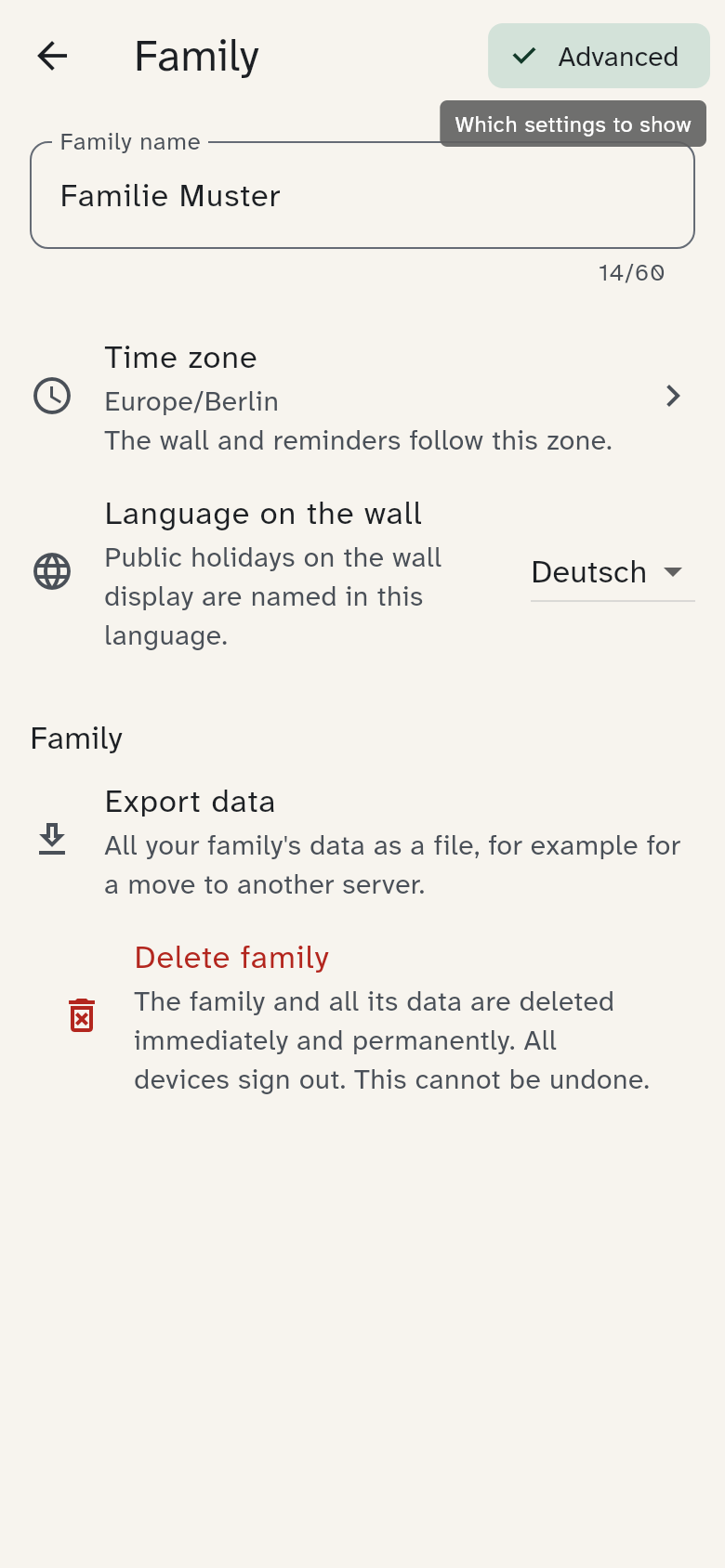
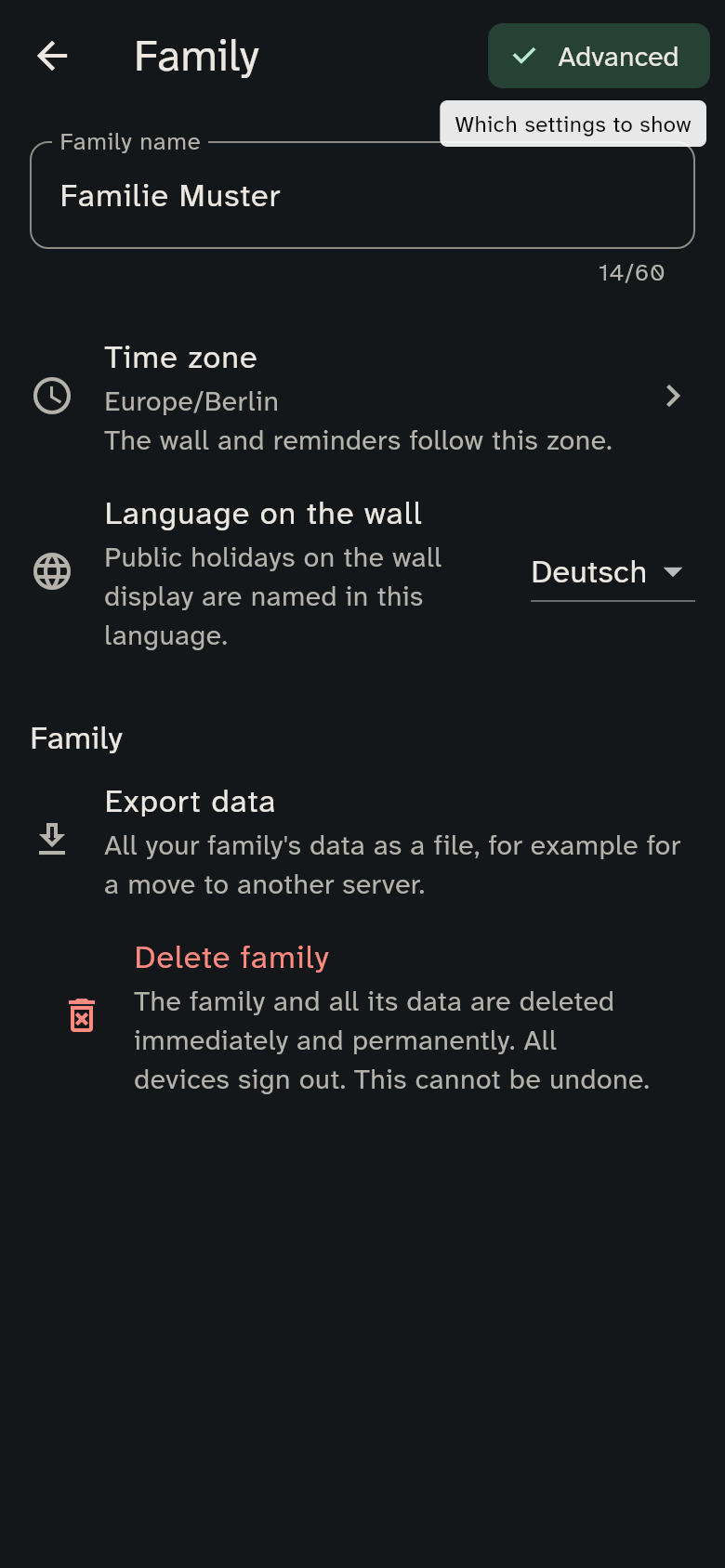
Under Settings → Family → Family profile you change the family's name chosen when it was started. In the Advanced view the page also has the time zone (the wall and reminders follow it; tap it and search, for example, "Zurich") and the language on the wall, in which public holidays are named on the wall display. All of this is for guardians.
Export data
Guardians can save all data of your family as one zip file, for example for a move to another server. It is under Settings → Family → Family profile (Advanced view), with Export data, and only from a guardian's own phone.
The file contains what you entered: members, appointments, timetables, tasks, recipes, shopping lists and so on. Passwords, PINs and sign-in data are not included, and devices appear only with their name and date.
The zip file holds one JSON file per kind of data in the tables folder, plus export.json, which says what is included and how many entries each file has. After a few years with WuselWall the export can take a minute; keep the app open until it is done. An older server gives you a single JSON file instead.
Leaving and deleting a family is described under Account and family.
Outside calendars
You subscribe to calendars from clubs or the town under Settings → Calendar & school → Add outside calendars (Advanced view). How this works and what to note is described under Calendar.
Show Getting started again
If you hid the Getting started card on the Today tab, bring it back under Settings → Help & about → Getting started. The card shows what is still missing: inviting adults, connecting a tablet, setting up the wall display, setting the PIN, subscribing to calendars, entering the timetable and switching on reminders (see Reminders).