
Signing in and connecting
At the very first start, the app asks which server to connect to (Installing the app). Then it goes on here.
The start screen is where everything begins. You sign in with your account, join a family by invitation, or connect a shared device.
When you are offline, the start screen explains that signing in, accepting invitations, and connecting shared devices need an internet connection. These options return when you reconnect.
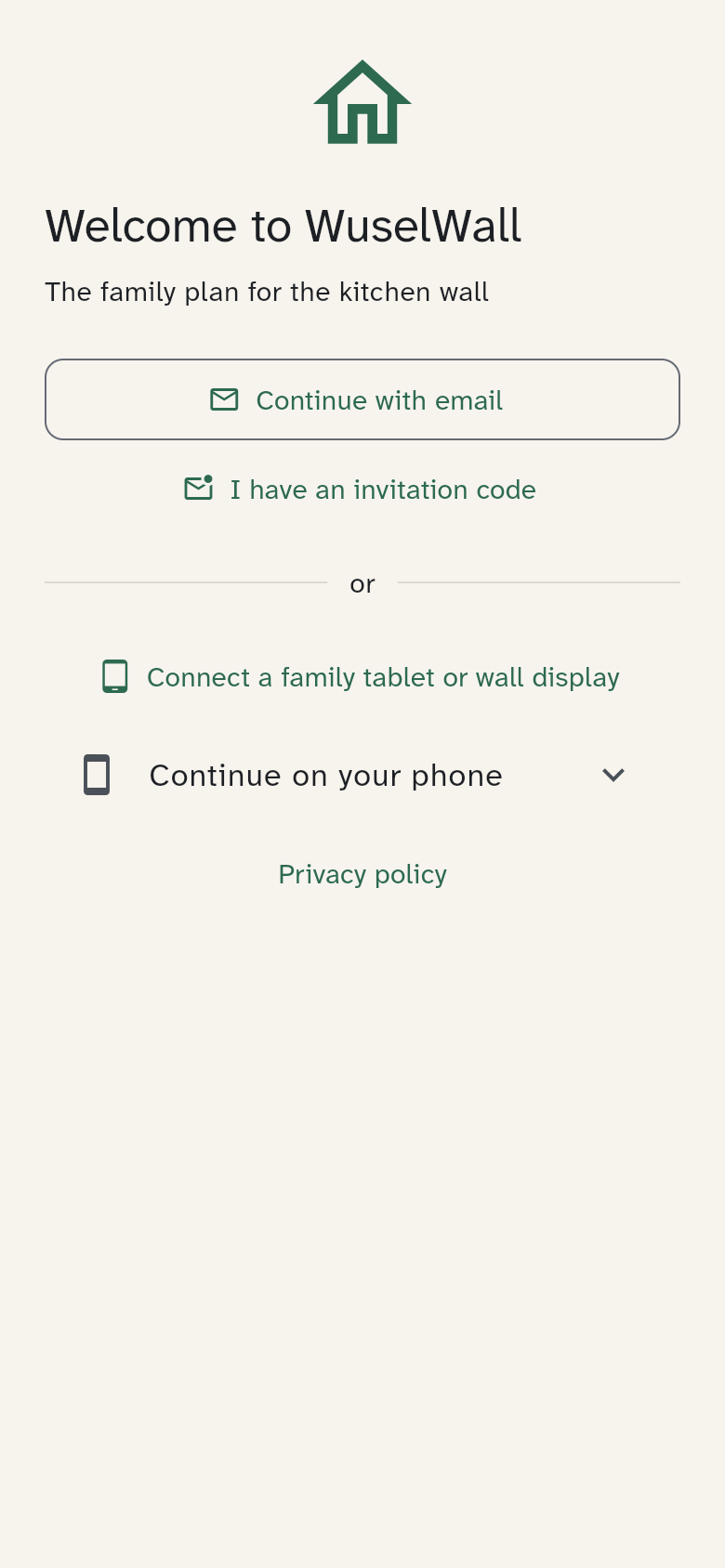
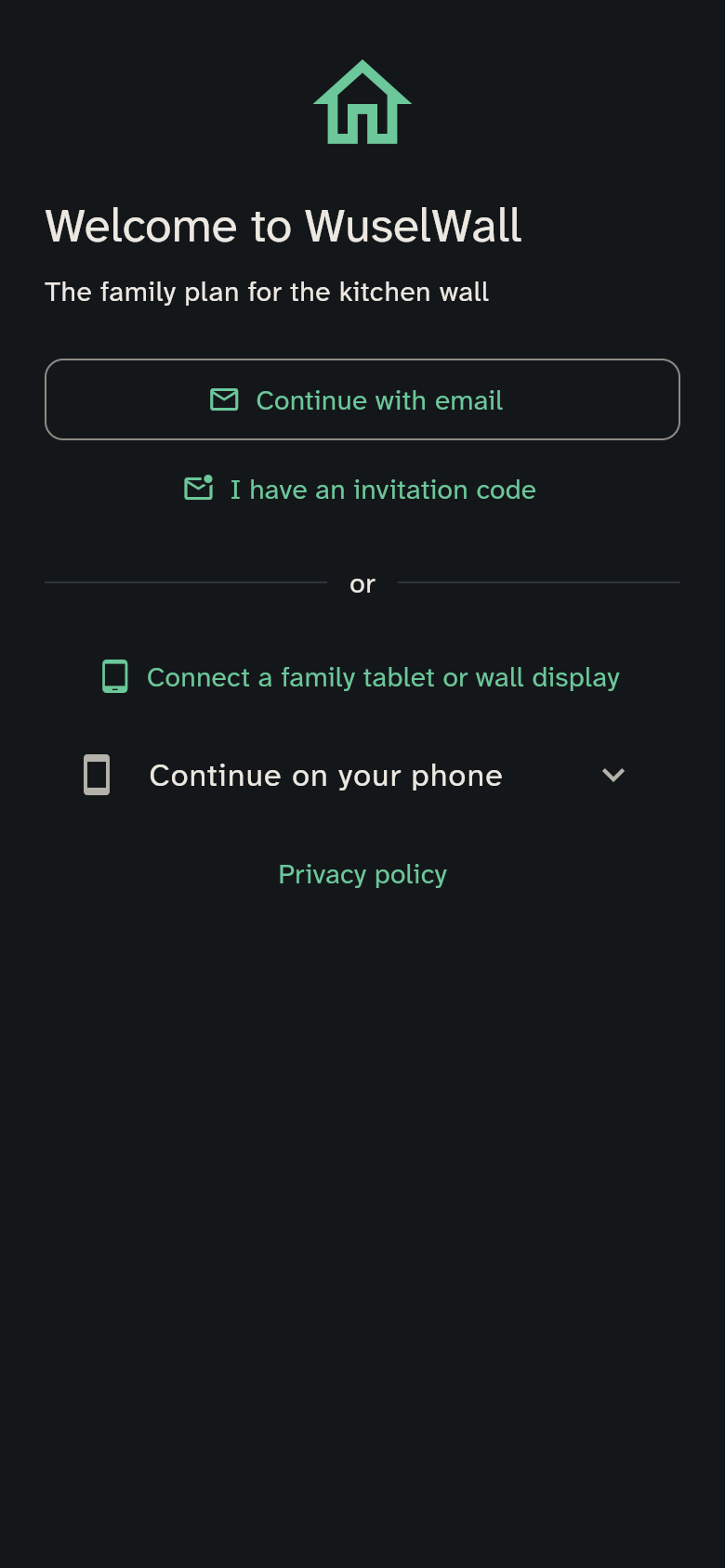
At the bottom, Privacy policy opens the policy in your browser. Without a connection the link is disabled; the policy is not stored in the app.
The start screen has three ways in:
- Continue with email: for you as an adult, on your own phone.
- I have an invitation code: a family has invited you.
- Connect a family tablet or wall display: for a device that belongs to everyone. An adult approves it on their phone.
1. Signing in
Tap Continue with email and enter a valid email address. The app checks the field before sending anything. WuselWall sends you a six-digit code. It is valid for 10 minutes. Enter it and you are in. If it does not arrive, check your spam folder or tap No code? Send again; a new code comes at the earliest after one minute.
Keep the page with the code field open and enter the code from the email there. You do not need a sign-in link or a second sign-in. The email code verifies your address; it is different from the setup code for a new server.
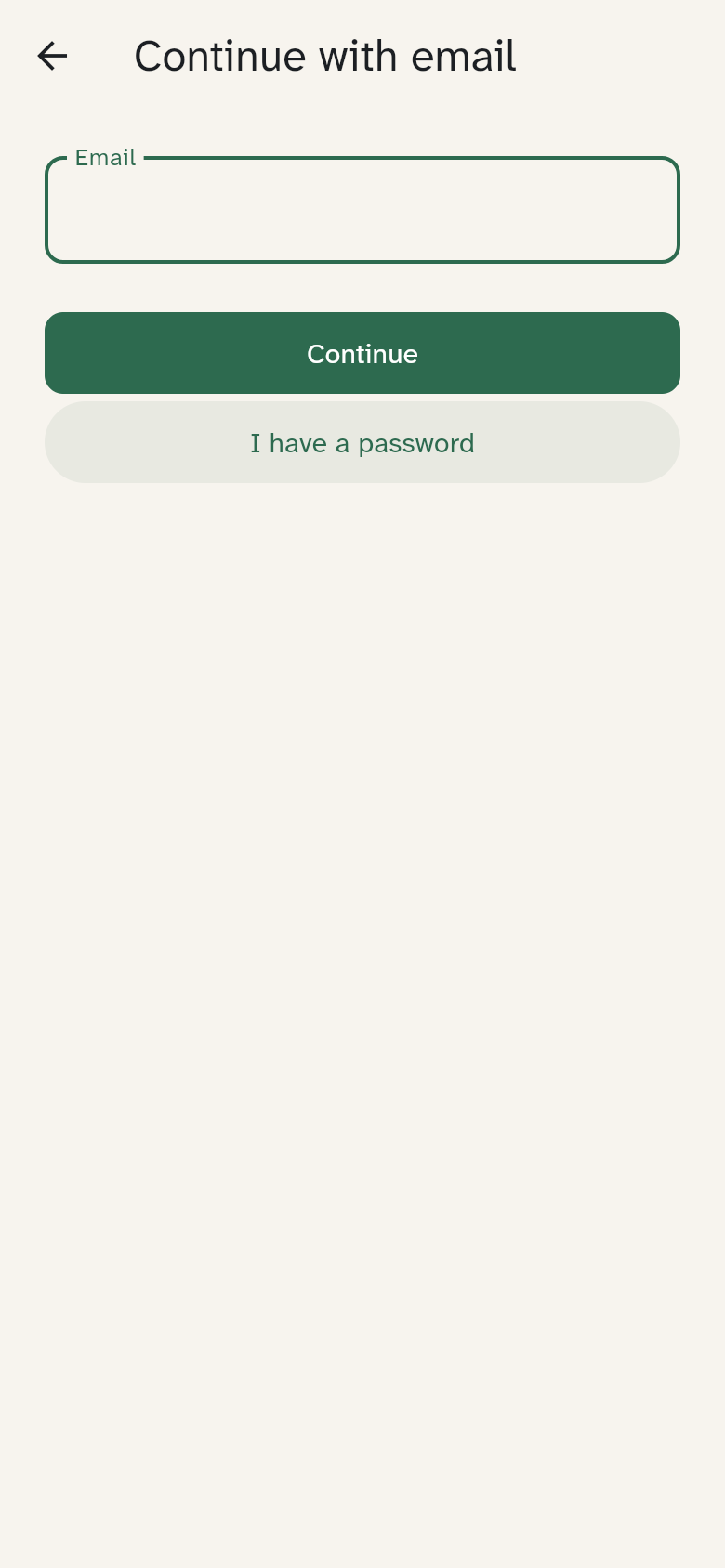
Prefer a password? Tap I have a password. Enter your email address and password; the app checks both before signing in. You set the password under Settings → Advanced → Sign-in, at least 10 characters. The code by email always stays possible.
The first time you create an account, WuselWall asks once how you want to sign in from now on: with the code by email (nothing to remember) or with a password.
If two-factor sign-in is on, the six-digit code from your authenticator app follows (see Security).
2. Creating a new family
If your account does not belong to a family yet, WuselWall opens New family. You do this once, on your own phone:
- Family name, for example "Becker".
- Your name and Your colour. The colour appears wherever you add something.
- Optionally Start with examples: a few tasks and rewards that you can change or delete.
- The setup code, if your server requires one and you have not opened a setup link. It comes from the server installation or the person who runs your server — not from your sign-in email.
If you opened the setup link or QR code from the server installation, WuselWall remembers its setup code for that server during sign-in. You do not enter it again on New family. Treat the setup link like a key and share it only with the person who is creating your family.
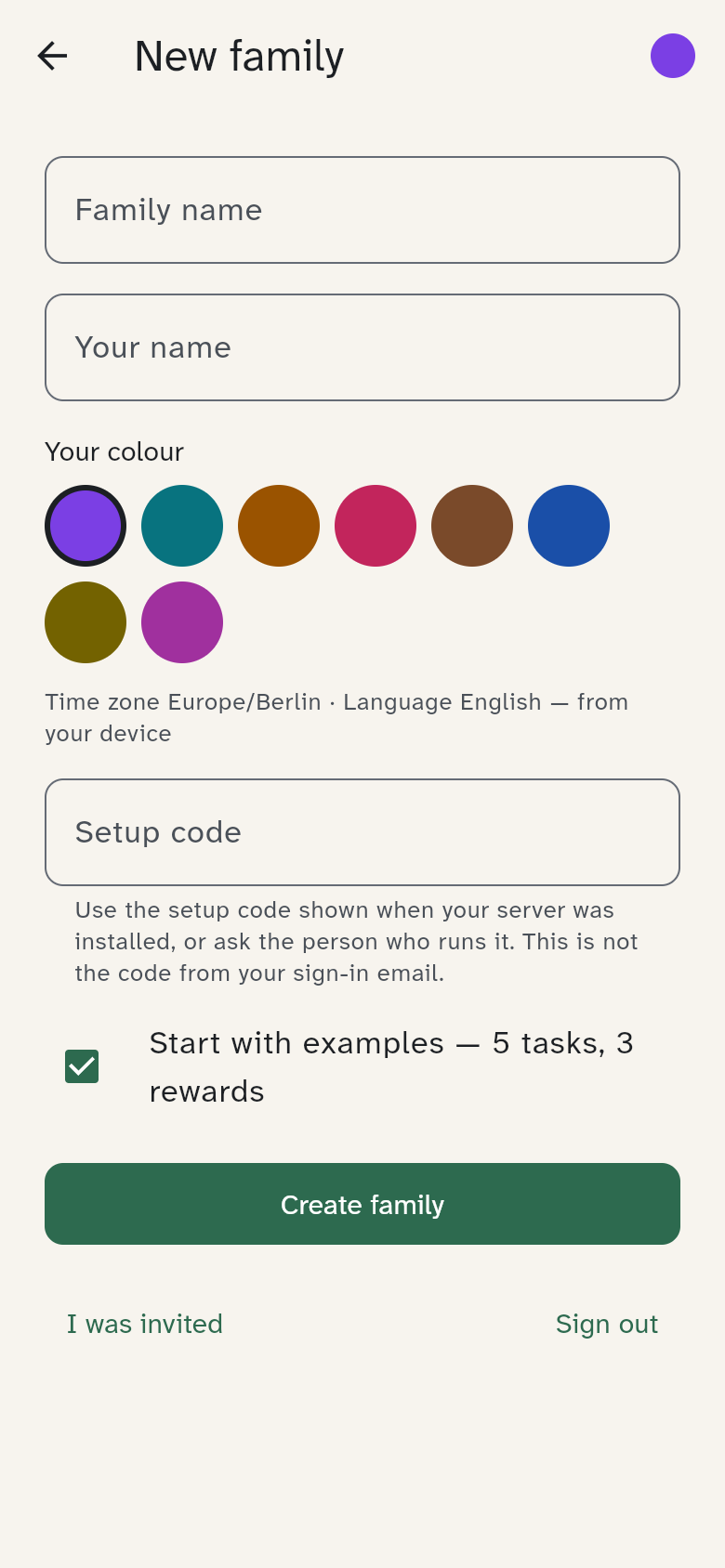
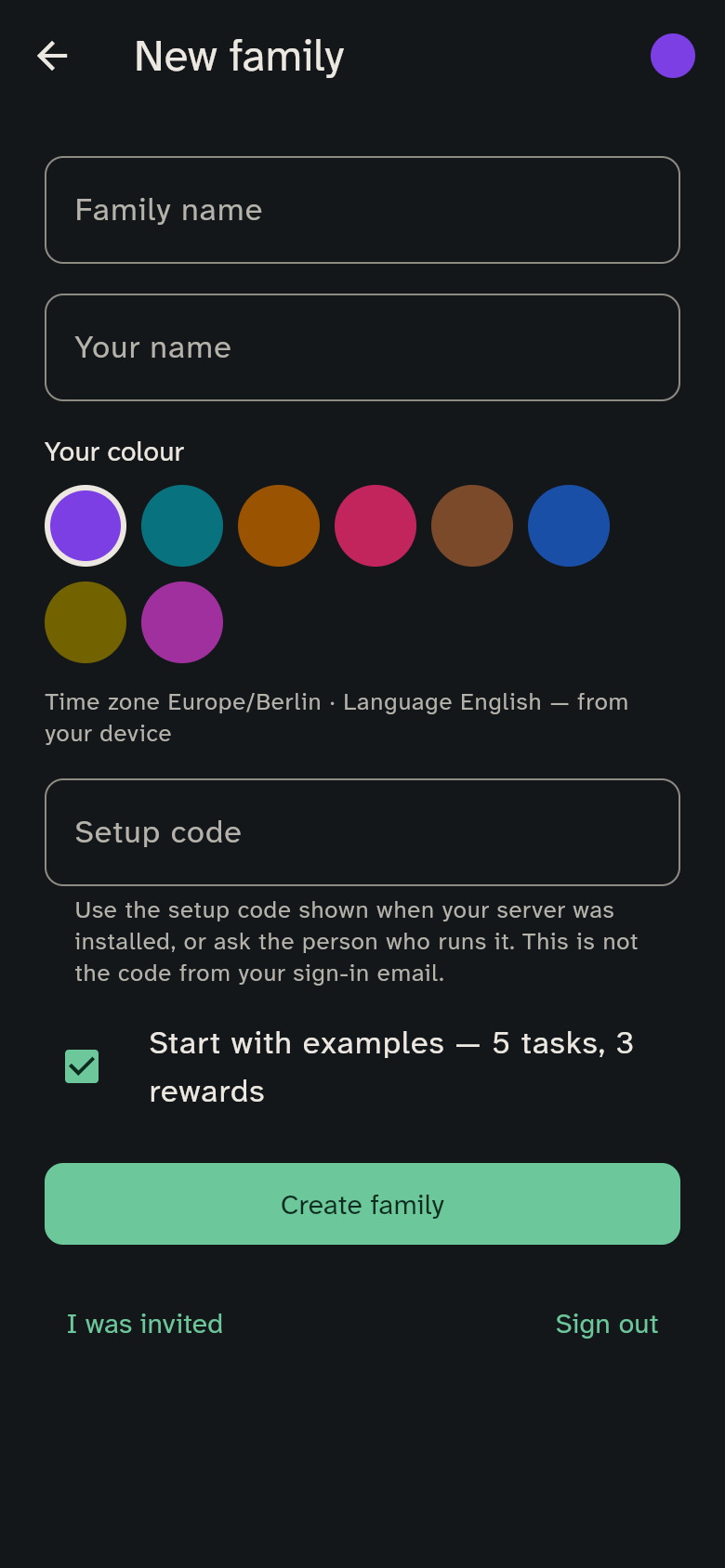
If the app stays on this page for more than 15 seconds after creation, it shows a message. You can then choose I was invited or Sign out. Create family stays locked to avoid accidentally creating a second family. If confirmation arrives later, the app continues automatically.
Tap Create family. Then comes the page Who else is in your family?: enter children and other adults by name, so they appear in the lists. You can invite adults later; Skip continues at once.
This phone becomes your personal phone. It gets a name automatically, such as "David's iPhone", which you can change under Settings → Devices. Then the Today tab opens.
3. Joining a family
If a family has invited you, you get a link, a QR code or a code. The link and the QR code also contain your family's server. If WuselWall is already on your phone, the link opens the app directly: you do not choose a server or type anything. If the app is not installed yet, the link shows a page with the stores; install the app, then open the link again.
If you only got the code, you enter it in the app:
- On the start screen, tap I have an invitation code. If the app still asks for the server, enter code and server together, like
K7QM3XRP@family.example.org; the invitation message names the server. - Paste the code or the whole link, then tap Check invitation.
- WuselWall shows what you are invited to: You are ‹name› in ‹family›. You can adjust your name and colour here. Join adds you.
If the family entered your email address, you need to enter nothing: after signing in, WuselWall shows the invitation by itself. Invitations are valid for 7 days and work once; how to send them is described under Members and devices.
An account belongs to exactly one family. If you open an invitation while you are already in a family, WuselWall shows You're already in ‹family› and who invited you where. Leave family takes you through leaving, with a confirmation; after that the invitation carries on directly. Cancel leaves everything as it is. If the invitation is for the family you are already in, WuselWall just says so.
4. Connecting a family tablet or wall display
This is how the wall display in the kitchen, a kids' tablet or a shared tablet join the household. You do not type a code, only briefly use your phone. The new device's QR code also names the server; if you open it with your phone's camera, WuselWall starts right at the confirmation:
- On the new device, tap Connect a family tablet or wall display. It shows a QR code and a code.
- On your phone, open Settings → Devices → Connect a device. You can also start from the Getting started card on the Today tab.
- Scan the QR code or type in the code, and tap Next. As you type, letters automatically appear in uppercase and the dash is inserted. You can enter the code in lowercase without the dash.
- Choose the kind of device: Wall display, Kids' tablet, Shared tablet or A child's phone. For a child's phone you pick the child. Give the device a name and tap Connect.
- The first time, you set the guardian PIN. It confirms changes on shared devices (see Who are you?).
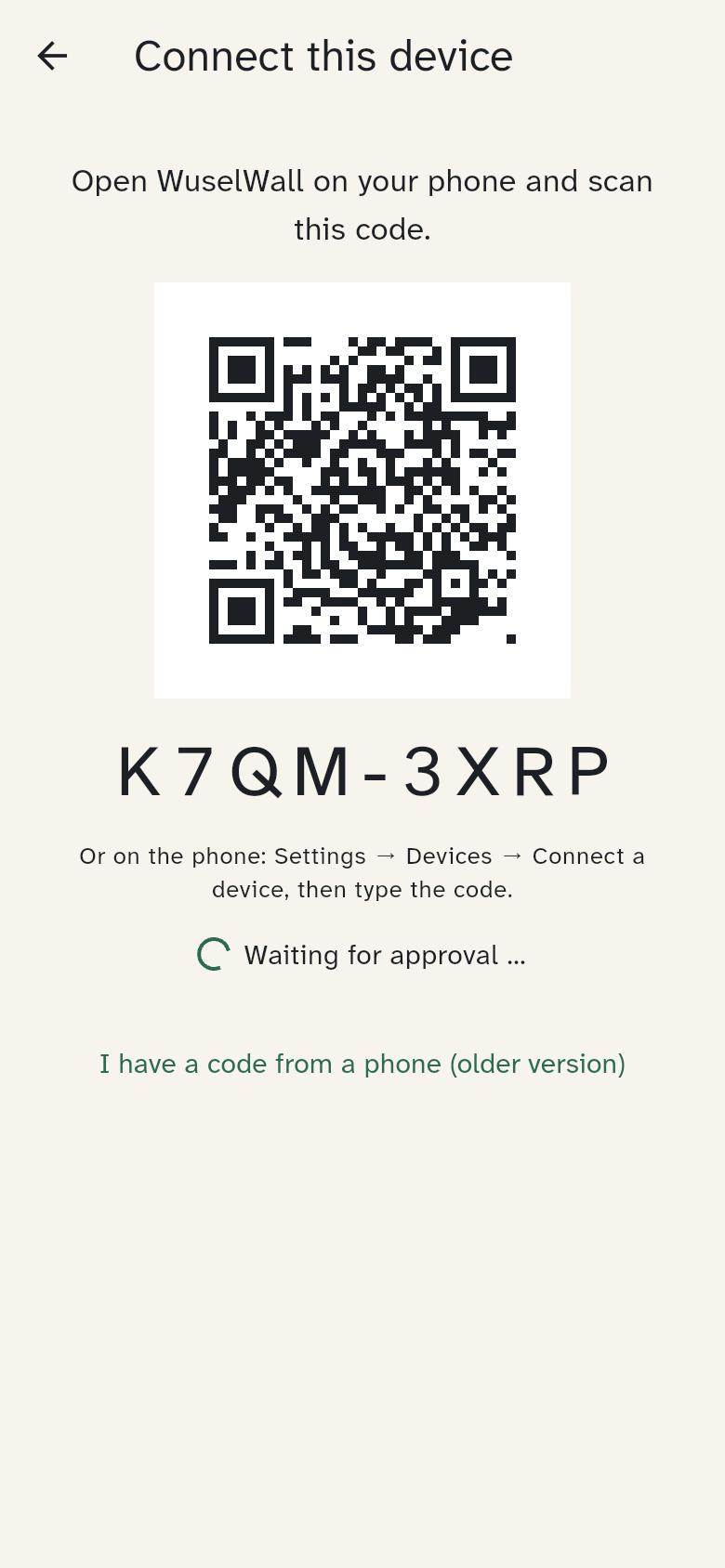
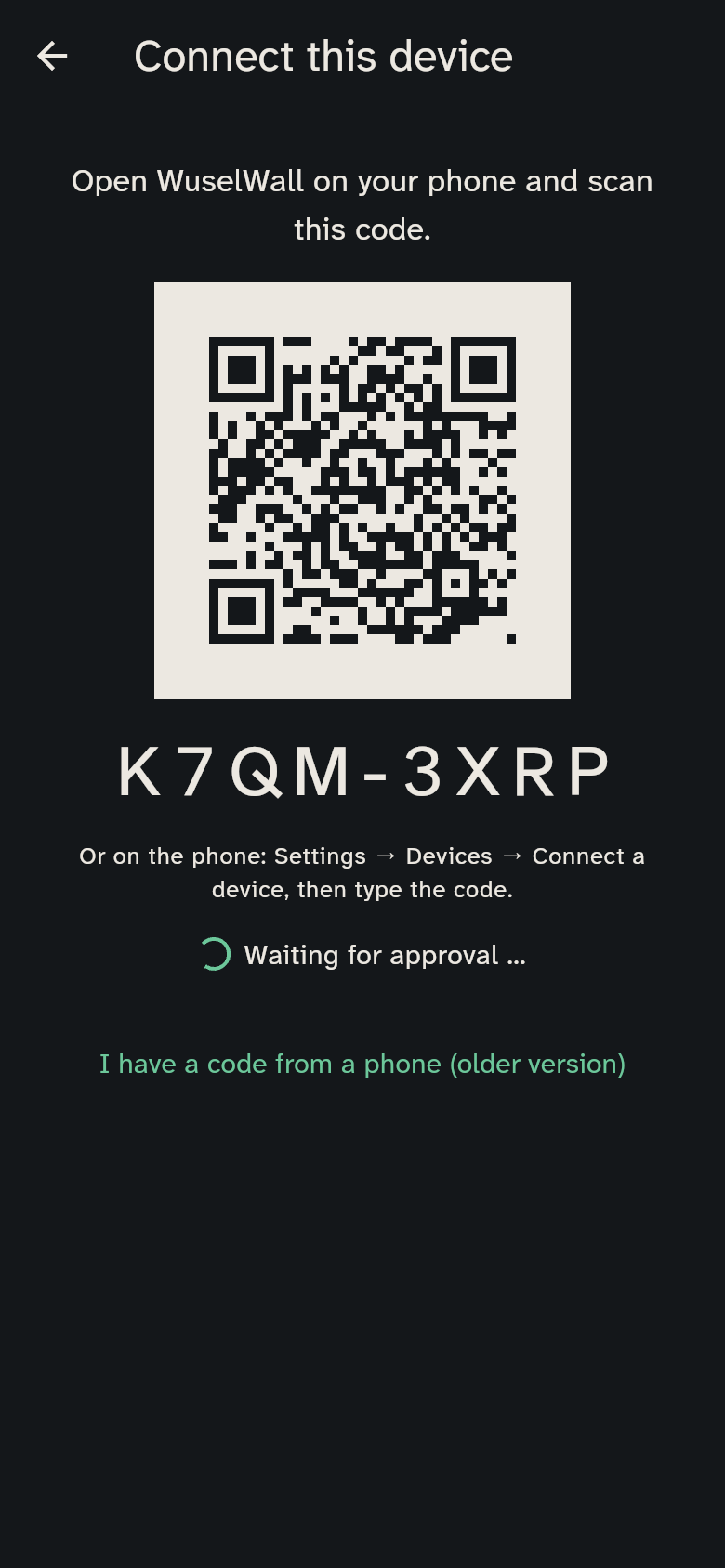
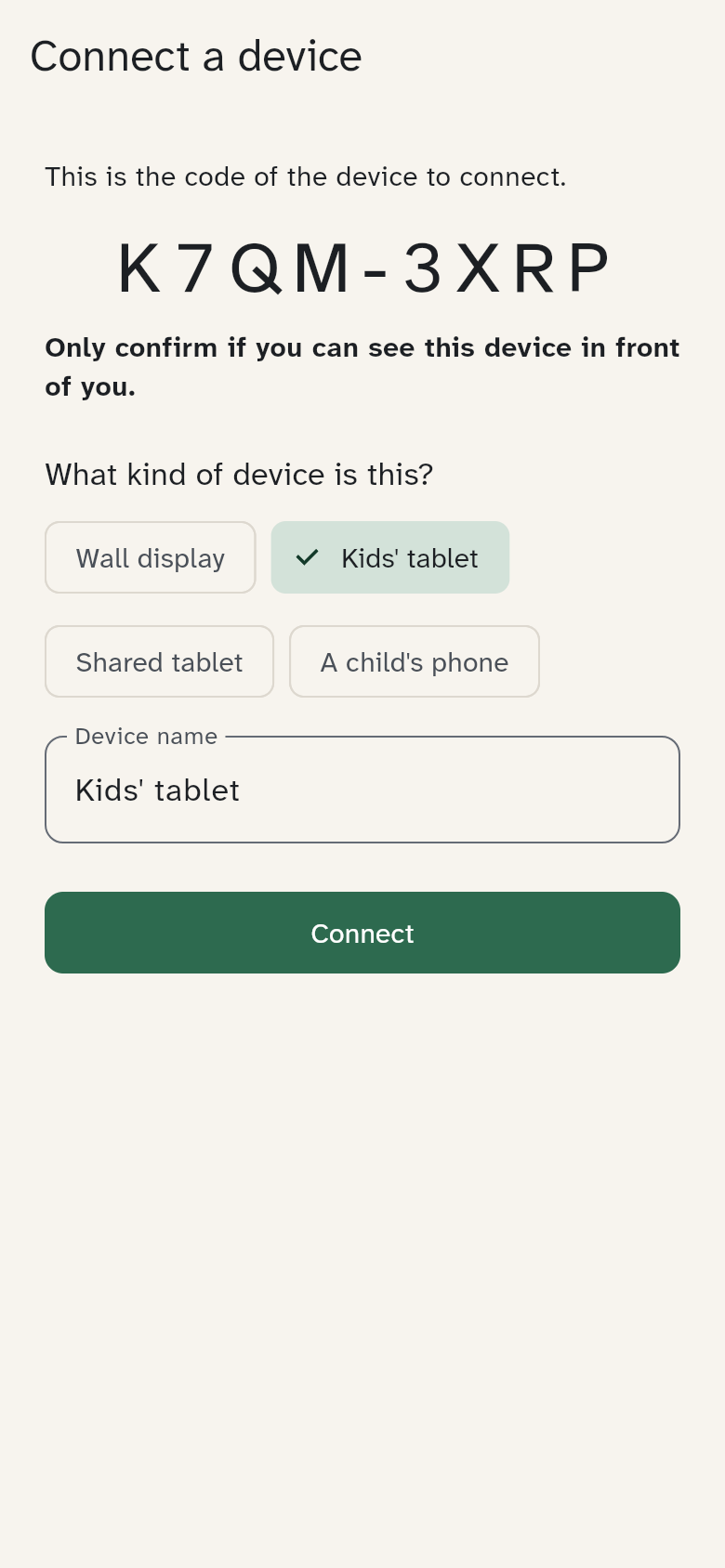
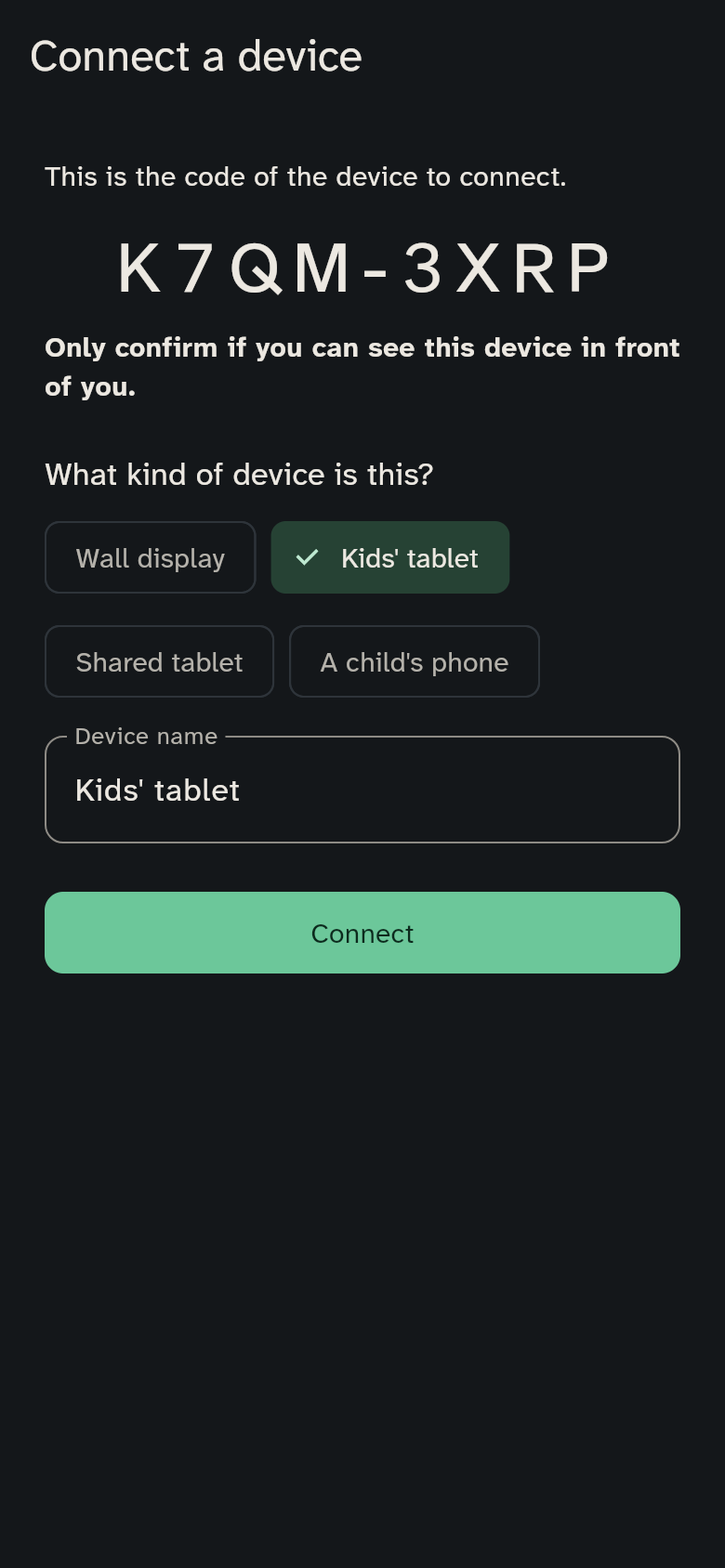
After that the new device is ready. The wall display shows a short checklist once, so that it keeps running (see Wall display and kids). The code is valid for 10 minutes and works once. If it does not match, start again on the new device.
Older devices
A device with an older version of WuselWall still takes the old code: under Settings → Advanced → Devices tap Create a code for an older device. This option goes away with the next version.