
Wall display and kids
Kids' tablet
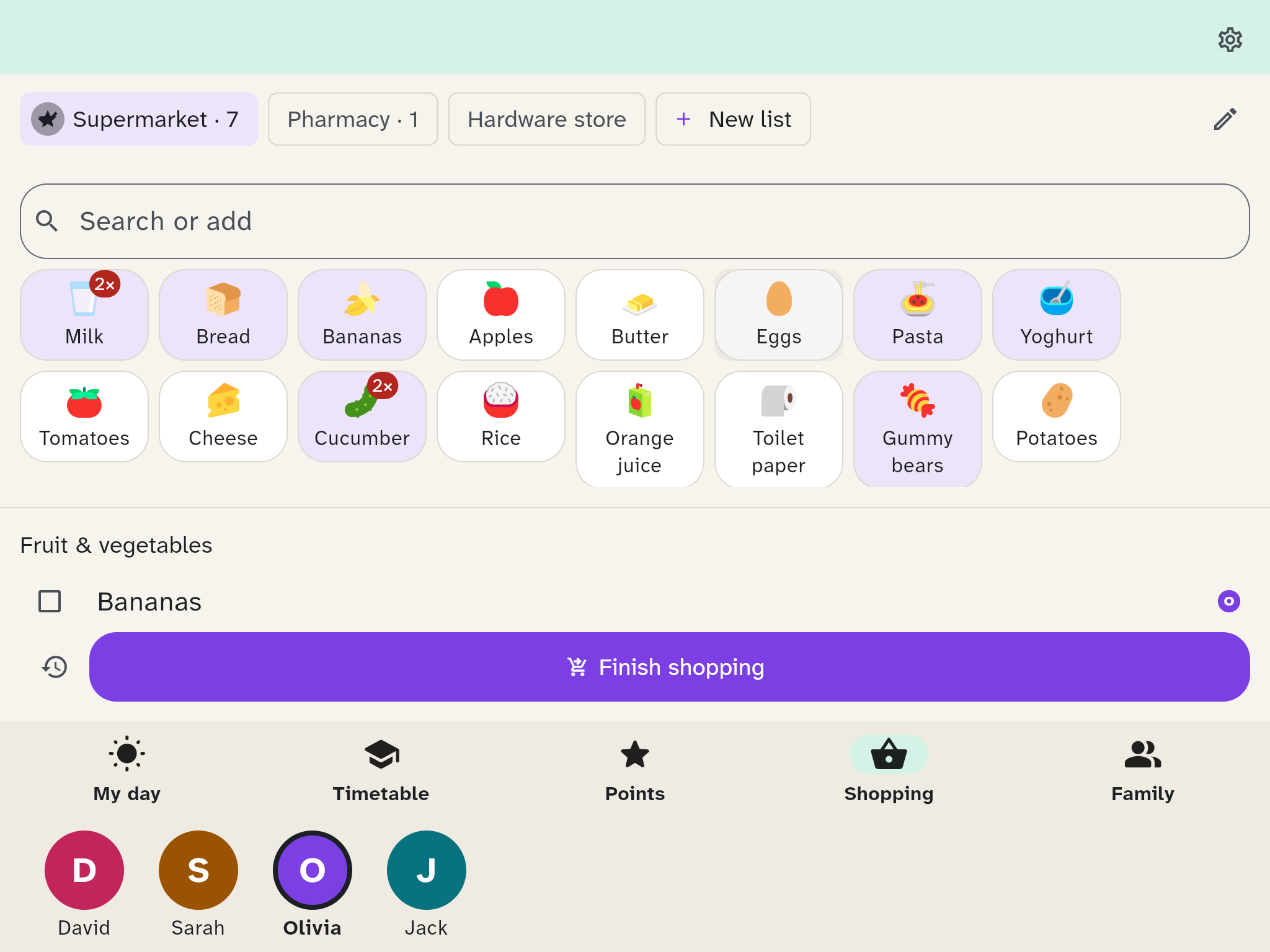
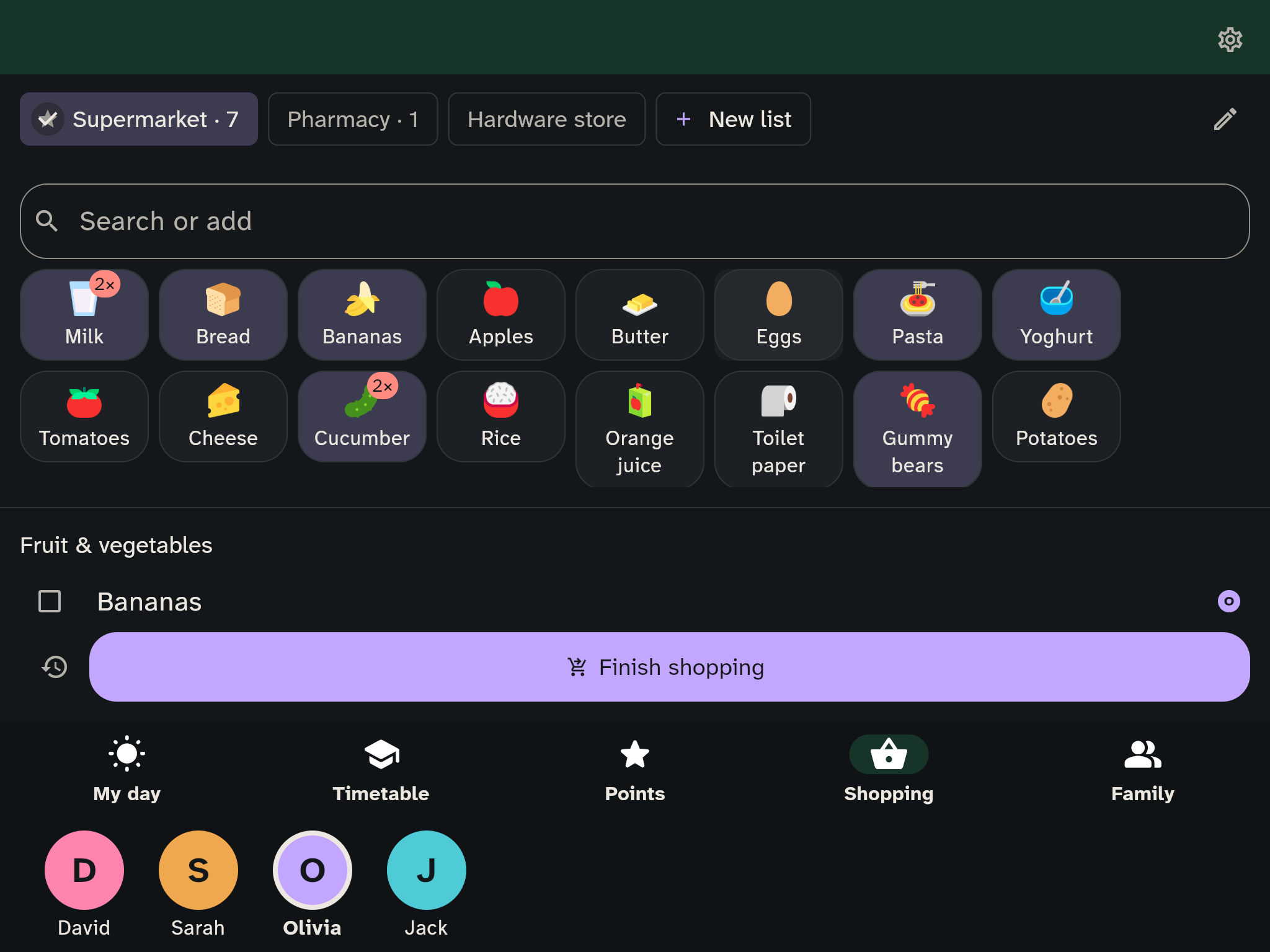
A kids' device shows the list larger and simpler. Children tap their name and then add and tick items like everyone else — even before they can spell, because the tiles need no keyboard.
On My day, Wusel greets the child. Below are their chores, Looking forward to, school, the meal, the card Your meal wish and the appointments; during the meal the question at the table, and on Sunday evening Our week (see Rituals).
Children cannot manage devices or members; that stays with guardians.
Wall display in the kitchen
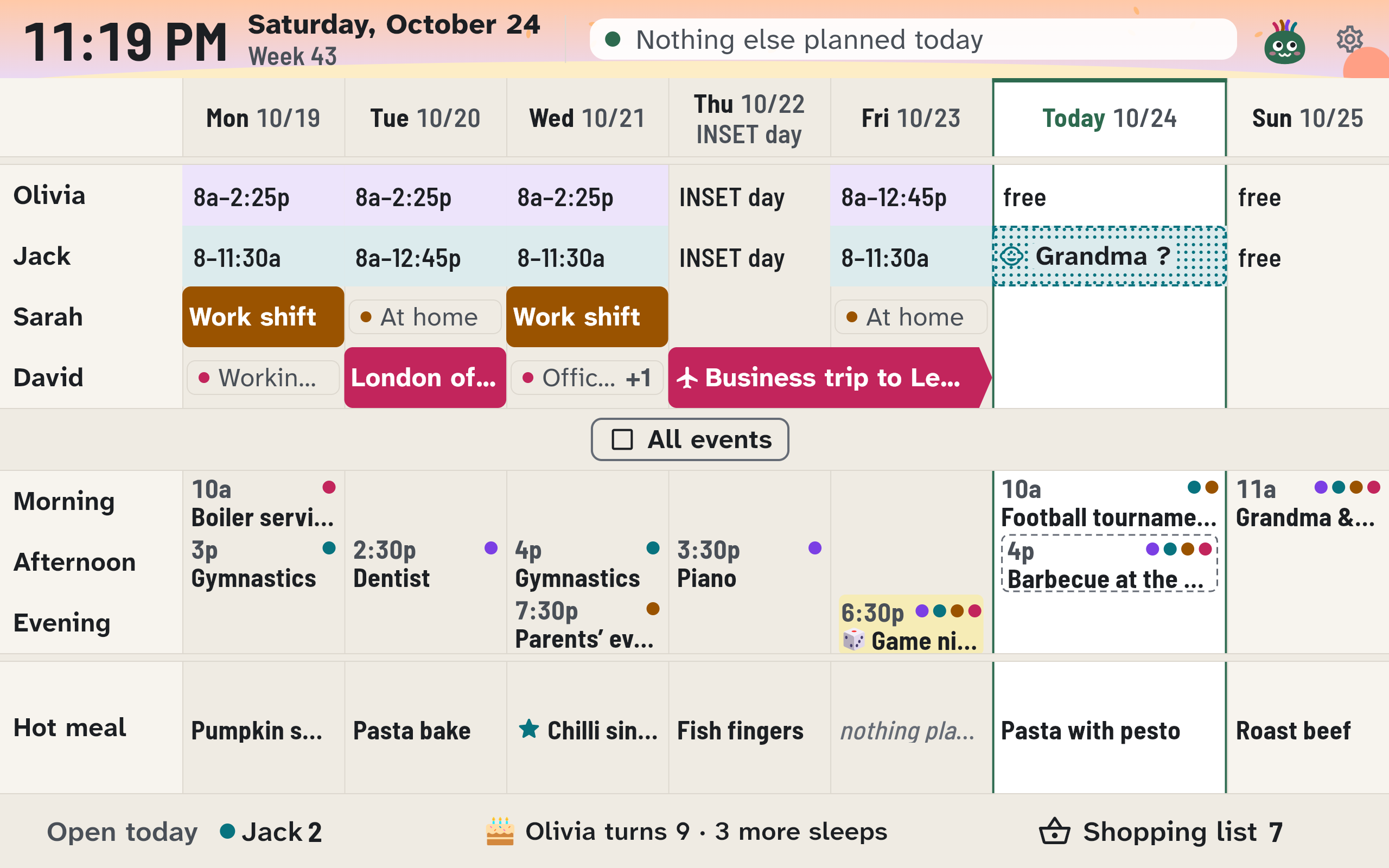
The wall display is made to be read from two and a half metres: big type, clear areas — and no input needed, because nobody types on a wall. Its home screen is the week board: the whole week at a glance.
At the top
The clock, the date and the calendar week. Next to it is Up next: the next appointment of today, with a countdown. During the meal the question at the table stands there instead. Wusel sits on the right, and behind the header a sky shows the time of day. On the morning of a tradition Wusel says "It's Game night today!", and when a countdown says Tomorrow! or Today!, Wusel waves.
One column per day
The seven days stand side by side, Monday to Sunday. Today's column is wider and framed, past days are paler. Every column has the same three areas in the same order, separated by narrow strips:
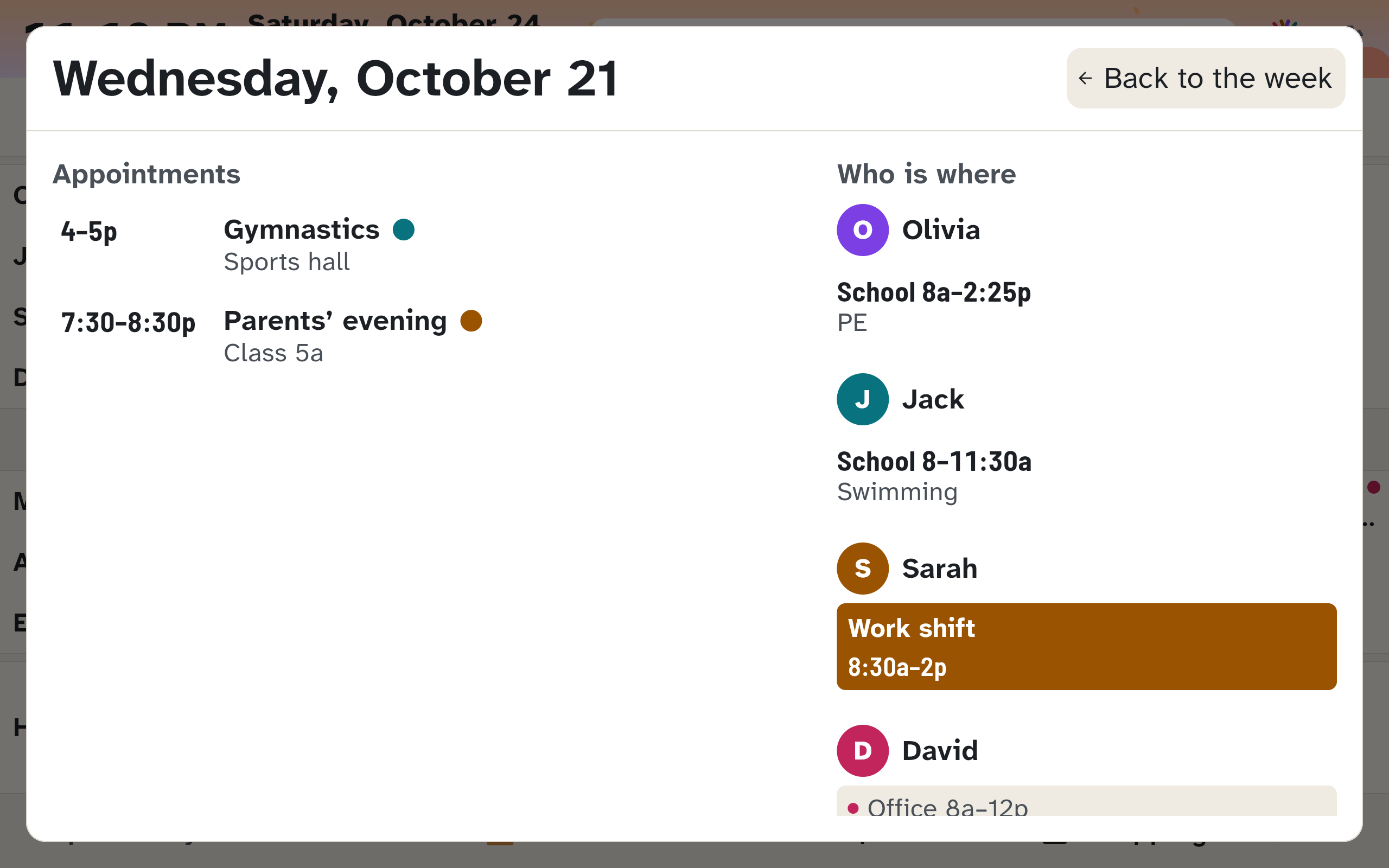
- Who is where: one row per family member. For children, this shows school time (for example 8–14:25), notable lessons such as sport or swimming, and the end of after-school care. For adults, a pale strip shows their usual state, such as home office. Anything different — duty, business trip, office — appears as a coloured band; a multi-day trip is one continuous band. A small clock with "until 17" means appointments until 17:00. A public holiday is named above its column, and so is a birthday, with a cake and the age, such as "Emma turns 9"; children without school show "free". Pale = as usual, bold = different.
- Appointments: morning, afternoon and evening. Only appointments marked for the kitchen display are shown. A dot shows who is involved. Dashed and with a "?" means not certain yet. If there is no room left, it says "+2 more". A family tradition is always shown, with a lemon-yellow ribbon and its picture. With All events (at the right of the band above the appointments) every column shows all its appointments, not only the marked ones. The tick goes off again by itself when nobody touches the wall.
- Hot meal (named at the left of its row): the one warm meal of the day — sun for lunch, moon for dinner — with the dish. A dot per person shows who eats with us (filled) and who is not there (hollow). It also shows who cooks. A star means someone wished for it (meal wishes).
- Footer: each person's open tasks for today; a tap on Open today opens the family's chore board. Also the number of items on the shopping list. In between are the next countdowns, such as "Olivia turns 10 · 3 more sleeps", as many as fit, and on Sunday evening the tile Our week.
On the chore board Wusel cheers at the top of a person's column as soon as they have done everything for today.
Tap for details
The text follows the device's text-size setting. At larger sizes the wall uses shorter summaries with ellipses instead of shrinking letters. Dates, school notes, care, further appointments and meals remain available in the details. A short counter such as +2 means two further appointments. When three day parts cannot fit vertically, the appointment area summarises each day's appointments in one row. Day names, all seven columns and every area stay visible.
In compact rows the whole member row is one large button: it opens a child's weekly timetable or an adult's week. For a particular school day or care, tap the day header. With a keyboard, use Tab to move between buttons; a visible outline shows focus, and Enter or Space opens the details.
A tap shows more, and after a minute the display returns to the week by itself:
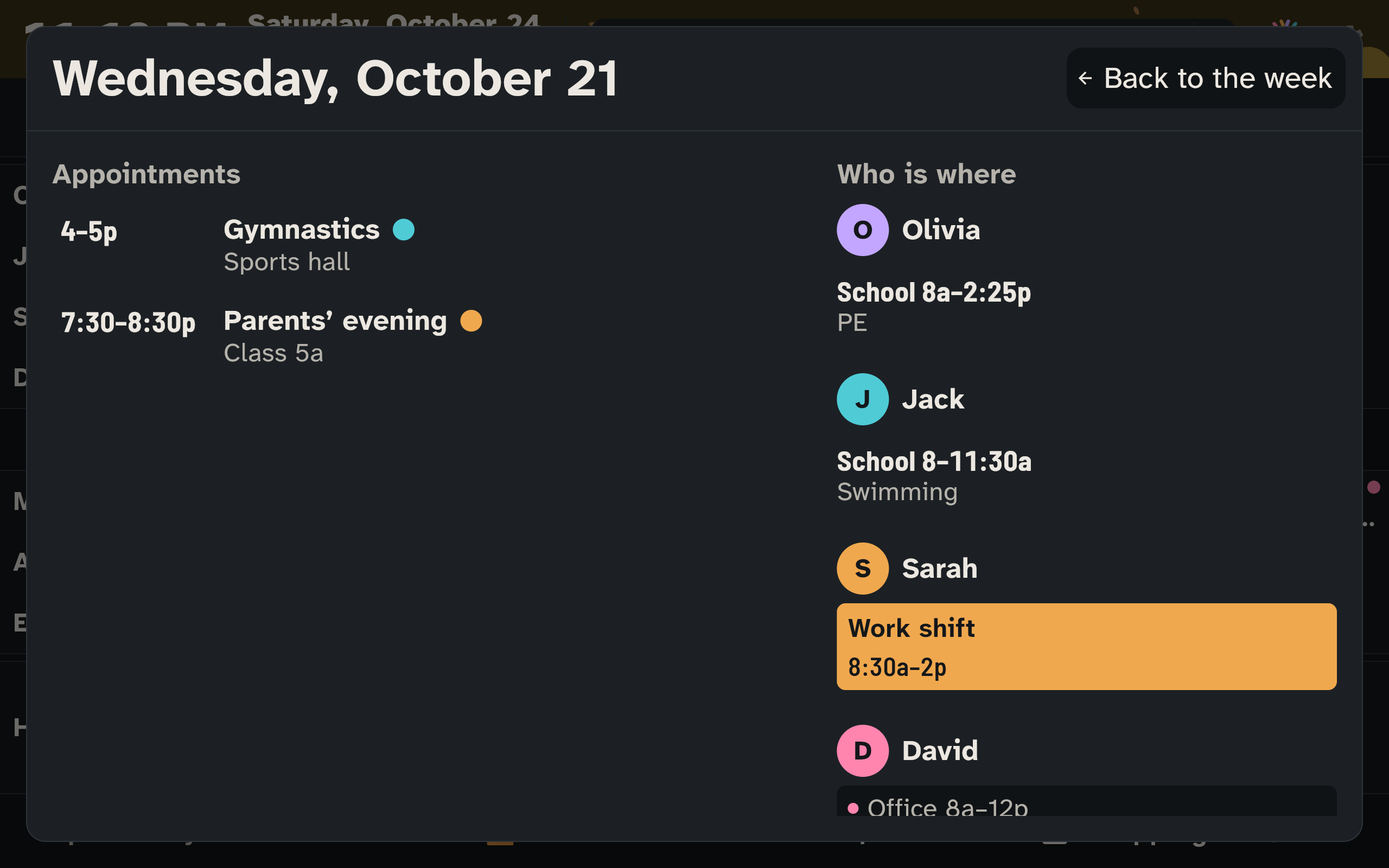
- on a day header: that whole day
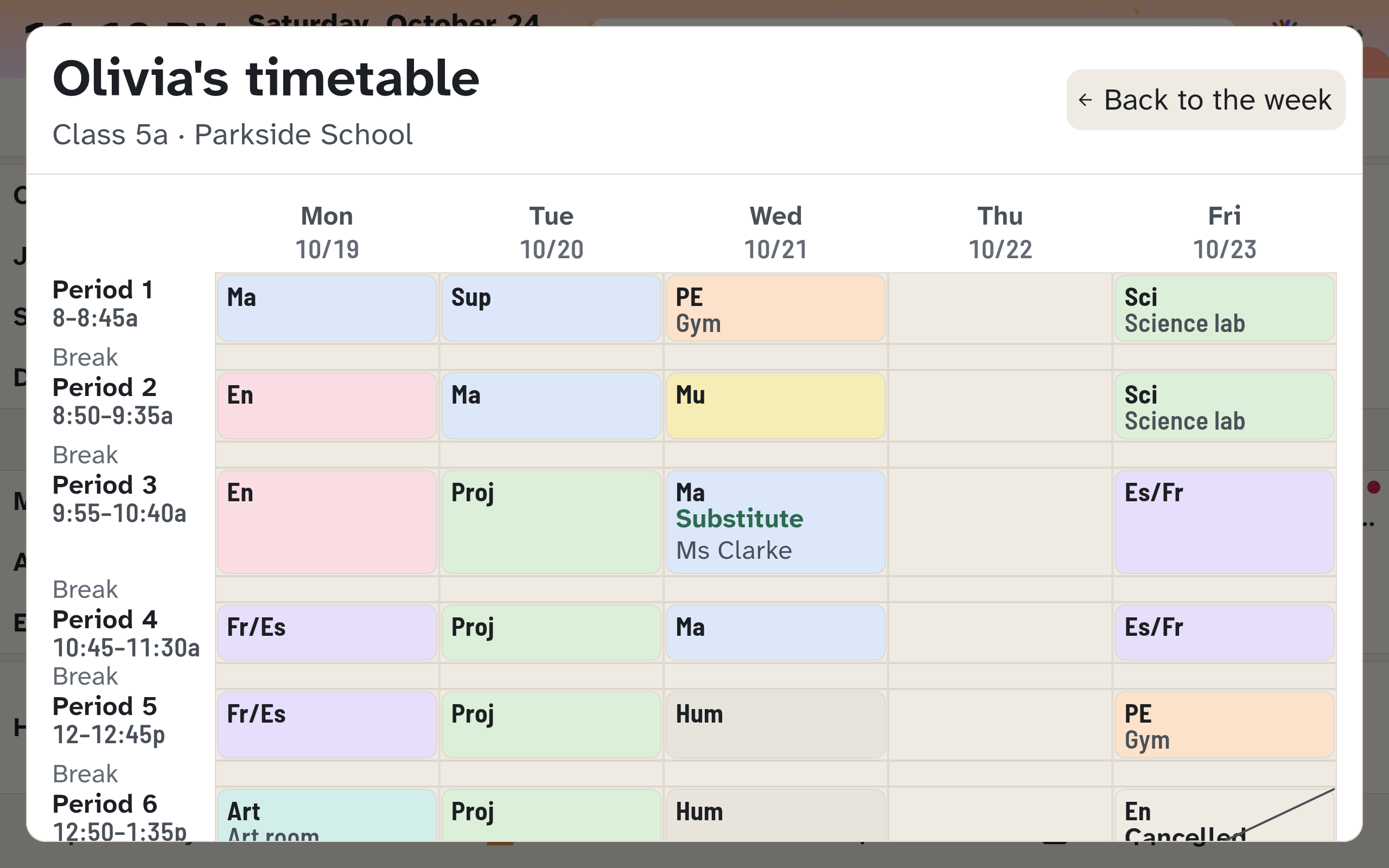
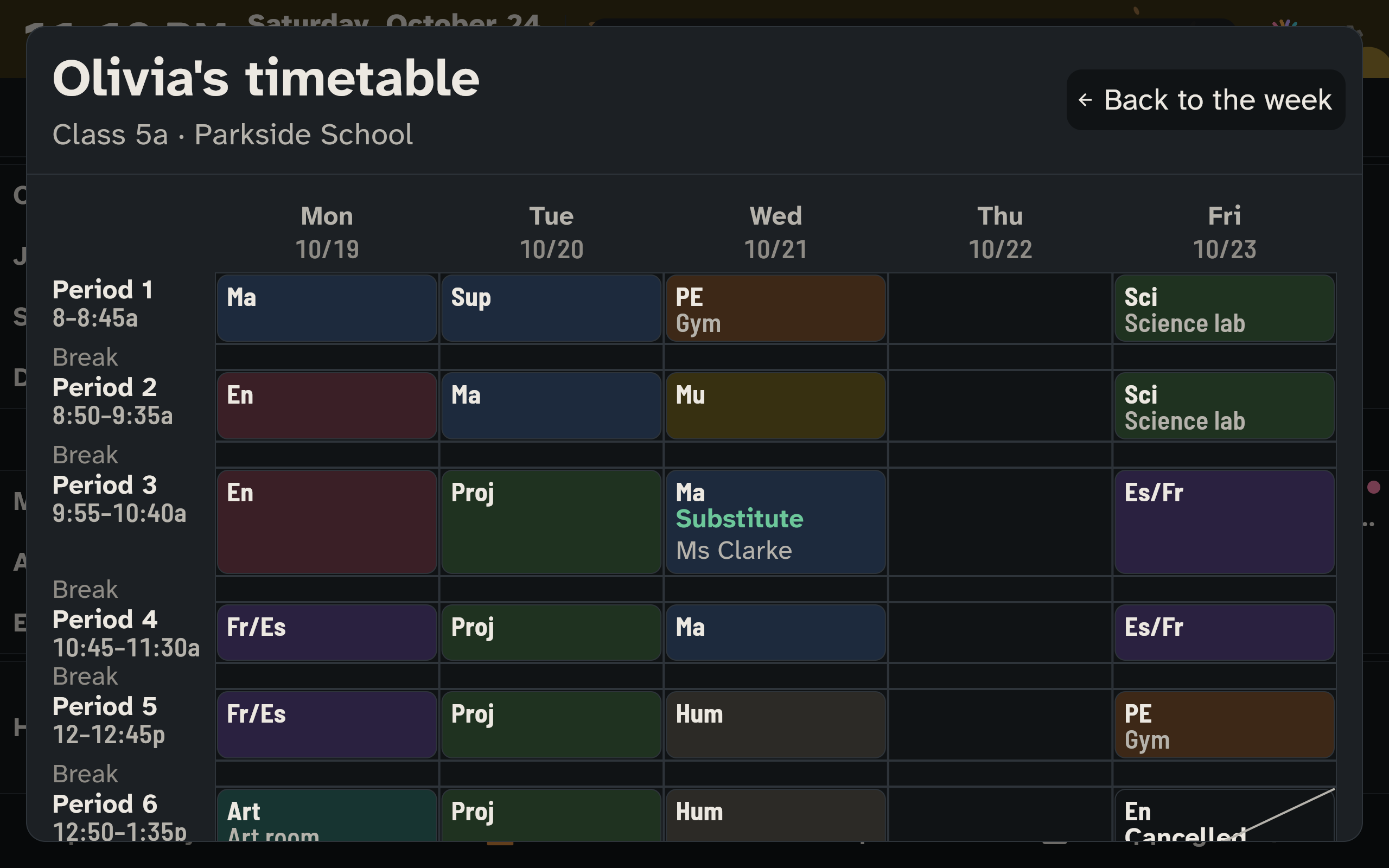
- on a child's name: the timetable for the week. Cancelled lessons are struck through, substitutions are marked, and "Pack for tomorrow" is shown.
- on a school time in a compact row: the child's weekly timetable; use the day header for an individual school day
- on an adult's name: their week
- on the meal area: the meals of the week
The details show everything in full, also at large text sizes: long names, places and dishes continue on the next line. What is already over — past days, finished appointments, cancelled lessons — sits on a muted background but stays as readable as the rest.
Shopping list
Tap the shopping list in the footer to open the tiles. Tap your name first: the wall always writes to the default list.
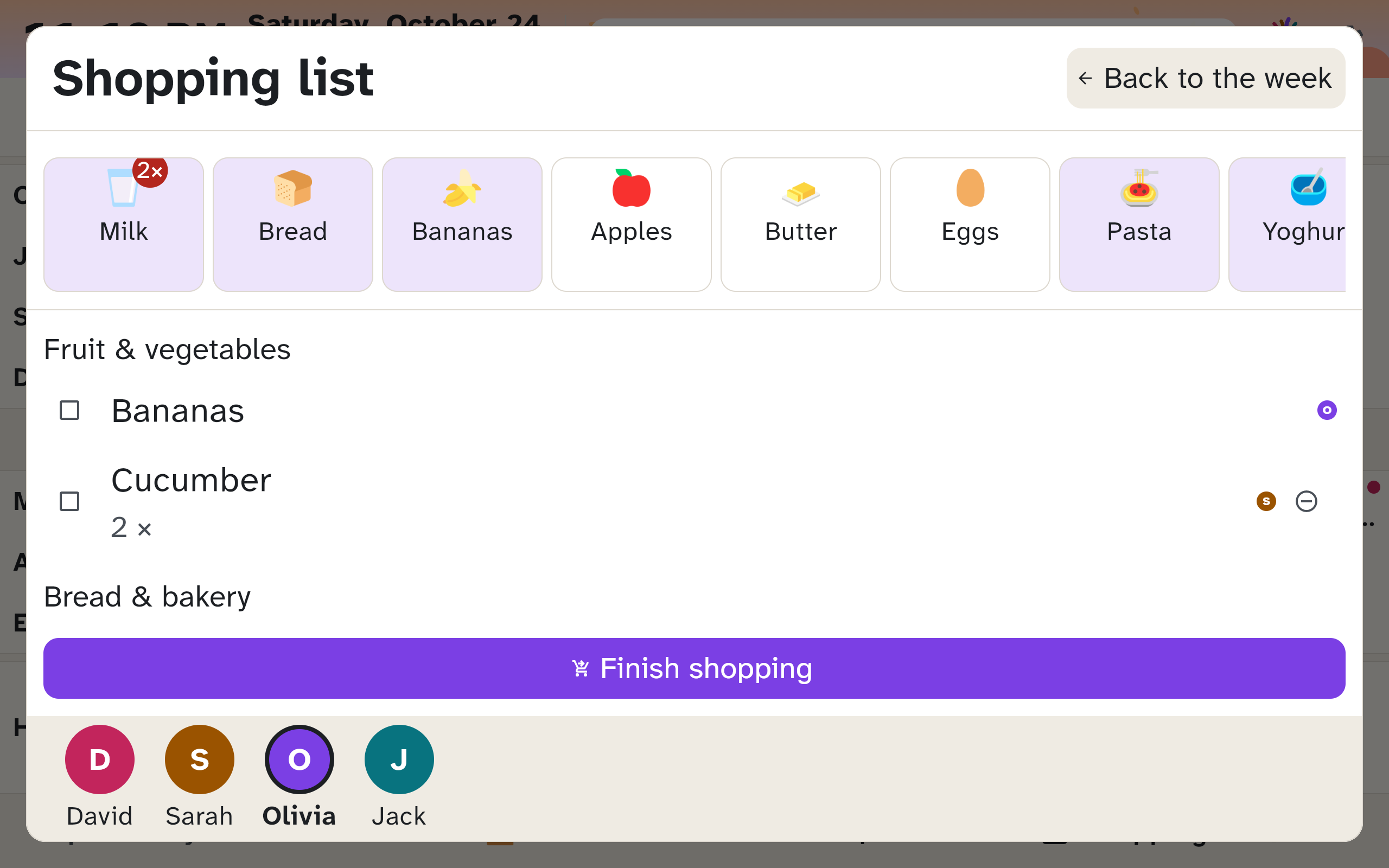
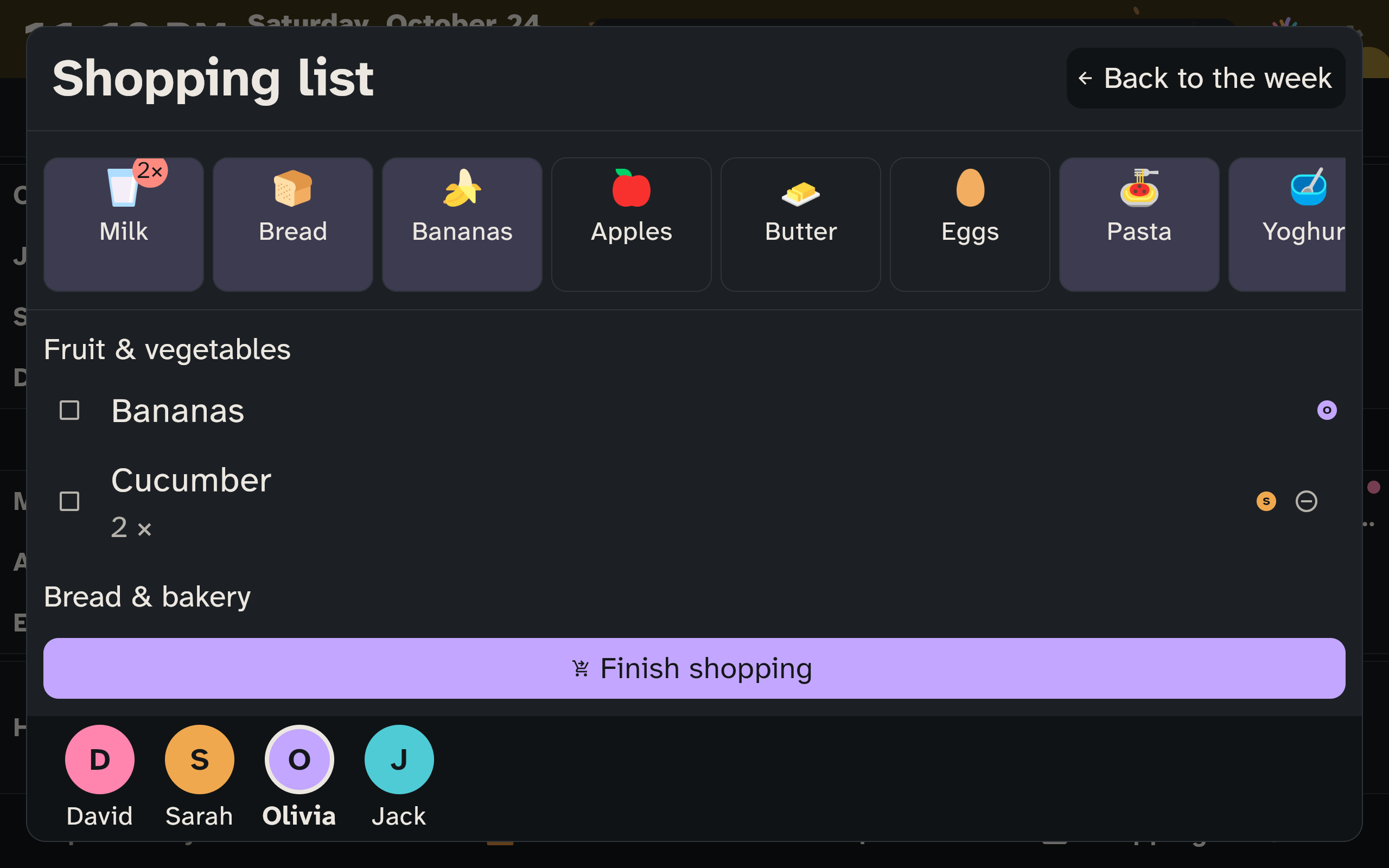
The wall can do no more than that: it adds items to the shopping list and corrects who is eating (tap the meal area, then a dot). This way nothing can be changed by accident.
Night and no connection
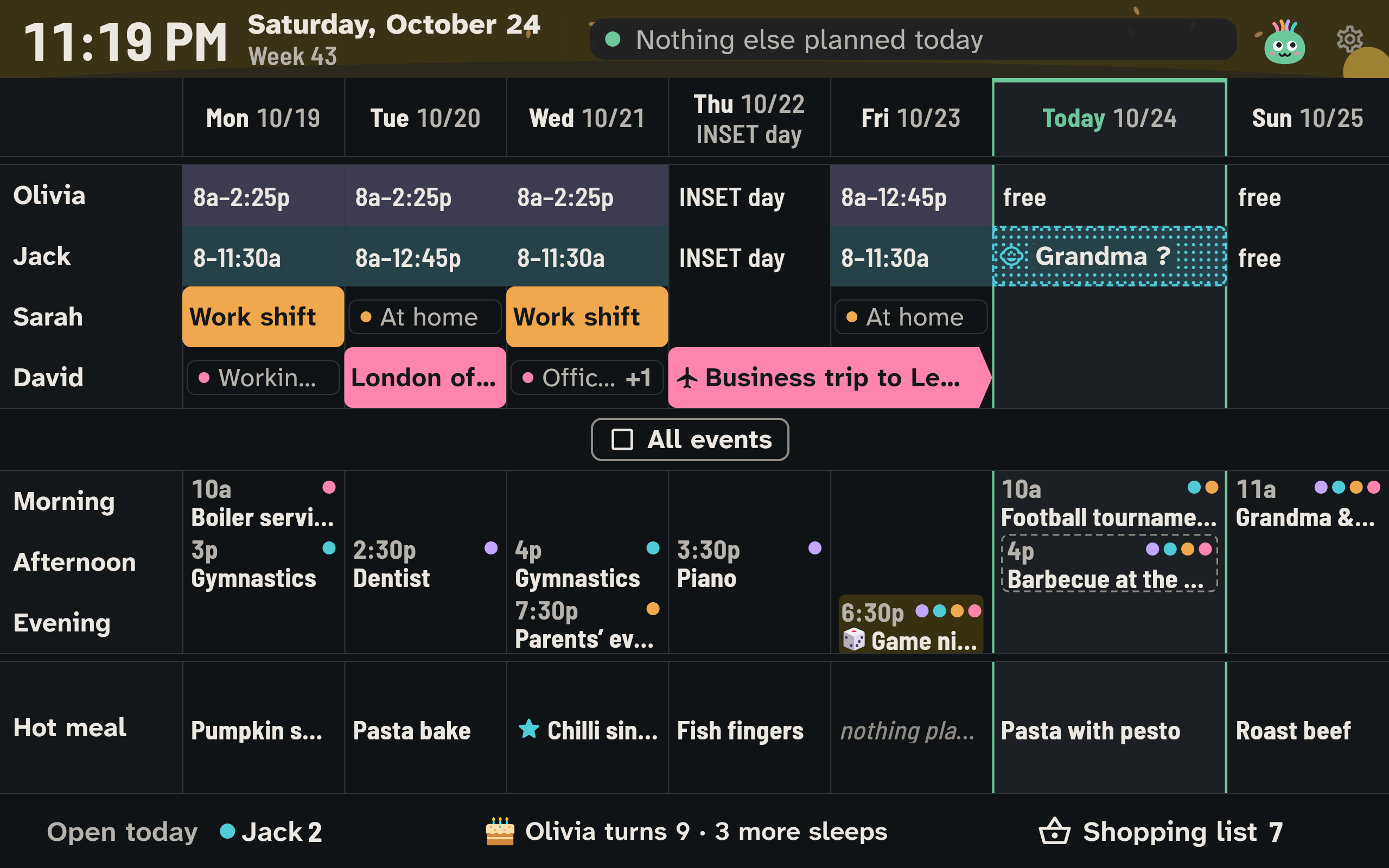
- From 21:00 (or the night hours set for this device) the display switches by itself to a calm night view, and Wusel sleeps. The wall plays sounds only if you switch them on, and never at night.
- So that nothing burns in, the display moves by up to 2 pixels every 10 minutes (see Wusel and colours).
- If the connection drops, the last plan stays visible with the note "No connection", and Wusel is thinking; the top right says when it was last updated. While everything works, the wall shows nothing about it.
Kids' tablet
The children's view has the tabs My day, Timetable, Points, Shopping and Family.
Connecting
If the app is new on the device, it first asks for the server. You don't have to type the address: scan the QR code your phone shows under Settings → Advanced → Server. Then you connect the wall display without typing a code: on the device, tap Connect a family tablet or wall display. On your phone choose Settings → Devices → Connect a device, pick the kind Wall display, scan the QR code and give the device a name. The whole process is shown under Signing in and connecting.
The first time, the wall display shows a checklist with three steps, which you go through once on the device:
- Keep the app open: On iPhone and iPad you turn on Guided Access under Accessibility. On Android you turn on App pinning under Security. This keeps the display on WuselWall.
- Keep the screen on: Set auto-lock or the screen timeout to "never" or to the maximum.
- Leave it plugged in: Keep it connected to the power, so that it is ready again after a power cut.
Done removes the checklist.