
Security
Sign-in and security settings exist only on a guardian's personal phone: Settings → Advanced → Sign-in and Settings → Advanced → Security.
Sign-in
This lists the ways you can sign in: the code by email, which is always there, and a password (see Account and family).
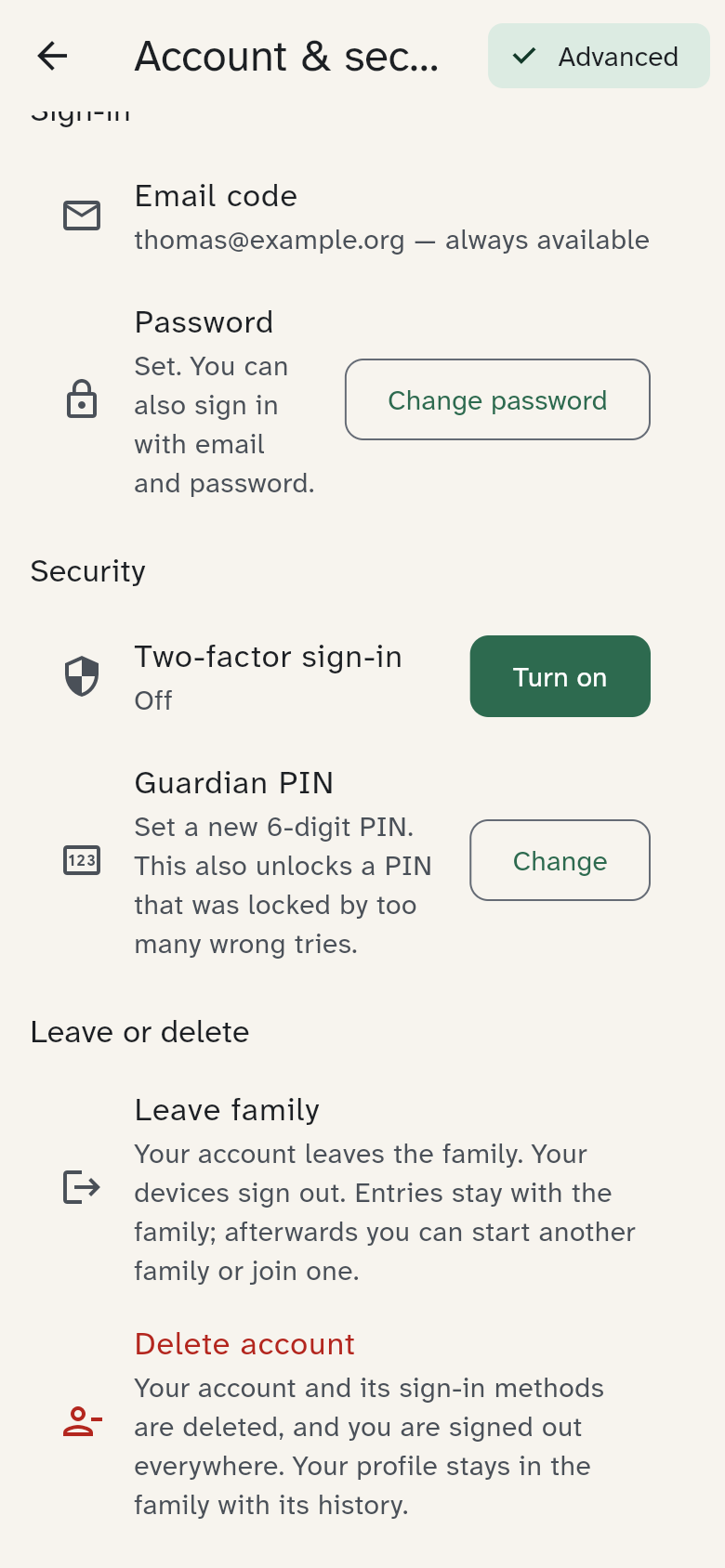
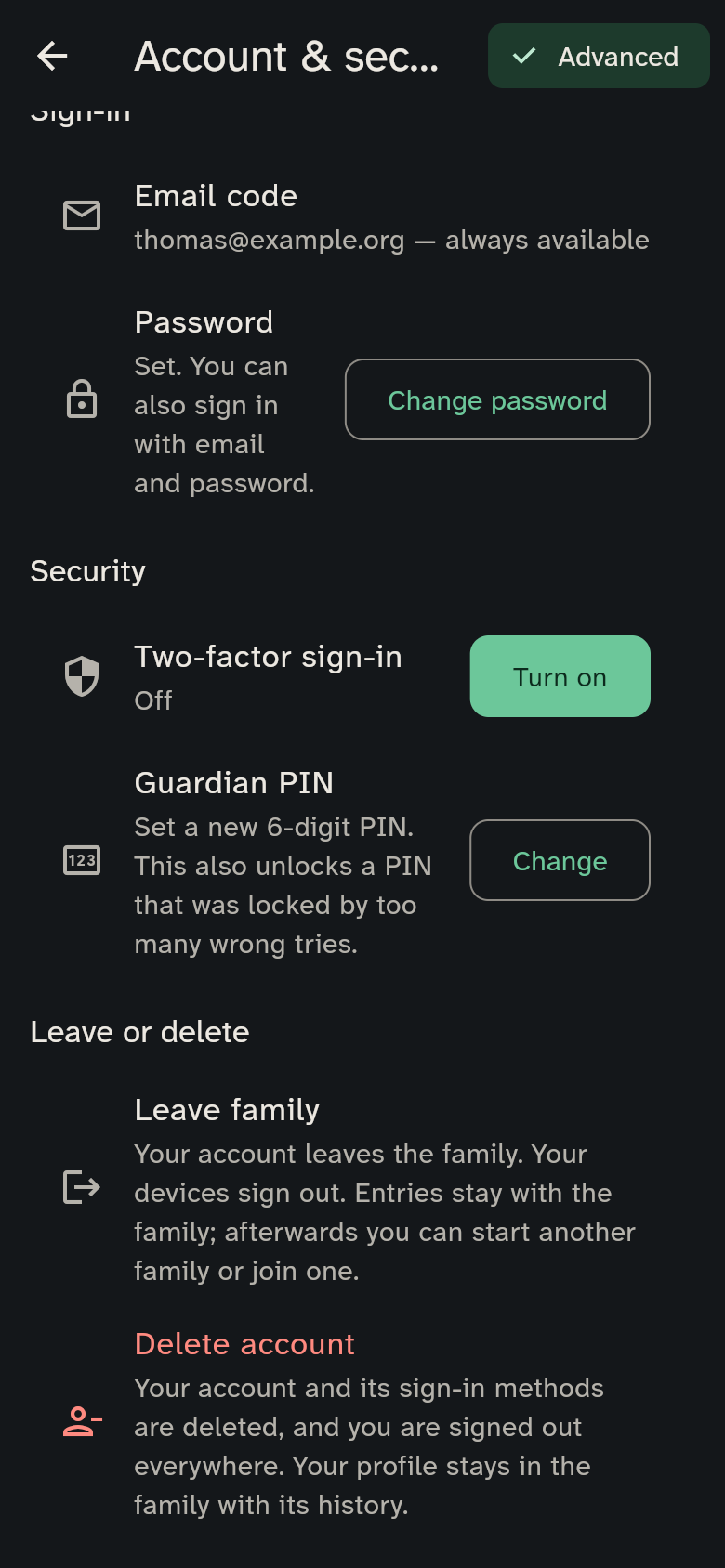
- Password: Set password or Change password sets one up.
Two-factor sign-in
On top of the password, WuselWall asks for a 6-digit code from an authenticator app at every sign-in (your password manager's app, or one from Google, Microsoft or Aegis, for example).
- Next to Two-factor sign-in, tap Turn on.
- Scan the QR code with the authenticator app.
- Enter the 6-digit code the app shows.
From then on every new sign-in asks for the code; without it a phone sees none of the household's data. Turn off takes it back.
Guardian PIN
The 6-digit PIN you enter on shared devices (Who are you?). Here you set a new PIN — even if the old one is locked after too many wrong tries. Only your own, signed-in phone may do this.
Passkey
With a passkey you sign in by fingerprint or face instead of a password. The feature is new and not yet available on every device.
Good to know
- Password: at least 10 characters; a whole sentence is better.
- Lost phone: block it at once from another device (see Members and devices).
- Your data lives on your family's server, not with us and not with a cloud provider.